
Professional Memo Template In Word
Professional Memo Template in Word: A Comprehensive Guide
In the fast-paced world of business, effective communication is paramount. Memos, short for memoranda, serve as vital internal communication tools, conveying information, updates, and directives efficiently. While email has become ubiquitous, the formal structure of a memo still holds value, especially when conveying important announcements or requiring a documented record. Microsoft Word offers a convenient platform for creating professional-looking memos, and leveraging a well-designed template can significantly streamline the process. This guide explores the key elements of a professional memo template in Word and provides insights on customizing it for various organizational needs.
Core Components of a Professional Memo Template
A standard memo template typically includes several essential elements, each serving a specific purpose:
- Header: This section clearly identifies the document as a memo and includes key routing information. Typically, it contains the following fields:
- To: The recipient(s) of the memo. Be specific with names and job titles.
- From: The sender of the memo, along with their title.
- Date: The date the memo was written. Use a consistent format (e.g., YYYY-MM-DD or Month Day, Year).
- Subject: A concise and informative title summarizing the memo’s purpose.
- Introduction: The opening paragraph should clearly state the memo’s purpose. This helps the recipient understand the context immediately and avoids ambiguity.
- Body: This section contains the main message of the memo. Break down the information into logical paragraphs, using headings and subheadings where appropriate to improve readability. Use bullet points or numbered lists to present information concisely.
- Conclusion: Summarize the key takeaways and any required actions. Clearly state what you expect the recipient to do or what the next steps will be.
- Closing: A brief and professional closing statement, such as “Sincerely,” or “Best regards,” followed by your typed name.
- Attachments (Optional): If the memo includes supporting documents, clearly indicate the attachments at the end of the memo.
Creating a Memo Template in Word
You can create a memo template in Word from scratch or adapt an existing one. Here’s how to create one from scratch:
- Open Microsoft Word: Start a new blank document.
- Insert Header Information:
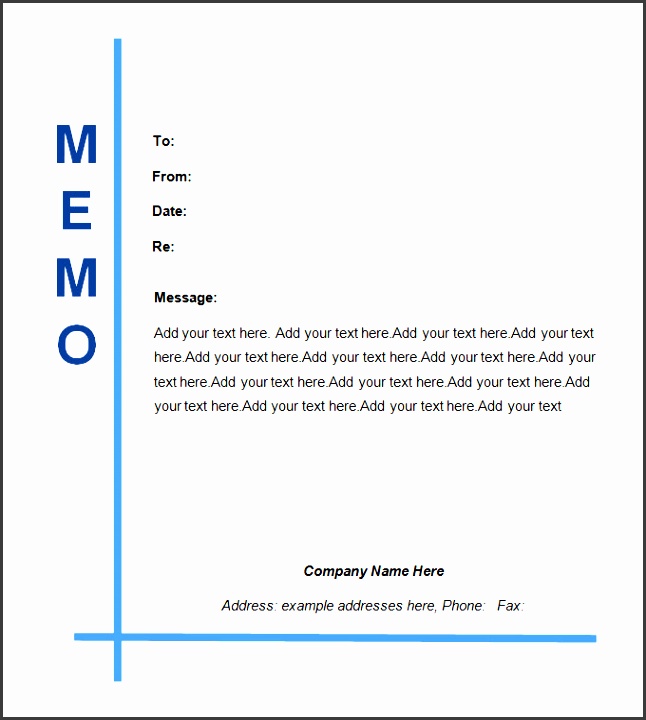
- Type “MEMORANDUM” or “MEMO” at the top of the page, centered and in bold.
- Below that, insert the header fields: To, From, Date, and Subject. Use a table format for easy alignment, or use tabs. Ensure clear labeling.
- For example:
To: [Recipient Name], [Recipient Title] From: [Your Name], [Your Title] Date: [Date] Subject: [Brief Subject Line]
- Add the Body Template:
- After the header information, skip a line and begin writing the introduction.
- Include placeholders for the introduction, body paragraphs, and conclusion. For example: “[Introduction Paragraph]” or “[Provide details here]”.
- Add a closing such as “Sincerely,” followed by a space for your typed name and signature.
- Format the Template:
- Use a professional font such as Arial, Times New Roman, or Calibri in a readable size (11 or 12 points).
- Maintain consistent spacing between lines and paragraphs. Single or 1.15 spacing is typically used.
- Use appropriate margins (e.g., 1 inch on all sides).
- Use bold or italics sparingly for emphasis.
- Save as a Template:
- Go to “File” > “Save As”.
- In the “Save as type” dropdown, select “Word Template (*.dotx)”.
- Give your template a descriptive name (e.g., “Professional Memo Template”).
- Choose a location to save the template (the default Templates folder is recommended).
- Click “Save”.
Customizing Your Memo Template
Once you have a basic memo template, you can customize it to fit your organization’s branding and specific needs:
- Company Logo: Insert your company logo in the header or footer of the template. Ensure the logo is appropriately sized and doesn’t distort the layout.
- Color Scheme: Incorporate your company’s brand colors into the template. Use subtle accents for headings, borders, or background shading. Avoid excessive color that can distract from the content.
- Font Choices: Select fonts that align with your company’s brand identity. Ensure the fonts are legible and professional.
- Specific Sections: Add sections relevant to your industry or organizational needs. For example, you might include a section for “Action Items” or “Next Steps” if these are common in your memos.
- Confidentiality Notice: If your memos often contain sensitive information, include a confidentiality notice at the bottom of the template.
Tips for Effective Memo Writing
A well-designed template is only the first step. Here are some tips for writing effective memos:
- Be Clear and Concise: Use clear and direct language. Avoid jargon or overly complex sentence structures. Get straight to the point.
- Be Professional: Maintain a professional tone throughout the memo. Avoid slang or informal language.
- Be Accurate: Ensure all information presented in the memo is accurate and verified.
- Proofread Carefully: Always proofread your memo for errors in grammar, spelling, and punctuation before sending it.
- Consider Your Audience: Tailor your language and tone to your audience. Consider their level of understanding of the subject matter.
- Call to Action: Make it clear what action you expect the recipient to take, if any.
Benefits of Using a Memo Template
Utilizing a professional memo template offers several benefits:
- Consistency: Ensures all memos within the organization adhere to a uniform format, promoting a professional image.
- Efficiency: Saves time by providing a pre-formatted document, eliminating the need to create a new memo from scratch each time.
- Clarity: Helps organize information logically, improving readability and comprehension.
- Professionalism: Projects a professional image and reinforces the organization’s brand.
- Record Keeping: Provides a standardized format for documenting important internal communications.
Conclusion
A well-designed and thoughtfully customized memo template in Word is a valuable asset for any organization. It streamlines the communication process, promotes consistency, and enhances professionalism. By understanding the core components of a memo template and following the tips outlined in this guide, you can create a powerful tool for effective internal communication.
 474×616 professional memo template sampletemplatess sampletemplatess from www.sampletemplatess.com
  646×720 ms word memo template sampletemplatess sampletemplatess from www.sampletemplatess.com
  696×900 professional memo template documents word from www.dexform.com
  462×600 professional memo template word from lesboucans.com
  697×914 professional memo template microsoft word rutorrogue from rutorrogue.weebly.com
  582×770 memo template word templates from www.wordstemplates.org
  585×650 professional memo template word google docs documents from www.template.net
  440×570 professional memo templates sample word google docs format from www.template.net
  1195×1536 memo template word from pray.gelorailmu.com
  702×903 business memo template word from lesboucans.com
  657×770 ms word memo template hq printable documents from whoamuu.blogspot.com
  708×632 memo word templates planning engineer fze from planningengineer.net