
Team Project Planner Template Excel With Task Assignments
Team Project Planner Template in Excel: A Guide to Task Assignments and Efficient Project Management
Effective project management hinges on meticulous planning and clear task assignments. A well-structured team project planner, especially when implemented in a familiar tool like Excel, can significantly streamline the entire process, fostering collaboration, accountability, and ultimately, project success. This guide explores the key elements of a team project planner template in Excel, focusing specifically on task assignments and related functionalities.
Why Excel for Project Planning?
While dedicated project management software offers advanced features, Excel remains a popular choice for many teams, particularly for smaller to medium-sized projects, or when a quick and customizable solution is needed. Here’s why Excel excels:
* Accessibility and Familiarity: Most professionals are already comfortable using Excel, reducing the learning curve and allowing for immediate implementation. * Customization: Excel’s flexibility allows teams to tailor the template to their specific needs and project requirements. * Cost-Effectiveness: Excel is often readily available as part of a Microsoft Office suite, eliminating the need for additional software purchases. * Ease of Sharing and Collaboration: While not as robust as collaborative project management platforms, Excel files can be easily shared and updated (though real-time collaboration requires shared drives or cloud storage).
Core Components of a Team Project Planner Template
A comprehensive team project planner template in Excel should include the following key components:
* Project Information: This section defines the project’s scope, objectives, start and end dates, budget, and key stakeholders. * Task Breakdown Structure (WBS): Decomposes the project into smaller, manageable tasks and sub-tasks. * Task Assignments: Specifies which team members are responsible for each task. * Timeline/Schedule: Establishes deadlines for each task, creating a realistic project timeline. * Resource Allocation: Identifies the resources (e.g., personnel, equipment, budget) required for each task. * Status Tracking: Monitors the progress of each task, highlighting potential delays or roadblocks. * Dependencies: Identifies relationships between tasks, ensuring that dependent tasks are completed in the correct order. * Risk Management: Documents potential risks, their impact, and mitigation strategies. * Communication Log: Records important communications related to the project.
Task Assignment: The Heart of the Planner
Effective task assignment is crucial for project success. The template should facilitate a clear and transparent process for assigning responsibilities, setting expectations, and tracking individual contributions.
Key Fields for Task Assignment:
* Task Name/ID: A unique identifier for each task. * Assigned To: The team member responsible for completing the task. Use a dropdown list to select from a predefined list of team members. This ensures consistency and avoids typos. * Start Date: The date the task is scheduled to begin. * End Date/Due Date: The date the task is expected to be completed. * Estimated Time/Effort: The estimated time or effort (e.g., hours, days) required to complete the task. * Status: The current status of the task (e.g., “Not Started,” “In Progress,” “Completed,” “Blocked”). Use a dropdown list for consistent reporting. * Priority: The priority of the task (e.g., “High,” “Medium,” “Low”). Use a dropdown list. * Dependencies: Identifies any tasks that must be completed before the current task can begin. Reference the Task ID(s) of the dependent tasks. * Notes/Comments: A space for adding additional information, instructions, or updates related to the task. * % Complete: Indicates the percentage of the task that has been completed. * Actual Start Date: The date the task actually began. * Actual End Date: The date the task was actually completed. * Resources Required: A list of resources needed for the task (e.g., software, equipment, budget).
Best Practices for Task Assignment:
* Clear and Concise Task Descriptions: Ensure that each task is clearly defined and easily understood by the assigned team member. Ambiguity can lead to confusion and delays. * Realistic Deadlines: Set realistic deadlines that take into account the complexity of the task and the team member’s workload. * Consider Individual Skills and Strengths: Assign tasks to team members who possess the necessary skills and experience to complete them effectively. * Communicate Expectations: Clearly communicate expectations regarding the task’s scope, deliverables, and deadlines. * Provide Necessary Resources: Ensure that team members have access to the resources they need to complete their assigned tasks. * Encourage Collaboration: Foster a collaborative environment where team members can support each other and share knowledge. * Regular Status Updates: Implement a system for regular status updates to track progress and identify potential issues early on. * Address Roadblocks Promptly: Quickly address any roadblocks or challenges that may arise to keep the project on track.
Using Formulas and Features for Enhanced Task Management
Excel offers various formulas and features that can enhance task management and provide valuable insights. * Conditional Formatting: Use conditional formatting to highlight tasks based on their status, priority, or due date. For example, highlight overdue tasks in red. * Data Validation: Use data validation to create dropdown lists for fields like “Assigned To,” “Status,” and “Priority,” ensuring data consistency. * Formulas for Calculating Progress: Use formulas to calculate the overall project progress based on the percentage of completed tasks. For example: `=(COUNTIF(Status_Column,”Completed”)/COUNTA(Task_Column))*100` * Gantt Chart Visualization: Create a Gantt chart to visualize the project timeline and track task progress. This can be done using a stacked bar chart, with the first series representing the “Start Date” and the second series representing the “Duration.” Conditional formatting can be applied to the second series to visually represent the task status. * Filtering and Sorting: Use filtering and sorting to quickly view tasks assigned to a specific team member, tasks with a specific status, or tasks due within a certain timeframe. * Pivot Tables: Use pivot tables to summarize project data, such as the number of tasks assigned to each team member or the distribution of tasks by priority.
Example Implementation
Consider a project to develop a new marketing campaign. The Excel template would include tasks such as: * Market Research (Assigned to: John Doe, Start Date: 2024-01-15, End Date: 2024-01-29, Status: Completed) * Competitor Analysis (Assigned to: Jane Smith, Start Date: 2024-01-15, End Date: 2024-01-22, Status: Completed) * Target Audience Definition (Assigned to: John Doe, Jane Smith, Start Date: 2024-01-30, End Date: 2024-02-06, Status: Completed) * Creative Concept Development (Assigned to: David Lee, Start Date: 2024-02-07, End Date: 2024-02-21, Status: In Progress) * Campaign Messaging (Assigned to: Sarah Jones, Start Date: 2024-02-22, End Date: 2024-03-07, Status: Not Started, Dependency: Creative Concept Development) * Campaign Design (Assigned to: Emily Brown, Start Date: 2024-02-22, End Date: 2024-03-07, Status: Not Started, Dependency: Creative Concept Development) * Media Planning (Assigned to: Peter Wilson, Start Date: 2024-03-08, End Date: 2024-03-22, Status: Not Started, Dependency: Campaign Messaging, Campaign Design) * Campaign Execution (Assigned to: All, Start Date: 2024-03-23, End Date: 2024-04-30, Status: Not Started, Dependency: Media Planning) * Campaign Analysis (Assigned to: John Doe, Start Date: 2024-05-01, End Date: 2024-05-15, Status: Not Started, Dependency: Campaign Execution) Each task has assigned resources, clear start and end dates, and a status that is regularly updated. Dependencies ensure tasks are completed in the correct sequence. Conditional formatting highlights tasks nearing their due date or that are overdue.
Limitations and Considerations
While Excel is a versatile tool, it has limitations when compared to dedicated project management software: * Collaboration: Real-time collaboration can be challenging without shared drives or cloud storage solutions. Version control can also become an issue with multiple users editing the same file. * Scalability: Excel may become cumbersome for large, complex projects with numerous tasks and team members. * Reporting: While Excel offers basic reporting capabilities, dedicated project management software provides more advanced and customizable reporting options. * Automation: Excel’s automation capabilities are limited compared to dedicated project management tools.
Conclusion
A team project planner template in Excel, when designed and implemented effectively, can be a powerful tool for managing projects and ensuring clear task assignments. By focusing on clarity, accuracy, and regular communication, teams can leverage Excel’s familiarity and flexibility to streamline their project management processes and achieve their objectives. Remember to tailor the template to your specific project needs, embrace formulas and features to enhance functionality, and be aware of Excel’s limitations when considering it for larger or more complex projects. By embracing these principles, you can transform Excel into a valuable asset for your team’s project management success.
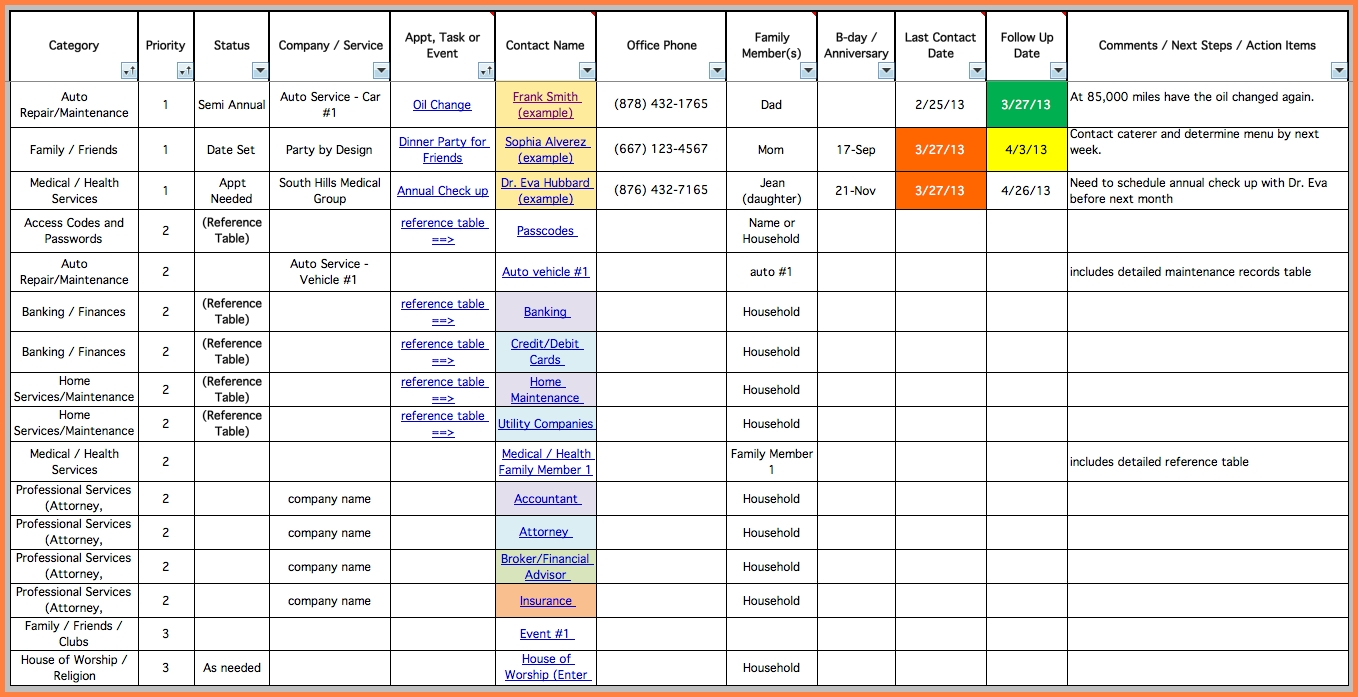 1358×697 task management spreadsheet excel task trackingsheet from db-excel.com
  2550×1650 task spreadsheet intended project task list template excel from db-excel.com
  824×1062 project task assignment template project management small business from www.excel-pmt.com
  1299×842 project management excel templates task spreadsheet from www.heritagechristiancollege.com