
How To Use Flash Fill In Excel For Data Entry
Mastering Flash Fill in Excel: A Comprehensive Guide
Excel’s Flash Fill is a powerful and intelligent tool that can automatically fill in columns with data based on recognizing patterns in your existing data. This feature significantly accelerates data entry and manipulation tasks, eliminating the need for complex formulas or macros in many common scenarios. This guide provides a comprehensive overview of how to use Flash Fill effectively, covering various use cases and troubleshooting tips.
Understanding Flash Fill
At its core, Flash Fill works by analyzing the data in adjacent columns. You provide a few examples of the desired output, and Excel intelligently detects the pattern and applies it to the remaining rows. It essentially “learns” what you want to do from these examples and automates the process.
How Flash Fill Differs from Formulas
While formulas actively recalculate based on changes in the source data, Flash Fill provides static results. Once Flash Fill has populated the data, the values don’t automatically update if the original data changes. This makes it suitable for tasks where you need a snapshot of the data in a specific format but not necessarily a dynamic link.
Basic Usage: Extracting and Combining Data
The most common use case for Flash Fill is extracting or combining information from existing columns. Let’s look at some examples:
Extracting First Names
- Setup: You have a column of full names (e.g., “John Smith”, “Jane Doe”).
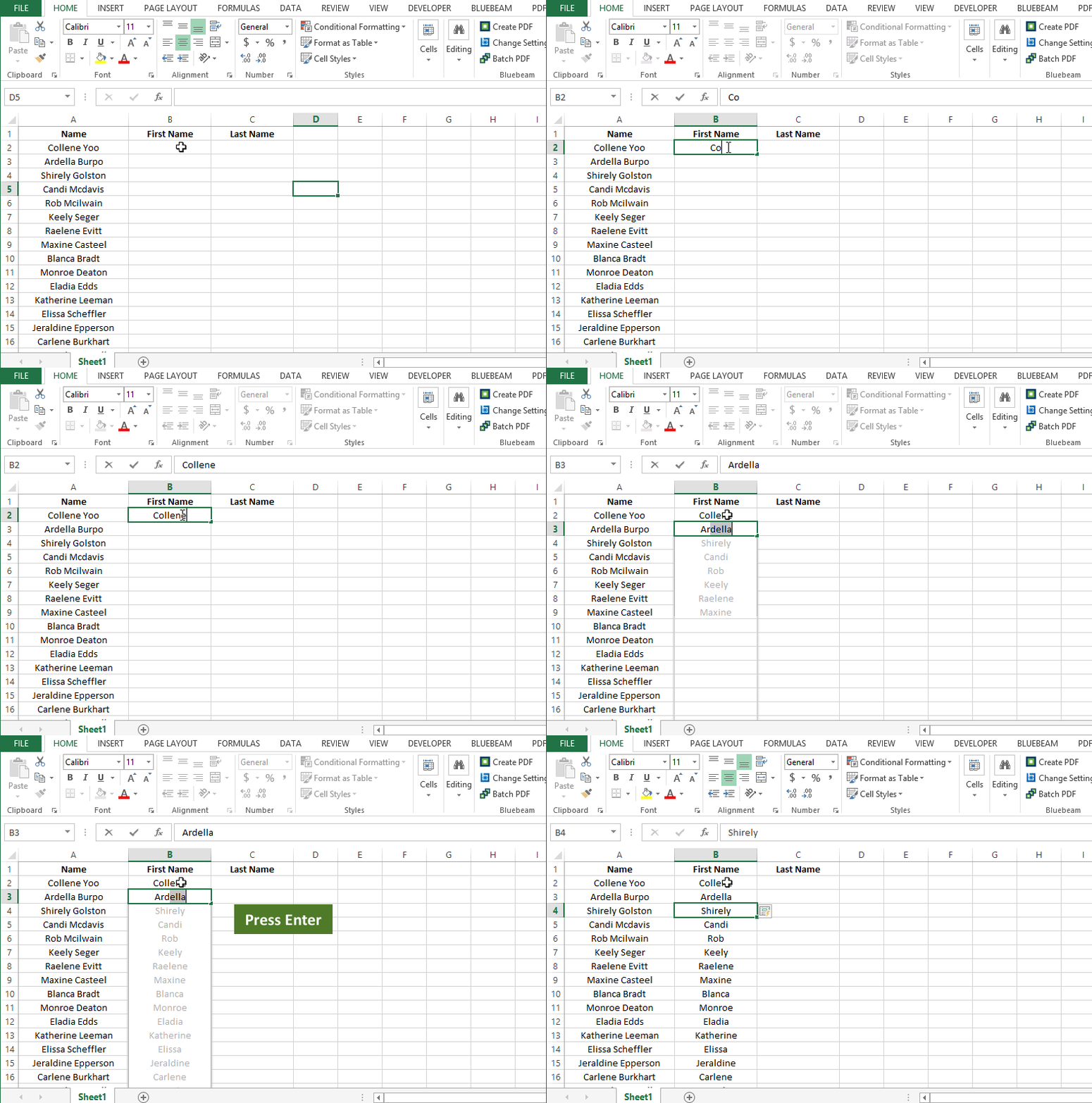
- Create a New Column: In the adjacent column, start typing the first name for the first few rows. For example, in the first row, type “John”. In the second row, type “Jane”.
- Trigger Flash Fill: After typing the first few examples, Excel will often automatically suggest the pattern for the remaining rows. If it does, you’ll see the suggested values in a light grey font.
- Accept or Reject: If the suggestion is correct, press Enter to accept the Flash Fill. If it’s incorrect, continue typing a few more examples until Excel correctly identifies the pattern. You can also manually trigger Flash Fill (see below).
Extracting Last Names
The process is the same as extracting first names. Start typing the last name in the adjacent column, providing a few examples until Flash Fill recognizes the pattern.
Combining First and Last Names with a Separator
- Setup: You have two columns: one with first names and one with last names.
- Create a New Column: In the adjacent column, start typing the combined name with the desired separator (e.g., “John, Smith”, “Jane Doe”).
- Trigger Flash Fill: As before, after a couple of examples, Excel should suggest the pattern. Adjust the examples until the pattern is accurate.
Combining Data from Multiple Columns
Flash Fill can combine data from more than two columns. For example, you might have columns for “City”, “State”, and “Zip Code”, and want to create a single “Address” column. The same principle applies: provide examples in the new column until Flash Fill recognizes the pattern.
Manually Triggering Flash Fill
If Flash Fill doesn’t automatically detect the pattern, you can trigger it manually in several ways:
- Data Tab: Go to the “Data” tab on the ribbon and click on “Flash Fill” in the “Data Tools” group.
- Home Tab: Go to the “Home” tab, click on “Fill” in the “Editing” group, and select “Flash Fill.”
- Keyboard Shortcut: Use the keyboard shortcut Ctrl+E.
Advanced Usage: Transforming Data
Flash Fill can also be used for more complex data transformations, such as:
Changing Case
Flash Fill can convert text to uppercase, lowercase, or proper case (where the first letter of each word is capitalized). Simply provide examples in the desired case, and Flash Fill will apply the pattern to the rest of the column.
Formatting Phone Numbers
If you have a column of raw phone numbers (e.g., “5551234567”), you can use Flash Fill to format them with parentheses, dashes, and spaces (e.g., “(555) 123-4567”). Provide a few formatted examples, and Flash Fill should recognize the pattern.
Extracting Parts of Strings Based on Delimiters
Suppose you have a column of product codes separated by dashes (e.g., “ABC-123-XYZ”). You can extract specific parts of the code by providing examples. For instance, to extract the middle part (“123”), type “123” in the adjacent column for the first few rows until Flash Fill recognizes the pattern.
Date Formatting
While Excel’s built-in date formatting options are generally preferred, Flash Fill can be useful for custom date formats not readily available. Provide a few examples of the desired date format, and Flash Fill will attempt to apply the pattern.
Troubleshooting Flash Fill
Flash Fill is a powerful tool, but it’s not always perfect. Here are some common issues and troubleshooting tips:
Flash Fill Doesn’t Recognize the Pattern
- Provide More Examples: The most common reason Flash Fill fails is that it doesn’t have enough information to identify the pattern. Try providing more examples (3-5 or even more) until it starts working.
- Ensure Consistency: Make sure your data is relatively consistent. If there are significant variations in the data format, Flash Fill may struggle to identify a pattern.
- Separate Complex Operations: If you’re trying to perform a very complex transformation, it might be easier to break it down into multiple steps. Use Flash Fill for each step separately.
- Check for Errors in the Source Data: Inconsistent or incorrect data in the source columns can confuse Flash Fill. Clean up the source data first.
- Verify the Data Types: Ensure the source data has consistent data types. Mixing text and numbers can sometimes confuse Flash Fill. Use text-to-columns functionality, if needed, to properly categorize the data.
- Adjacent Column Requirement: Flash Fill needs to be in a column adjacent to the column(s) containing the source data. If it’s too far away, it won’t work.
Flash Fill Provides Incorrect Results
- Carefully Review the Suggested Values: Before accepting the Flash Fill, carefully review the suggested values to ensure they are correct.
- Correct the Examples: If the results are incorrect, modify the examples you provided to guide Flash Fill towards the correct pattern.
- Use Formulas Instead: If Flash Fill consistently fails to produce the correct results, consider using a formula instead. Formulas offer more control and flexibility for complex data transformations.
Flash Fill is Disabled
Flash Fill might be disabled in your Excel settings. To enable it:
- Go to “File” > “Options”.
- Select “Advanced”.
- In the “Editing options” section, make sure the “Automatically Flash Fill” checkbox is selected.
- Click “OK”.
Best Practices for Using Flash Fill
- Start with Simple Patterns: Begin with simpler transformations and gradually increase complexity as you become more comfortable with Flash Fill.
- Always Verify the Results: Never blindly accept Flash Fill’s suggestions. Always review the results carefully to ensure accuracy.
- Use it for One-Time Transformations: Remember that Flash Fill creates static data. If you need the data to update dynamically, use formulas instead.
- Learn Basic Text Functions: Understanding basic Excel text functions (e.g., LEFT, RIGHT, MID, FIND) can help you troubleshoot Flash Fill and create more complex patterns.
Conclusion
Flash Fill is a valuable tool for quickly and efficiently transforming data in Excel. By understanding how it works and following the best practices outlined in this guide, you can significantly improve your data entry and manipulation workflows. While it’s not a replacement for formulas in all situations, Flash Fill is an excellent option for many common data transformation tasks, saving you time and effort.
 569×342 flash fill excel excelbuddycom from excelbuddy.com
  788×531 ways flash fill excel from excelcrib.com
  637×355 flash fill excel myexcelonline from www.myexcelonline.com
  1200×600 flash fill excel agio from agio.com
  477×315 flash fill excel excel bytes from www.excelbytes.com
  673×339 flash fill excel from www.tableoriginals.com
  653×388 flash fill excel easy examples exceldemy from www.exceldemy.com
  600×307 advanced excel flash fill from www.tutorialspoint.com
  555×161 flash fill microsoft excel from www.howtoexcel.org
  979×799 flash fill excel examples features limitations from developerpublish.com
  644×327 flash fill excel examples apply flash fill from www.educba.com
  604×161 flash fill excel step step tutorial from www.excel-easy.com
  533×400 flash fill excel dummies from www.dummies.com
  0 x 0 ways flash fill excel examples video tutorial from yacostasolutions.com
  650×269 flash fill excel examples master data skills ai from blog.enterprisedna.co
  1280×720 flash fill excel earn excel from earnandexcel.com
  300×226 step step guide flash fill excel flash fill from yodalearning.com
  699×425 excel flash fill working excel hot sex picture from www.hotzxgirl.com
  664×412 flash fill excel gudang domain from gudangdomain.com
  1099×619 flash fill excel geeksforgeeks from www.geeksforgeeks.org
  880×494 flash fill excel flash fill excel from www.d365snippets.com