
How To Use Excel For Project Task Management
“`html
Using Excel for Project Task Management
While dedicated project management software offers advanced features, Microsoft Excel remains a surprisingly effective and accessible tool for managing smaller projects or for individuals seeking a simple and customizable solution. Its familiar interface, powerful formulas, and charting capabilities make it a viable option for planning, tracking, and visualizing project tasks. This guide explores how to leverage Excel for project task management, covering essential setup, key functionalities, and best practices.
Setting Up Your Task Management Spreadsheet
The foundation of any successful task management system is a well-structured spreadsheet. Here’s a recommended layout:
- Sheet Name: Begin by renaming your default sheet (e.g., “Sheet1”) to something descriptive like “Project Timeline” or “[Project Name] Tasks”.
- Column Headers: Create the following column headers in the first row:
- Task ID: A unique identifier for each task (e.g., TASK-001, TASK-002). This is crucial for referencing tasks in formulas and reports.
- Task Name: A brief and descriptive name for the task (e.g., “Prepare Project Proposal,” “Design User Interface”).
- Description: A more detailed explanation of the task’s scope and requirements.
- Start Date: The date the task is scheduled to begin.
- End Date: The date the task is scheduled to be completed.
- Duration (Days): The calculated number of days required to complete the task. This can be calculated using the formula:
=IF(AND(ISNUMBER(C2),ISNUMBER(D2)),D2-C2+1,"")(assuming Start Date is in column C and End Date is in column D, starting from row 2). TheIF(AND(ISNUMBER(C2),ISNUMBER(D2)),...,"")part handles empty date cells to avoid errors. - Assigned To: The name of the person responsible for completing the task. Utilize dropdown lists for consistency (Data > Data Validation > Allow: List; Source: [List of team members separated by commas]).
- Priority: The level of urgency or importance of the task (e.g., High, Medium, Low). Use dropdown lists for standardized options.
- Status: The current state of the task (e.g., Not Started, In Progress, Completed, On Hold, Blocked). Again, use dropdown lists.
- % Complete: The percentage of the task that has been finished (0-100%). This allows for tracking progress incrementally.
- Dependencies: The Task ID(s) of any tasks that must be completed before this task can begin. This allows for linking tasks together.
- Notes: Any additional information or comments related to the task.
- Formatting: Apply appropriate formatting to the column headers (e.g., bold text, different background color) to distinguish them from the data.
Key Functionalities and Formulas
Excel’s strength lies in its formulas and functionalities. Here’s how to use them effectively for project task management:
- Calculating Duration: As mentioned above, the formula
=IF(AND(ISNUMBER(C2),ISNUMBER(D2)),D2-C2+1,"")calculates the duration of a task based on its start and end dates. The+1is included to count the first day of the task. - Conditional Formatting: Use conditional formatting to visually highlight tasks based on their status, priority, or due date. For example:
- Highlight overdue tasks: Select the “End Date” column, go to Conditional Formatting > New Rule > Use a formula to determine which cells to format. Enter the formula
=AND($D2(assuming End Date is in column D and Status is in column I). This highlights end dates that are in the past and whose status is not “Completed”. - Color-code tasks based on priority: Select the “Priority” column, go to Conditional Formatting > New Rule > Format only cells with Specific Text. Create rules for “High,” “Medium,” and “Low” priorities, assigning different background colors to each.
- Highlight overdue tasks: Select the “End Date” column, go to Conditional Formatting > New Rule > Use a formula to determine which cells to format. Enter the formula
- Filtering and Sorting: Use filtering and sorting to quickly find and organize tasks based on various criteria. For example:
- Filter tasks by assignee to see what each team member is working on.
- Sort tasks by end date to prioritize tasks that are due soonest.
- Filter tasks by status to identify tasks that are blocked or on hold.
- Gantt Chart Creation: Excel can be used to create a basic Gantt chart, which visually represents the project timeline. This involves using conditional formatting to create bars that represent the duration of each task along a timeline. There are many tutorials online demonstrating this process. Consider searching for “Excel Gantt Chart Tutorial” on YouTube. This will likely involve creating helper columns to calculate the position of the bars.
- Progress Tracking: The “% Complete” column allows you to track the progress of each task. You can then create a chart to visualize overall project progress. For example:
- Create a pivot table to summarize the average % complete by assignee.
- Create a column chart to show the total number of tasks in each status category.
- Dependency Management: The “Dependencies” column can be used to manually track task dependencies. While Excel doesn’t automatically enforce dependencies, you can use it to visualize and manage them. Consider adding a helper column that checks if all dependencies are “Completed” and flags the task if they are not.
- Using Formulas for Status Updates: Create a formula that automatically updates the “Status” column based on the “% Complete” column. For example:
=IF(E2>=1,"Completed",IF(D2>0,"In Progress","Not Started")). Assuming E2 contains the “% Complete” value, and D2 contains the duration value.
Best Practices
To maximize the effectiveness of using Excel for project task management, follow these best practices:
- Keep it Simple: Avoid overcomplicating the spreadsheet with too many features or formulas. The goal is to create a manageable and user-friendly system.
- Maintain Consistency: Use consistent naming conventions and formatting throughout the spreadsheet. This makes it easier to understand and maintain.
- Regularly Update: Keep the spreadsheet up-to-date with the latest task status, progress, and dates. This ensures that the information is accurate and reliable.
- Communicate Effectively: Share the spreadsheet with team members and encourage them to provide regular updates. Effective communication is essential for successful project management.
- Utilize Data Validation: Implement data validation to ensure data accuracy and consistency, especially for columns like “Assigned To,” “Priority,” and “Status.”
- Backup Regularly: Save a backup copy of your spreadsheet regularly to prevent data loss. Consider using cloud storage services for automatic backups.
- Consider Templates: Start with an existing Excel project management template to save time and effort. Many free and paid templates are available online.
Limitations
While Excel can be a useful tool for project task management, it has limitations:
- Collaboration: Excel is not designed for real-time collaboration. While multiple users can access the same file, simultaneous edits can lead to conflicts and data loss. Tools like Microsoft 365 offer better co-authoring capabilities.
- Scalability: Excel may become cumbersome to manage for large and complex projects with numerous tasks and dependencies.
- Automation: Excel offers limited automation capabilities compared to dedicated project management software.
- Reporting: While Excel can generate charts and reports, it may require manual effort to create customized reports and dashboards.
Conclusion
Excel provides a readily available and customizable solution for project task management, especially for smaller projects or individuals seeking a simple system. By following the steps outlined in this guide, you can effectively leverage Excel’s functionalities to plan, track, and manage your project tasks. However, it’s crucial to be aware of its limitations and consider dedicated project management software for larger and more complex projects requiring advanced features and collaborative capabilities. When choosing between Excel and project management software, weigh the complexity of the project, the size of the team, and the need for real-time collaboration.
“`
 1280×772 task management spreadsheet excel project management excel sheet from db-excel.com
  1452×739 task manager excel spreadsheet guide excel project from db-excel.com
  1366×768 task management spreadsheet excel excel project management from db-excel.com
  1235×641 task management spreadsheet template multiple project from db-excel.com
  1545×970 task management spreadsheet excel db excelcom from db-excel.com
  1024×556 project management excel template excel project plan from www.heritagechristiancollege.com
  1446×918 task management templates excel project management templates from www.heritagechristiancollege.com
  944×477 project task list template excel excelonist from www.excelonist.com
 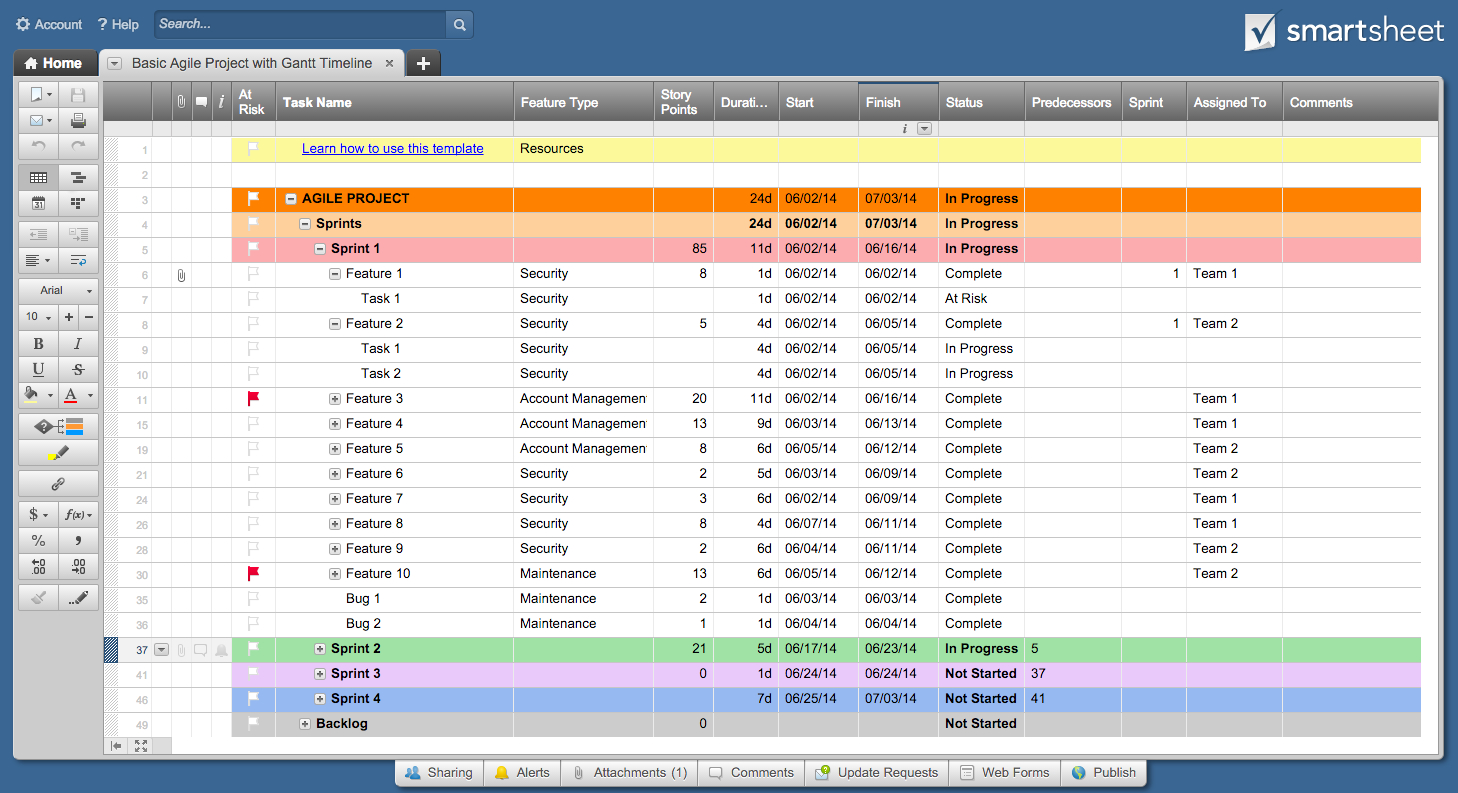 1458×793 project management excel spreadsheet spreadsheet downloa from db-excel.com
  754×370 excel task tracker template downloads samples project from www.techno-pm.com
  1501×1173 project task list excel template excel templates from www.exceltemplate123.us
  1205×942 task management excel template excel templates excel templates from www.exceltemplate123.us
  1000×507 project tracking master excel project manager project management from www.techno-pm.com