
How To Convert Currency In Excel Using Live Exchange Rates
“`html
Converting Currency in Excel with Live Exchange Rates
Excel provides powerful tools to convert currencies, utilizing live exchange rates to ensure accuracy. This guide explores various methods, ranging from simple formulas using data types to leveraging web queries and Power Query, providing a comprehensive understanding of how to achieve dynamic currency conversion in your spreadsheets.
Method 1: Using Stock Data Type (Simplest Method – Excel 365)
The easiest method, available in Excel 365, involves utilizing the built-in “Stock” data type, which can also represent currencies. This provides a live connection to real-time market data.
Steps:
- Enter Currency Codes: In a column, enter the currency codes you want to convert from (e.g., USD, EUR, GBP). Make sure to use standard ISO currency codes. For example, in cell A1, you might enter “USD.” In cell A2, “EUR,” and so on. You can add the amounts to be converted in a column next to these. For instance, cell B1 could contain the value “100,” and cell B2 could contain “50.”
- Convert to Data Type: Select the cells containing the currency codes (e.g., A1:A2). Go to the “Data” tab on the Excel ribbon and click on “Stocks.” Excel will attempt to recognize these as currency data types. If successful, a small icon representing a data card will appear next to each currency code. If it doesn’t automatically recognize them, Excel might offer suggestions. Choose the appropriate currency option.
- Extract Exchange Rate: Now that the currency codes are recognized as data types, you can extract information like the exchange rate. In a new column (e.g., column C), next to your currency codes and amounts, enter the following formula:
=B1*[A1.Price]* B1: This references the cell containing the amount you want to convert (e.g., 100 USD). * A1: This references the cell containing the currency code (e.g., USD). * [A1.Price]: This is the key part. The dot (“.”) after the cell reference (A1) allows you to access the properties of the “Stock” data type. Typing “A1.” will display a dropdown list of available properties. Select “Price.” Excel automatically interprets “Price” as the exchange rate against your default currency (usually your local currency). So if you are in the US, it will be the USD equivalent.
*If you want to convert to a currency other than your default, you’ll need to use the Stock Data Type again. For example, to convert USD to EUR, put EUR in a cell, convert it to the Stock data type, and then use something like `=[USDcell].Price/[EURcell].Price*[AmountCell]`*. Replace [USDcell], [EURcell] and [AmountCell] with the appropriate cell references. - Format as Currency: Format the column containing the results as currency. Select the column (e.g., C) and go to the “Home” tab. In the “Number” group, click the dropdown menu and choose “Currency.” You can then customize the currency symbol and decimal places as needed.
- Drag Down the Formula: Drag the formula in cell C1 down to apply it to all the currencies in your list. This will automatically update the formula to reference the corresponding cells in each row (e.g., C2 will become =B2*[A2.Price]).
Important Considerations:
- Excel 365 Required: This method only works with a Microsoft 365 subscription as it relies on the online “Stock” data type feature.
- Refresh: Data may not automatically refresh. To refresh the exchange rates, select the cells containing the currency codes (e.g., A1:A2), go to the “Data” tab, and click “Refresh All.” You can also set up automatic refresh by going to Data > Connections > Properties and configuring the refresh interval.
- Default Currency: The exchange rate retrieved using “.Price” is against *your default currency*. To convert between other currencies, you’ll need to get the price for both currencies against your default currency and then calculate the ratio, as described in step 3.
- Limitations: While simple, this method is limited to getting basic exchange rates. It doesn’t allow for more complex scenarios like handling fees or specific bank rates.
Method 2: Using Web Queries (More Flexible)
Web queries allow you to import data directly from a website. You can find websites that provide currency exchange rate data in a table format and import that data into Excel.
Steps:
- Find a Suitable Website: Search for a website that provides currency exchange rates in a clear, tabular format. Examples include (but are not limited to): Google Finance, Yahoo Finance, and xe.com (ensure the website’s terms of service allow data scraping).
Important Note: Web scraping policies change frequently. Always check the website’s terms of service and robots.txt file to ensure you are allowed to scrape data. Some websites actively block web scrapers. - Copy the Table URL: Once you’ve found a website, copy the URL of the page containing the exchange rate table.
- Create a Web Query in Excel:
- Go to the “Data” tab on the Excel ribbon.
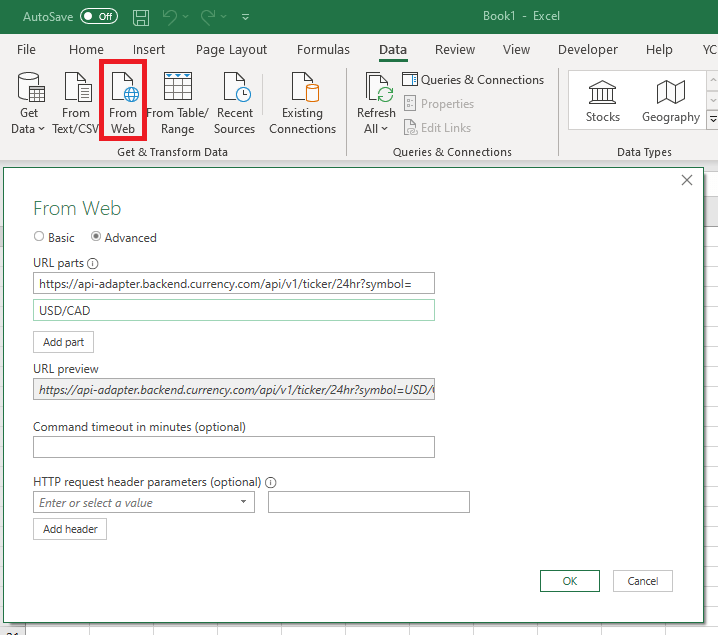
- Click “From Web” (under the “Get & Transform Data” group).
- Paste the URL you copied into the address bar of the “From Web” dialog box.
- Click “OK.”
- Select the Table: Excel will analyze the web page and display the available tables. Select the table containing the currency exchange rates. Click “Load” (or “Transform Data” if you need to clean or reshape the data).
- Clean and Transform (if necessary): If you chose “Transform Data,” the Power Query Editor will open. You may need to clean up the data by removing unnecessary columns, renaming columns, and setting data types (e.g., converting the exchange rate column to a number format). Close and Load to import the cleaned data into your Excel sheet.
- Create a Conversion Formula: Now that you have the exchange rates in your Excel sheet, you can create a formula to convert currencies. For example, if you have the amount to convert in cell A1, the “From” currency code in cell B1, and the “To” currency code in cell C1, you can use the `VLOOKUP` function to find the corresponding exchange rates in the imported table and calculate the converted amount. The formula might look something like this:
=A1*VLOOKUP(C1, ExchangeRateTable, 2, FALSE)/VLOOKUP(B1, ExchangeRateTable, 2, FALSE)
* Replace “ExchangeRateTable” with the actual name of the table you imported from the web. * The “2” in the VLOOKUP functions assumes that the exchange rate is in the second column of the table. Adjust this value if your exchange rate data is in a different column. * This formula converts from the “From” currency to the “To” currency using the exchange rates in the table. - Format as Currency: Format the result cell as currency.
Important Considerations:
- Website Stability: Web queries are dependent on the structure and availability of the website. If the website changes its format, the web query may break, and you’ll need to update it.
- Web Scraping Ethics: Be respectful of the website’s resources. Avoid making frequent requests that could overload their server. Check the website’s robots.txt file and terms of service.
- Data Cleaning: You will likely need to clean and transform the data using Power Query to get it into a usable format.
- Refresh Interval: You can set the web query to refresh automatically at a specified interval. Go to Data > Connections > Properties and configure the refresh settings.
Method 3: Using Power Query (Most Robust and Flexible)
Power Query, also known as “Get & Transform Data,” is Excel’s data transformation and manipulation tool. It provides a powerful and flexible way to connect to various data sources, including web APIs that provide currency exchange rates.
Steps:
- Find a Currency Exchange API: Search for a reliable currency exchange rate API. Several free and paid APIs are available. Examples include (but are not limited to): fixer.io, Open Exchange Rates, and CurrencyLayer. Note: Many “free” APIs have limitations on the number of requests or require attribution. Choose an API that meets your needs and budget.
- Obtain an API Key (if required): Most APIs require you to obtain an API key to authenticate your requests. Sign up for an account on the API provider’s website and retrieve your API key.
- Connect to the API in Power Query:
- Go to the “Data” tab on the Excel ribbon.
- Click “From Web” (under the “Get & Transform Data” group).
- Enter the API endpoint URL in the “From Web” dialog box. The URL will typically include the API key and the parameters you want to specify (e.g., base currency, target currency). For example, using a hypothetical API:
https://api.example.com/currency?base=USD&target=EUR&apikey=YOUR_API_KEY
Replace `YOUR_API_KEY` with your actual API key. The specific URL format will depend on the API you are using; consult the API documentation. - You may be prompted for authentication. If so, select “API Key” from the left menu, and paste in the API key in the text box that appears.
- Click “OK.”
- Transform the Data: Power Query will retrieve the data from the API. You may need to transform the data to extract the exchange rate. API responses are usually in JSON format.
- Click “Transform Data” to open the Power Query Editor.
- The data will likely be presented as a “Record” or a “List.” You’ll need to drill down into the record to find the exchange rate. For example, you might need to click on the “Record” value in the first column.
- Look for the field containing the exchange rate (e.g., “rate,” “exchange_rate”).
- You might need to use the “Drill Down” feature or use the “Record.Field” function in the formula bar to extract the exchange rate.
- Load the Data: Once you have extracted the exchange rate, click “Close & Load” to load the data into your Excel sheet.
- Create a Conversion Formula: Similar to the web query method, create a formula to convert currencies using the imported exchange rate. For example, if the amount to convert is in cell A1 and the exchange rate is in cell B1, the formula would be:
=A1*B1 - Format as Currency: Format the result cell as currency.
Important Considerations:
- API Documentation: Thoroughly review the API documentation to understand the API endpoint URL, required parameters, response format, and any limitations.
- JSON Handling: You’ll need to be familiar with handling JSON data in Power Query to extract the exchange rate from the API response.
- API Limits: Be aware of the API’s rate limits and usage policies to avoid being blocked.
- Error Handling: Implement error handling in your Power Query queries to gracefully handle API errors or unexpected data formats.
- Refresh Interval: Set the Power Query query to refresh automatically at a suitable interval.
Choosing the Right Method
- Excel 365 Stock Data Type: The simplest option for basic currency conversion against your default currency, but limited in functionality and currency pairs.
- Web Queries: A good option if you can find a website with a well-formatted table of exchange rates, but prone to breaking if the website’s structure changes and potentially raises ethical concerns with web scraping if not done carefully.
- Power Query with API: The most robust and flexible option, allowing you to connect to dedicated currency exchange APIs and handle complex data transformations. Requires some technical knowledge and understanding of APIs and JSON data.
Conclusion
Converting currencies in Excel with live exchange rates can be achieved using various methods, each with its advantages and disadvantages. The “Stock” data type is the simplest for basic conversions in Excel 365. Web queries offer more flexibility but are dependent on the stability of the target website. Power Query with an API provides the most robust and flexible solution for connecting to dedicated currency exchange services and handling complex data transformations. Choose the method that best suits your needs, technical expertise, and the requirements of your project.
 259×104 historic currency exchange rates excel tutorials excel from www.excelpricefeed.com
  779×306 convert currency microsoft excel from techblogup.com
  579×420 excel easily latest currency exchange rates office from office-watch.com
  718×635 excel currency exchange rate web query syntax byte from syntaxbytetutorials.com