
Printable Wedding Seating Chart Excel Template
Planning a wedding involves juggling countless details, and the seating chart is often one of the most challenging. A well-organized seating chart ensures your guests feel comfortable, fosters lively conversation, and contributes to the overall success of your reception. Excel templates offer a powerful and flexible solution for creating and managing your wedding seating chart, especially if you need a printable version.
Why Use an Excel Template for Your Wedding Seating Chart?
Excel offers several advantages over other methods, such as handwritten lists or dedicated online seating chart tools:
- Cost-Effective: Excel is likely already installed on your computer, eliminating the need to purchase specialized software or subscription-based services.
- Flexibility and Customization: Excel provides unparalleled control over formatting, allowing you to tailor the seating chart to match your specific needs and aesthetic preferences. You can easily add colors, fonts, and images to reflect your wedding theme.
- Organization and Data Management: Excel’s spreadsheet format facilitates easy sorting, filtering, and searching of guest information. You can track RSVP status, dietary restrictions, relationships, and other important details.
- Collaboration: You can easily share your Excel file with your wedding planner, family members, or partner for collaborative input and revisions.
- Printable Output: Excel is designed for creating professional-looking printouts. You can easily adjust the layout, font sizes, and page breaks to produce a clear and readable seating chart for display at your reception.
Creating Your Printable Wedding Seating Chart Template in Excel
You can either download a pre-made template or create your own from scratch. Creating your own allows for maximum customization.
Setting Up the Spreadsheet
- Open Excel: Start with a blank workbook.
- Column Headers: In the first row, create column headers to organize your guest information. Essential columns include:
- Guest Name: First and Last Name
- Table Number: Assign a table number to each guest.
- RSVP Status: Track whether the guest has accepted or declined the invitation.
- Meal Preference: Record any dietary restrictions or meal choices.
- Relationship: Note the guest’s relationship to the bride, groom, or other guests (e.g., family, friend, coworker).
- Notes: Use this column for any relevant information, such as seating preferences, allergies, or potential compatibility issues.
- Populate the Data: Enter each guest’s information in the corresponding rows under the column headers.
Designing the Visual Layout
This is where you bring the seating chart to life visually. Here are a few approaches:
- Table Representation:
- Create a separate section in the spreadsheet for each table.
- Dedicate rows within each table section for individual guests.
- Use cell borders and background colors to visually delineate each table.
- Consider using shapes (e.g., circles or squares) to represent tables and placing guest names within them. This can be done using Excel’s “Insert” -> “Shapes” feature.
- Alphabetical Listing with Table Numbers:
- Sort the guest list alphabetically by last name.
- Clearly display the table number next to each guest’s name.
- This is the simplest method for printing and easy guest look-up.
- Combination Approach:
- Use the alphabetical listing as your primary data source.
- Create a separate visual representation of the tables using shapes or cell formatting to illustrate the table layout.
- Manually link guest names from the list to the corresponding tables on the visual layout. (While not dynamically linked, it offers visual clarity).
Formatting for Printability
Ensuring your seating chart prints clearly and legibly is crucial.
- Font Choice and Size: Select a clear and readable font (e.g., Arial, Calibri, Times New Roman) and choose an appropriate font size (10-12 points).
- Cell Alignment: Align text consistently within cells (e.g., center alignment).
- Borders and Shading: Use borders to define table boundaries and shading to highlight specific tables or guest groups.
- Page Setup:
- Go to “Page Layout” -> “Margins” and set appropriate margins for your paper size.
- Adjust the orientation (portrait or landscape) to best fit your seating chart layout.
- Use “Page Layout” -> “Size” to choose your paper size (e.g., Letter, A4).
- Go to “Page Layout” -> “Print Area” -> “Set Print Area” to select the portion of the spreadsheet you want to print.
- Click “File” -> “Print” -> “Page Setup” for advanced options, such as scaling and header/footer customization.
- Print Preview: Always use the “Print Preview” function to check the layout and ensure everything fits on the page as intended.
- Scaling: If the seating chart is too large to fit on a single page, adjust the scaling options in the “Page Setup” dialog box. You can choose to “Fit to 1 page wide by 1 page tall” or manually specify a scaling percentage.
- Headers and Footers: Add headers and footers with relevant information, such as the wedding date, venue, or a brief message to guests.
Advanced Features (Optional)
Excel offers several advanced features that can enhance your seating chart template:
- Conditional Formatting: Use conditional formatting to automatically highlight guests with specific dietary restrictions or RSVP statuses.
- Data Validation: Implement data validation to ensure data consistency and prevent errors (e.g., creating a dropdown list for meal preferences).
- Formulas: Use formulas to automatically calculate the number of guests at each table or generate summaries of dietary restrictions.
- Macros: For advanced users, macros can automate repetitive tasks, such as sorting guests or creating visual representations of tables.
Example Template Structure
Here’s a basic example of how you could structure your Excel template:
| Guest Name | Table Number | RSVP Status | Meal Preference | Relationship | Notes |
|---|---|---|---|---|---|
| John Smith | 1 | Accepted | Vegetarian | Friend of Groom | Sits well with Mary Jones |
| Mary Jones | 1 | Accepted | Regular | Friend of Bride | |
| Jane Doe | 2 | Accepted | Regular | Family of Bride | Allergic to nuts |
| Peter Brown | 2 | Declined | N/A | Coworker of Groom |
Below this table, you could create a visual representation of the tables. For instance:
| Table 1 | Table 2 |
|---|---|
| John Smith | Jane Doe |
| Mary Jones | (Empty – Peter Brown declined) |
Remember to adjust the layout and formatting to suit your specific needs.
Tips for Successful Seating Chart Creation
- Start Early: Begin working on the seating chart well in advance of the wedding to avoid last-minute stress.
- Gather Information: Collect accurate RSVP information, dietary restrictions, and guest preferences.
- Consider Relationships: Think about how guests interact and place them at tables with people they know or are likely to get along with.
- Balance the Tables: Ensure each table has a mix of personalities and conversation starters.
- Be Flexible: Be prepared to make adjustments as needed, based on changing RSVP statuses or unforeseen circumstances.
- Seek Input: Don’t be afraid to ask for input from family members or friends who know your guests well.
- Prioritize Key Guests: Ensure VIPs (e.g., immediate family, bridal party) are seated comfortably and near the head table.
- Avoid Cliques: Try to avoid creating tables that consist solely of one group or clique, as this can exclude other guests.
- Print Multiple Copies: Print several copies of the seating chart for display at the reception entrance and for your wedding planner and venue staff.
By using an Excel template, you can create a professional-looking and printable wedding seating chart that helps ensure a smooth and enjoyable reception for you and your guests. Remember to prioritize clarity, legibility, and accuracy when formatting your template for printing.
 938×651 wedding seating chart template excel seating chart excel from www.heritagechristiancollege.com
  1658×1184 wedding seating chart template excel wedding reception from www.heritagechristiancollege.com
  1754×2481 wedding seating chart template excel table seating chart from www.heritagechristiancollege.com
  1024×1024 rustic wedding seating chart template sunshineweddingparty from sunshineweddingparty.com
  2500×1875 from rajatoraja.blogspot.com
  902×693 wedding seating chart template from www.emasscraft.org
  1718×1276 wedding seating plan template excel excel templates from www.exceltemplate123.us
  1140×1140 wedding seating chart template editable wedding table etsy from www.etsy.com
 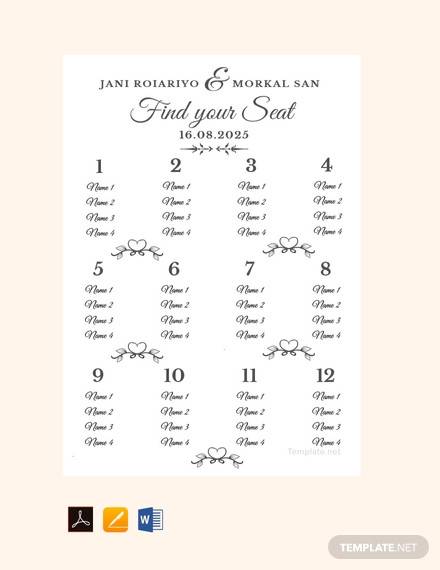 440×570 template excel wedding seating chart template microsoft word hq from whoamuu.blogspot.com