
Free Excel Planner For College Assignments And Deadlines
Free Excel Planner Templates for College Assignments and Deadlines
Navigating college life can feel like juggling a dozen flaming torches. Between attending lectures, tackling readings, participating in extracurricular activities, and trying to maintain a social life, keeping track of assignments and deadlines can quickly become overwhelming. Fortunately, free Excel planner templates offer a powerful and accessible solution to conquer academic chaos and stay organized throughout your college journey.
Why Choose Excel for Assignment Planning?
While numerous digital planning tools and apps exist, Excel remains a popular and practical choice for many college students. Here’s why:
- Accessibility: Excel is widely available. Many colleges provide students with access to Microsoft Office 365, which includes Excel, free of charge. Even if your college doesn’t, standalone Excel licenses are often more affordable than subscription-based project management software.
- Customization: Excel’s flexibility allows you to tailor your planner to your specific needs and preferences. You can adjust columns, rows, colors, formulas, and formatting to create a system that perfectly suits your workflow.
- Offline Functionality: Unlike web-based planners, Excel files can be accessed and updated offline, making them ideal for students who prefer working in environments with limited or no internet connectivity.
- Familiarity: Many students are already familiar with basic Excel functions, making the learning curve less steep compared to mastering new planning software.
- Printable: You can easily print your Excel planner for a physical copy to keep in your binder or on your desk. This is helpful for visual learners or those who prefer a tangible reminder of upcoming deadlines.
Features to Look for in a Free Excel College Planner Template
When searching for a free Excel planner template for college, consider the following key features:
- Assignment Tracking: The core function of any good planner is to track assignments. Look for templates with columns for assignment name, course name, due date, priority level, and status (e.g., “To Do,” “In Progress,” “Completed”).
- Deadline Calendar: A visual calendar view that highlights upcoming deadlines is crucial. This allows you to quickly grasp your workload for the week or month.
- Course Overview: A dedicated section for each course helps you stay organized. This section should include the course name, professor’s contact information, syllabus details, and a list of all assignments for that course.
- Priority Setting: The ability to assign priorities (e.g., High, Medium, Low) to assignments helps you focus on the most important tasks first.
- Progress Tracking: A column or feature for tracking the progress of each assignment (e.g., percentage completed) allows you to visualize your progress and stay motivated.
- Notes Section: A space for adding notes related to each assignment, such as specific requirements, research resources, or meeting times with study groups.
- Semester/Term Planning: Templates that allow you to plan your entire semester or term in advance are incredibly valuable for long-term planning and workload management.
- Grade Calculation (Optional): Some templates may include features for calculating your estimated grade in each course based on completed assignments. This can be helpful for identifying areas where you need to improve.
- Color-Coding: Using color-coding to differentiate between courses, assignment types, or priority levels can make your planner more visually appealing and easier to navigate.
Where to Find Free Excel College Planner Templates
Numerous websites offer free Excel planner templates specifically designed for college students. Here are a few reputable sources:
- Microsoft Office Templates: Microsoft offers a variety of free templates directly from its website. Search for “college planner,” “student planner,” or “assignment tracker” to find relevant options.
- Vertex42: Vertex42 is a well-known resource for free Excel templates, including several options suitable for college students.
- Spreadsheet123: Spreadsheet123 provides a range of free Excel templates, some of which are geared towards academic planning.
- TidyForm: TidyForm offers a large collection of free templates, including student planners and assignment trackers.
- Google Sheets Template Gallery: While technically not Excel, Google Sheets is a free alternative that can open and edit Excel files. The Google Sheets Template Gallery also offers numerous planning templates.
Customizing Your Excel Planner Template
Even the best free template might require some customization to perfectly fit your needs. Here are some tips for tailoring your Excel planner:
- Adjust Column Widths and Row Heights: Make sure all text is visible by adjusting column widths and row heights as needed.
- Change Font Styles and Colors: Use font styles and colors that are easy to read and visually appealing to you.
- Add or Remove Columns: If a template has columns you don’t need, remove them. Conversely, add columns for information you want to track that isn’t included in the template (e.g., study time, resources used).
- Create Conditional Formatting Rules: Use conditional formatting to highlight deadlines that are approaching soon, overdue assignments, or high-priority tasks. For example, you could set a rule to automatically change the background color of a cell to red if the due date is within 3 days.
- Add Formulas for Calculations: Use formulas to calculate totals, averages, or remaining days until a deadline. For instance, you could create a formula to calculate the percentage of assignments completed for each course.
- Insert Hyperlinks: Insert hyperlinks to online resources, lecture notes, or assignment guidelines to quickly access relevant information.
- Add a Visual Dashboard: Create a simple dashboard with charts or graphs to visualize your progress. You could create a pie chart showing the percentage of assignments completed vs. remaining or a bar graph showing your grades in each course.
- Protect Your Sheet (Optional): If you’re worried about accidentally changing important formulas or data, you can protect your sheet with a password.
Tips for Effectively Using Your Excel College Planner
Once you’ve found and customized your Excel planner template, here are some tips for using it effectively:
- Enter Information Accurately and Consistently: Double-check all information you enter, especially due dates and assignment details. Consistency is key to maintaining an organized system.
- Update Your Planner Regularly: Make it a habit to update your planner at least once a day, or even better, several times a day. This will ensure that you’re always aware of your upcoming deadlines and tasks.
- Prioritize Tasks Strategically: Don’t just work on assignments in the order they appear on your planner. Use your priority settings to focus on the most important and urgent tasks first.
- Break Down Large Assignments: Divide large assignments into smaller, more manageable tasks. This will make them feel less daunting and help you stay on track.
- Schedule Study Time: Allocate specific blocks of time for studying in your planner. Treat these study sessions as appointments that you can’t miss.
- Review Your Progress Regularly: Take some time each week to review your progress and identify any areas where you’re falling behind. Adjust your plan as needed to stay on track.
- Don’t Be Afraid to Adjust Your Plan: College life is unpredictable. Be prepared to adjust your plan as needed to accommodate unexpected events or changes in your workload.
- Use Your Planner as a Motivation Tool: Seeing your progress and checking off completed tasks can be a powerful motivator. Use your planner to celebrate your accomplishments and stay focused on your goals.
Beyond the Basics: Advanced Excel Techniques for Planners
For students who are comfortable with more advanced Excel functions, consider incorporating the following techniques into your planner:
- Data Validation: Use data validation to create drop-down lists for assignment types, priority levels, or course names. This will help ensure consistency and prevent errors.
- Pivot Tables: Use pivot tables to summarize and analyze your data. For example, you could create a pivot table to see the total number of hours you’ve spent studying for each course.
- Macros: Use macros to automate repetitive tasks, such as adding new assignments or updating the status of existing assignments.
- VBA (Visual Basic for Applications): For advanced users, VBA can be used to create custom functions and automate complex tasks.
Conclusion
Free Excel planner templates offer a versatile and cost-effective solution for college students looking to stay organized and manage their assignments effectively. By choosing a template with the right features, customizing it to your specific needs, and using it consistently, you can conquer academic chaos and achieve your academic goals. Embrace the power of Excel and transform your college experience from overwhelming to organized and successful.
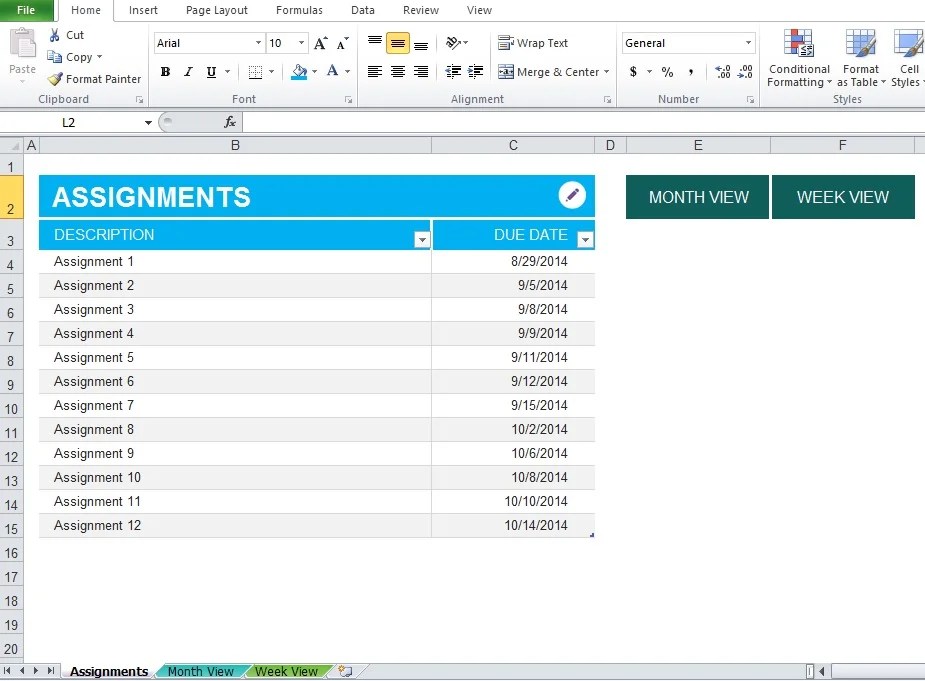 925×681 assignment planner excel template excel tmp from exceltmp.com
  579×398 student assignment planner template excel from free-power-point-templates.com
  490×753 college planner printables stickers mswenduhh bloglovin from www.bloglovin.com