
Free Spreadsheet For Small Business Accounting In Excel
Free Spreadsheet Templates for Small Business Accounting in Excel
For many small businesses, especially startups and freelancers, managing finances can feel daunting. Hiring a professional accountant might be out of reach initially. Fortunately, readily available and free spreadsheet templates in Excel can provide a practical and cost-effective solution for basic accounting needs.
Why Use Excel for Small Business Accounting?
- Cost-Effective: The most significant advantage is the price: free. Most businesses already own Microsoft Excel, eliminating the need for purchasing specialized accounting software.
- Customizable: Excel templates offer a high degree of customization. You can adapt them to your specific business requirements, adding or modifying categories and formulas as needed.
- Ease of Use: While Excel can be complex, basic spreadsheet accounting is relatively straightforward. With some fundamental knowledge of formulas and functions, you can effectively track income, expenses, and cash flow.
- Accessibility: Excel files are easily shared and stored on various devices and cloud storage platforms.
- Good Starting Point: Using spreadsheets is an excellent way to learn the basics of accounting before investing in more sophisticated software.
Essential Spreadsheet Templates for Small Business Accounting
Here are several crucial spreadsheet templates that can help you manage your finances effectively:
1. Income Statement Template (Profit & Loss Statement)
The income statement provides a snapshot of your business’s financial performance over a specific period (e.g., monthly, quarterly, or annually). It details your revenue, expenses, and ultimately, your net profit or loss.
Key Elements:
- Revenue (Sales): All income generated from your business activities.
- Cost of Goods Sold (COGS): Direct costs associated with producing or delivering your goods or services. (e.g., raw materials, direct labor).
- Gross Profit: Revenue minus COGS.
- Operating Expenses: Costs incurred in running your business (e.g., rent, utilities, salaries, marketing).
- Operating Income: Gross Profit minus Operating Expenses.
- Interest Expense: Cost of borrowing money.
- Taxes: Income taxes owed to the government.
- Net Income (Net Profit or Loss): Operating Income minus Interest and Taxes.
How to Use It:
- Enter your revenue sources in the revenue section.
- Record your COGS accurately.
- List all your operating expenses, categorizing them for better analysis.
- The template should automatically calculate Gross Profit, Operating Income, and Net Income using pre-defined formulas.
2. Balance Sheet Template
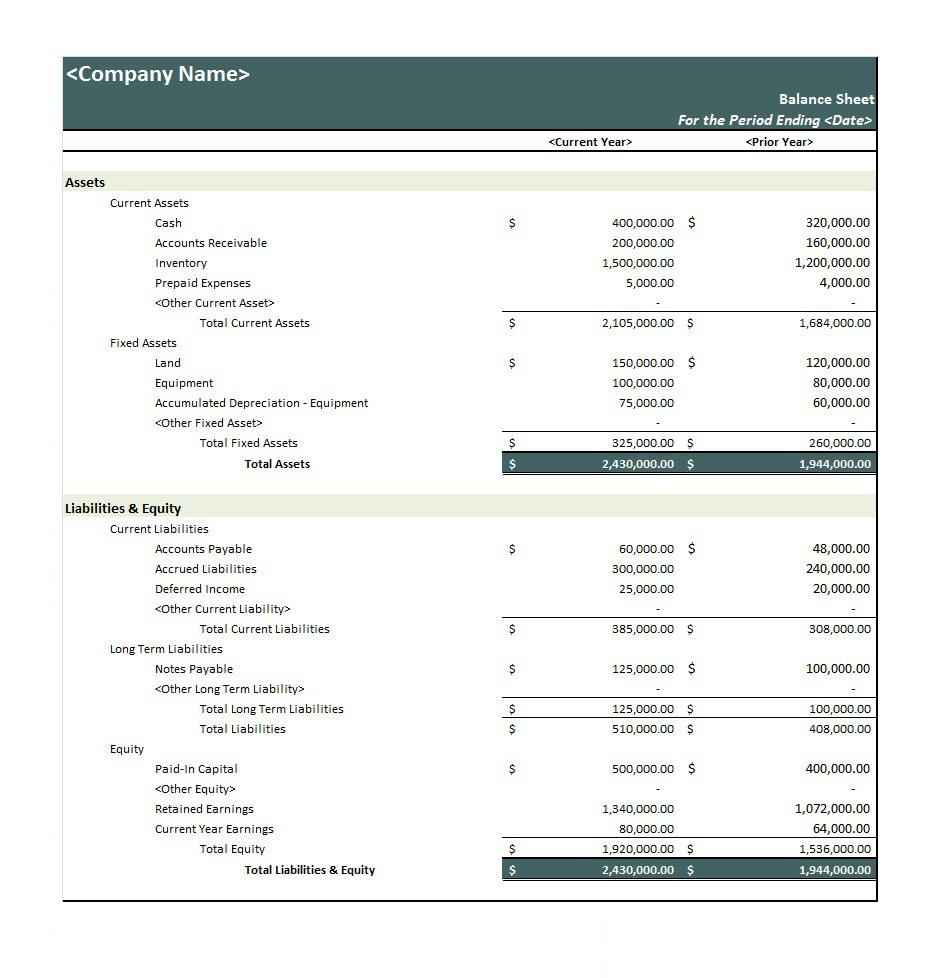
The balance sheet presents a summary of your company’s assets, liabilities, and equity at a specific point in time. It adheres to the fundamental accounting equation: Assets = Liabilities + Equity.
Key Elements:
- Assets: What your business owns. Divided into:
- Current Assets: Assets that can be converted to cash within a year (e.g., cash, accounts receivable, inventory).
- Fixed Assets (Property, Plant, and Equipment – PP&E): Long-term assets used in your business (e.g., buildings, machinery, equipment).
- Liabilities: What your business owes to others. Divided into:
- Current Liabilities: Obligations due within a year (e.g., accounts payable, short-term loans).
- Long-Term Liabilities: Obligations due in more than a year (e.g., long-term loans, mortgages).
- Equity: The owner’s stake in the business (e.g., retained earnings, owner’s contributions).
How to Use It:
- List all your assets, categorizing them as current or fixed.
- Record all your liabilities, categorizing them as current or long-term.
- Enter your equity accounts.
- Ensure that the total assets equal the sum of total liabilities and equity. If they don’t, there’s an error in your data.
3. Cash Flow Statement Template
The cash flow statement tracks the movement of cash both into and out of your business over a specific period. It is vital for understanding your business’s liquidity and ability to meet its financial obligations.
Key Elements:
- Cash Flow from Operating Activities: Cash generated from your core business operations (e.g., sales, payments to suppliers).
- Cash Flow from Investing Activities: Cash used for purchasing or selling long-term assets (e.g., buying equipment, selling investments).
- Cash Flow from Financing Activities: Cash raised from borrowing money or issuing stock, or cash used to repay debt or pay dividends (e.g., taking out a loan, repaying a loan).
How to Use It:
- Record all cash inflows and outflows for each category (operating, investing, and financing).
- The template will calculate the net cash flow for each category.
- The sum of the net cash flows from all three categories will give you the overall change in cash for the period.
4. Budgeting Template
A budgeting template helps you plan and control your finances by forecasting your expected income and expenses for a future period.
Key Elements:
- Projected Revenue: Estimated income from sales or services.
- Projected Expenses: Estimated costs of running your business.
- Budgeted Net Income: Projected revenue minus projected expenses.
- Variance Analysis: Comparison of budgeted amounts to actual amounts, highlighting differences.
How to Use It:
- Estimate your revenue based on historical data and market trends.
- Project your expenses, considering all known costs.
- Regularly compare your actual results to your budgeted figures.
- Analyze the variances to identify areas where you are overspending or underperforming.
5. Invoice Template
An invoice template allows you to create professional and accurate invoices for your customers.
Key Elements:
- Invoice Number: Unique identifier for the invoice.
- Date: Date the invoice was issued.
- Customer Information: Name, address, and contact details of the customer.
- Description of Goods or Services: Detailed description of the products or services provided.
- Quantity: Number of units or hours provided.
- Unit Price: Price per unit or hour.
- Total Amount Due: Total cost of the invoice, including taxes and discounts.
- Payment Terms: Due date and acceptable payment methods.
How to Use It:
- Fill in the customer information, invoice date, and invoice number.
- Describe the goods or services provided, including quantity and unit price.
- Calculate the total amount due, including any applicable taxes or discounts.
- Clearly state the payment terms.
6. Expense Tracker Template
An expense tracker template helps you record and categorize all your business expenses.
Key Elements:
- Date: Date the expense was incurred.
- Description: Brief explanation of the expense.
- Category: Category of expense (e.g., rent, utilities, marketing).
- Amount: Amount of the expense.
- Payment Method: How the expense was paid (e.g., cash, credit card, bank transfer).
How to Use It:
- Record all expenses as they are incurred, including the date, description, category, amount, and payment method.
- Regularly review your expenses to identify areas where you can cut costs.
- Use the data to prepare your income statement and other financial reports.
Tips for Using Excel for Small Business Accounting
- Choose the Right Template: Select templates that are specifically designed for your industry or business type.
- Customize Templates: Adapt the templates to fit your specific needs and add or modify categories as required.
- Use Formulas and Functions: Leverage Excel’s formulas and functions to automate calculations and ensure accuracy. Some useful functions include SUM, AVERAGE, IF, and VLOOKUP.
- Maintain Data Integrity: Be consistent and accurate when entering data. Double-check your entries to avoid errors.
- Back Up Your Data: Regularly back up your spreadsheets to prevent data loss due to computer problems or accidental deletion. Cloud storage is a good option for automatic backups.
- Use Data Validation: Implement data validation rules to restrict the type of data that can be entered in certain cells, preventing errors.
- Consider Password Protection: If your spreadsheets contain sensitive financial information, consider protecting them with a password.
- Seek Expert Advice: If you are unsure about any aspect of accounting, consult with a professional accountant or bookkeeper.
Limitations of Using Excel for Accounting
While Excel templates are helpful for basic accounting, they do have limitations compared to dedicated accounting software:
- Manual Data Entry: Most data entry is manual, which can be time-consuming and prone to errors.
- Limited Automation: Excel lacks the automated features of accounting software, such as bank feed integration and automatic reconciliation.
- Scalability: Excel may become cumbersome as your business grows and your accounting needs become more complex.
- Security Risks: Excel files are vulnerable to data corruption and security breaches.
- Lack of Audit Trail: Excel does not automatically track changes made to the spreadsheet, making it difficult to audit your data.
When to Consider Switching to Accounting Software
You should consider switching to dedicated accounting software when:
- Your business is growing rapidly.
- You need more advanced accounting features, such as inventory management, payroll, and customer relationship management (CRM).
- You want to automate repetitive tasks and reduce manual data entry.
- You need better security and data protection.
- You require real-time financial reporting and analysis.
Conclusion
Free spreadsheet templates in Excel are a valuable resource for small businesses seeking a cost-effective way to manage their finances. By using these templates effectively and following best practices, you can gain valuable insights into your business’s financial performance and make informed decisions. However, it’s essential to recognize the limitations of Excel and be prepared to transition to dedicated accounting software as your business grows and your needs evolve.
 1150×494 small business accounting spreadsheet excel db excelcom from db-excel.com
  1024×576 small business accounting spreadsheet templates db excelcom from db-excel.com
  1509×1608 small business excel accounting worksheet excel accounting from db-excel.com
  1024×706 accounting spreadsheet small business db excelcom from db-excel.com
  800×600 basic accounting spreadsheet small business db excelcom from db-excel.com
  1024×791 small business accounting templates excel db excelcom from db-excel.com
  1280×724 accounting spreadsheet templates small business small from www.heritagechristiancollege.com
  1188×918 accounting spreadsheet templates small business excel from www.heritagechristiancollege.com
  2308×1198 small business accounting spreadsheet template accounting from db-excel.com
  768×593 accounting spreadsheet template small business db excelcom from db-excel.com
  1185×734 simple accounting spreadsheet small business nbd from db-excel.com
  1280×720 small business accounting spreadsheet template excelxocom from excelxo.com
  1280×724 excel accounting templates small business images business from db-excel.com
  1024×623 accounting spreadsheet templates small business excelxocom from excelxo.com
  970×970 sample accounting spreadsheet small business db excelcom from db-excel.com
  1280×690 small business accounting spreadsheet business spreadsheet spreadsheet from excelxo.com
  937×978 excel template small business accounting db excelcom from db-excel.com
  1280×772 accounting spreadsheet templates small business xls db excelcom from db-excel.com
  1724×970 accounting spreadsheet small business business spreadsheet from excelxo.com
  1920×1080 sample excel spreadsheet small business db excelcom from db-excel.com
  1022×722 accounting spreadsheets small business db excelcom from db-excel.com
  1280×774 business monthly expenses spreadsheet template small business from db-excel.com
  3300×2550 accounting spreadsheet templates db excelcom from db-excel.com
  1024×796 accounting excel template small business excelxocom from excelxo.com
  1656×1281 excel accounting template small business spreadsheet templates from db-excel.com