
Excel Spreadsheet For Dividend Income Tracking
Excel Spreadsheet for Dividend Income Tracking
Tracking dividend income is crucial for anyone building a passive income stream or managing their investment portfolio effectively. While specialized software exists, an Excel spreadsheet offers a flexible, customizable, and cost-effective solution. This guide outlines how to create a comprehensive Excel spreadsheet for dividend income tracking.
Why Use Excel for Dividend Tracking?
- Customization: Tailor the spreadsheet to your specific needs and preferences.
- Cost-Effective: No recurring subscription fees, just a one-time purchase of Microsoft Excel (or a free alternative like Google Sheets).
- Accessibility: Access and edit your spreadsheet from any device with Excel installed or through cloud-based solutions.
- Familiarity: Many users are already familiar with Excel’s interface and basic formulas.
- Data Analysis: Perform custom calculations, create charts, and analyze your dividend income trends.
Creating the Spreadsheet Structure
Start by outlining the key columns you’ll need in your spreadsheet. Here’s a suggested structure:
Core Information
- Ticker Symbol: The stock’s ticker symbol (e.g., AAPL for Apple).
- Company Name: The full name of the company.
- Sector: The industry sector the company belongs to (e.g., Technology, Healthcare).
- Shares Owned: The number of shares you own of that stock.
- Purchase Price per Share: The price you paid per share when you acquired the stock.
- Total Investment: Calculated as Shares Owned * Purchase Price per Share.
Dividend Information
- Dividend per Share (Annual): The company’s expected annual dividend per share. Obtain this information from reliable sources like company investor relations websites or financial news providers.
- Dividend per Share (Quarterly/Monthly): If dividends are paid more frequently than annually, record the per-share amount for each payment period.
- Dividend Payment Date: The date the dividend was paid.
- Gross Dividend Received: Calculated as Shares Owned * Dividend per Share (for the relevant payment period).
- Taxes Withheld: The amount of taxes withheld from the dividend payment (if applicable).
- Net Dividend Received: Calculated as Gross Dividend Received – Taxes Withheld.
Performance Metrics
- Dividend Yield (Current): Calculated as (Annual Dividend per Share / Current Stock Price) * 100. This reflects the current return on investment based on the stock’s current price. Use a formula that references an external data source (see section on dynamically updating data) to keep this updated.
- Dividend Yield (on Cost): Calculated as (Annual Dividend per Share / Purchase Price per Share) * 100. This reflects the return on your original investment.
- Annual Dividend Income per Stock: Calculated as Shares Owned * Annual Dividend per Share.
Implementing the Spreadsheet in Excel
- Open Excel: Create a new blank workbook.
- Column Headers: Enter the column headers listed above in the first row of the spreadsheet. Use appropriate formatting (e.g., bold text) for clarity.
- Data Entry: Fill in the initial data for each stock in your portfolio. Be precise with ticker symbols and company names.
- Formulas: Enter the necessary formulas to automate calculations:
- Total Investment: In the corresponding cell, enter the formula `= [Shares Owned Cell] * [Purchase Price per Share Cell]`. For example, if shares owned are in cell D2 and purchase price is in cell E2, the formula would be `=D2*E2`.
- Gross Dividend Received: `= [Shares Owned Cell] * [Dividend per Share Cell]`. Adapt this formula to match the payment period (quarterly or monthly).
- Net Dividend Received: `= [Gross Dividend Received Cell] – [Taxes Withheld Cell]`.
- Dividend Yield (on Cost): `=([Annual Dividend per Share Cell] / [Purchase Price per Share Cell])*100`. Format this cell as a percentage.
- Annual Dividend Income per Stock: `= [Shares Owned Cell] * [Dividend per Share (Annual) Cell]`.
- Formatting: Format the spreadsheet for readability. Use currency formatting for monetary values, percentage formatting for yields, and date formatting for payment dates. Consider using conditional formatting to highlight stocks with high dividend yields or to track progress towards your income goals.
- Data Validation: Implement data validation to prevent errors. For example, you can restrict the ‘Sector’ column to a predefined list of sectors.
- Freezing Panes: Freeze the top row (containing column headers) so it remains visible as you scroll down.
Dynamically Updating Data
Manually updating stock prices and dividend yields can be time-consuming. Excel offers features to dynamically update this information:
- Stocks Data Type (Microsoft 365): Microsoft 365 subscribers can use the Stocks data type to retrieve real-time stock information, including price, dividend yield, and other financial data. Enter the ticker symbol, select the cell, and go to the “Data” tab. Click on “Stocks.” Excel will attempt to identify the stock. If successful, a card icon will appear. Click on the icon to select from various data points, including price and dividend yield. These values will automatically update.
- Web Queries (Older Excel Versions): If you don’t have Microsoft 365, you can use web queries to import data from financial websites. This method is more complex and requires understanding HTML tables. You’ll need to find a website that provides the desired data in a tabular format. The exact steps vary depending on the Excel version and the website’s structure.
- Third-Party Add-ins: Several third-party Excel add-ins specialize in providing financial data, including stock quotes, dividend information, and fundamental analysis. These add-ins often offer more robust features and data sources than the built-in options.
Analyzing Your Dividend Income
Once you have collected dividend data, you can use Excel’s features to analyze your income stream:
- Pivot Tables: Create pivot tables to summarize dividend income by sector, company, or payment date. This allows you to quickly identify your top-performing dividend stocks and analyze your income distribution.
- Charts: Visualize your dividend income trends with charts. Create line charts to track your monthly or quarterly income growth, or pie charts to show the allocation of your income across different sectors.
- Goal Tracking: Add a section to your spreadsheet to track your progress towards your dividend income goals. Calculate your current annual income and compare it to your target income.
- Year-over-Year Comparisons: Add columns to track dividend income for previous years. This allows you to analyze your income growth over time and identify trends.
Example Formulas and Functions
- `SUM()`: Calculates the sum of a range of cells. Useful for calculating total dividend income. Example: `=SUM(F2:F100)` calculates the sum of the values in cells F2 through F100.
- `AVERAGE()`: Calculates the average of a range of cells. Can be used to calculate the average dividend yield of your portfolio.
- `IF()`: Performs a logical test and returns one value if the test is true and another value if the test is false. Useful for conditional formatting. Example: `=IF(H2>5,”High Yield”,”Low Yield”)` displays “High Yield” if the value in cell H2 is greater than 5, and “Low Yield” otherwise.
- `TODAY()`: Returns the current date. Can be used to calculate the time elapsed since a purchase.
- `YEAR()` / `MONTH()`: Extracts the year or month from a date value. Useful for grouping dividend income by year or month in pivot tables.
- `VLOOKUP()` (Use cautiously and understand limitations): Searches for a value in the first column of a table and returns a value in the same row from a specified column. Can be used to retrieve company names or sector information based on the ticker symbol (requires a separate lookup table). However, it’s inflexible compared to `XLOOKUP`.
- `XLOOKUP()` (preferred replacement for VLOOKUP): A more powerful and flexible lookup function. Allows for lookups to the left, right, and offers better error handling than VLOOKUP. Example: `=XLOOKUP(A2,Sheet2!A:A,Sheet2!B:B)` looks up the value in A2 in the range A:A of Sheet2, and returns the corresponding value from the range B:B of Sheet2. Far better than VLOOKUP for most cases.
- `INDEX()` and `MATCH()` (Alternative to VLOOKUP/XLOOKUP, but more complex): Provides even greater flexibility than XLOOKUP, but requires more understanding to use. Can be combined to perform more complex lookups.
Tips and Best Practices
- Regular Backups: Back up your spreadsheet regularly to prevent data loss. Consider using cloud storage services for automatic backups.
- Consistency: Maintain consistent data entry practices to ensure accurate calculations and analysis.
- Documentation: Add comments to your formulas and spreadsheet structure to explain your calculations and assumptions.
- Privacy: Protect your spreadsheet with a password if it contains sensitive financial information.
- Error Checking: Regularly review your spreadsheet for errors. Check your formulas and data entries to ensure accuracy.
- Automate Where Possible: Explore Excel’s automation features (macros or Power Query) to streamline repetitive tasks.
- Stay Informed: Keep up-to-date on dividend payment schedules and any changes to dividend policies.
Conclusion
An Excel spreadsheet is a powerful tool for tracking your dividend income and managing your investment portfolio. By following the steps outlined in this guide, you can create a customized spreadsheet that meets your specific needs and helps you achieve your financial goals. Remember to regularly update your spreadsheet with new data and to analyze your income trends to make informed investment decisions.
 970×970 dividend tracker spreadsheet excel portfolio tracking spreadsheet from db-excel.com
  768×466 dividend tracker spreadsheet excel regard portfolio tracking from db-excel.com
  601×448 dividend income spreadsheet db excelcom from db-excel.com
  1213×711 dividend income spreadsheet spreadsheet downloa dividend income from db-excel.com
  1064×1125 dividend tracker spreadsheet excel stock trackingsheet excel tracker from db-excel.com
  1233×925 dividend tracker spreadsheet excel dividend stock portfolio from db-excel.com
  1038×782 dividend tracker spreadsheet excel intended dividend tracker from db-excel.com
  1600×827 dividend tracker spreadsheet excel sheet stock option from db-excel.com
  1156×854 dividend excel spreadsheet spreadsheet downloa dividend reinvestment from db-excel.com
  1338×995 dividend tracker spreadsheet excel google spreadshee dividend tracker from db-excel.com
  1280×720 dividend tracker spreadsheet google spreadshee dividend tracker from db-excel.com
  1200×709 create amazing dividend tracking spreadsheet excel invest money from investsomemoney.com
 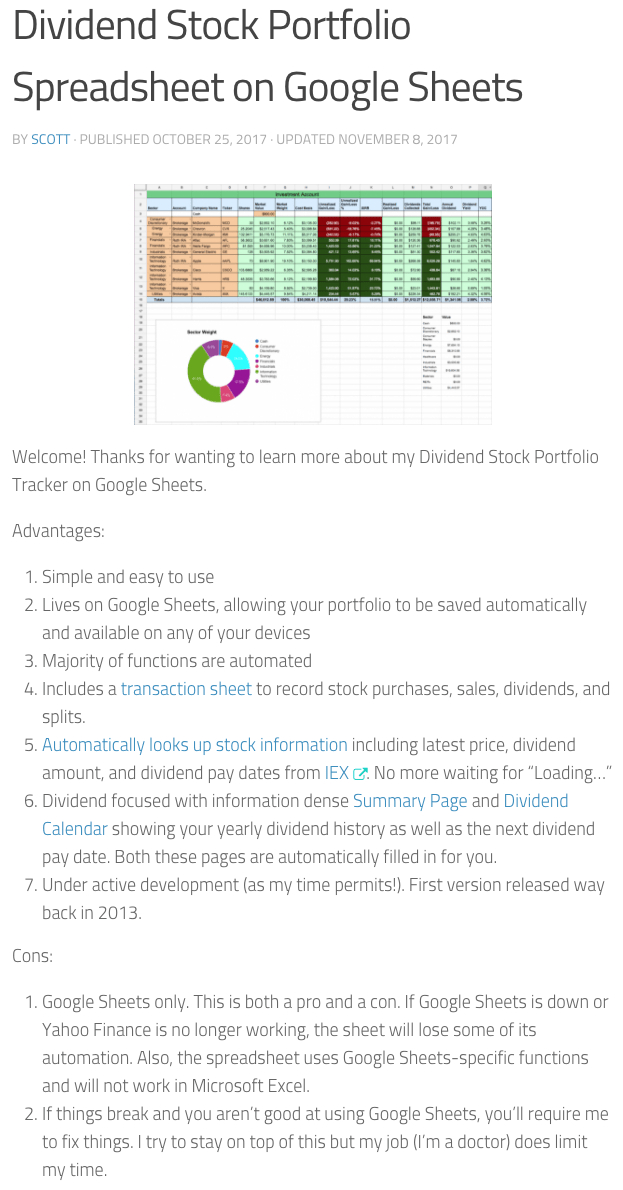 623×1190 spreadsheet dividend investment tracking desultory blog from mydesultoryblog.com
  1024×425 important investment spreadsheet dividend investors from dividendstrategy.ca
  734×402 build portfolio dividend tracker spreadsheet from vibrantdreamer.com
  2780×1818 dividend income portfolio template google sheets from stevenwestmoreland.com
  1124×223 track dividend income excel retire dad from www.retirebeforedad.com