
Car Maintenance Schedule Template In Excel
Car Maintenance Schedule Template in Excel: Your Road to Reliability
Owning a car brings freedom and convenience, but it also comes with the responsibility of regular maintenance. Neglecting car maintenance can lead to costly repairs, decreased fuel efficiency, and even dangerous situations. A well-structured car maintenance schedule helps you stay on top of necessary tasks, extending your vehicle’s life and ensuring your safety. Microsoft Excel offers a powerful and customizable platform to create your own car maintenance schedule template.
Why Use an Excel Template?
While dedicated car maintenance apps exist, an Excel template offers several advantages:
- Customization: Tailor the template to your specific car make and model, driving habits, and local climate.
- Cost-Effectiveness: Excel is often already installed on your computer, eliminating the need for subscription fees or additional software purchases.
- Offline Access: Access your maintenance schedule anytime, anywhere, without relying on an internet connection.
- Data Ownership: You retain complete control over your data, without concerns about privacy or third-party access.
- Flexibility: Easily modify the template as your needs change, adding or removing tasks as required.
Key Elements of a Car Maintenance Schedule Template
A comprehensive car maintenance schedule template should include the following elements:
- Vehicle Information:
- Year, Make, and Model: Clearly identify your vehicle.
- VIN (Vehicle Identification Number): A unique identifier for your car.
- Engine Type: Specifies the type of engine (e.g., gasoline, diesel, hybrid).
- Mileage at Template Creation: Sets the starting point for tracking maintenance intervals.
- Maintenance Tasks:
- Oil Change: Specify the type of oil and filter to use.
- Tire Rotation: Rotate tires to ensure even wear.
- Brake Inspection: Check brake pads, rotors, and fluid levels.
- Fluid Checks and Top-Ups: Include coolant, brake fluid, power steering fluid, and windshield washer fluid.
- Air Filter Replacement: Replace both the engine air filter and the cabin air filter.
- Spark Plug Replacement: As recommended by the manufacturer.
- Battery Inspection: Check battery health and terminals.
- Belt and Hose Inspection: Inspect for cracks, wear, and leaks.
- Transmission Service: Flush and replace transmission fluid.
- Coolant Flush: Replace coolant to prevent corrosion and overheating.
- Wheel Alignment: Ensure proper alignment for optimal tire wear and handling.
- Windshield Wiper Replacement: Replace worn wiper blades for clear visibility.
- Light Bulb Replacement: Replace burned-out headlights, taillights, and turn signal bulbs.
- Maintenance Intervals:
- Mileage-Based Intervals: Define intervals based on miles driven (e.g., every 5,000 miles for oil changes).
- Time-Based Intervals: Define intervals based on time (e.g., every 12 months for brake fluid flush).
- Date of Last Service: Record the date the task was last performed.
- Mileage at Last Service: Record the mileage when the task was last performed.
- Next Due Date: Calculate the next due date based on the interval and last service date.
- Next Due Mileage: Calculate the next due mileage based on the interval and last service mileage.
- Service Records:
- Date of Service: Record the date the service was performed.
- Mileage at Service: Record the mileage when the service was performed.
- Service Performed: Detail the specific service performed.
- Cost: Record the cost of the service.
- Notes: Add any relevant notes or observations (e.g., “Used synthetic oil,” “Replaced brake pads”).
- Reminders:
- Conditional Formatting: Use Excel’s conditional formatting to highlight tasks that are due soon or overdue.
- Email Reminders: While Excel doesn’t directly send email reminders, you can manually set reminders based on the due dates in your schedule. (Alternatively, explore using VBA scripts for more advanced automation, but this requires programming knowledge).
Building Your Excel Template: A Step-by-Step Guide
- Set up the Spreadsheet:
- Open a new Excel workbook.
- Rename the first sheet to “Maintenance Schedule.”
- Optionally, create a second sheet named “Service Records.”
- Enter Vehicle Information:
- In the “Maintenance Schedule” sheet, create columns for “Year,” “Make,” “Model,” “VIN,” “Engine Type,” and “Mileage at Template Creation.”
- Enter the relevant information for your vehicle.
- Create Maintenance Task List:
- Create columns for “Maintenance Task,” “Mileage Interval,” “Time Interval (Months),” “Date of Last Service,” “Mileage at Last Service,” “Next Due Date,” and “Next Due Mileage.”
- List all the maintenance tasks relevant to your vehicle (refer to your owner’s manual for recommended maintenance).
- Enter the corresponding mileage and time intervals for each task. Consult your owner’s manual or a trusted mechanic for this information.
- Calculate Next Due Dates and Mileages:
- In the “Next Due Date” column, use the `EDATE` function to calculate the next due date based on the “Date of Last Service” and “Time Interval (Months).” For example, if the date of last service is in cell D2 and the time interval is in cell C2, the formula would be: `=EDATE(D2,C2)`.
- In the “Next Due Mileage” column, use a formula to calculate the next due mileage based on the “Mileage at Last Service” and “Mileage Interval.” For example, if the mileage at last service is in cell E2 and the mileage interval is in cell B2, the formula would be: `=E2+B2`.
- Implement Conditional Formatting:
- Select the “Next Due Date” column.
- Go to “Conditional Formatting” in the “Home” tab.
- Choose “Highlight Cells Rules” and then “Less Than.”
- Enter `=TODAY()` in the value field and choose a formatting style to highlight overdue tasks.
- Repeat the process, choosing “Less Than” and entering `=TODAY()+30` to highlight tasks due within the next 30 days. Adjust the number of days as desired.
- Create Service Records Sheet (Optional):
- In the “Service Records” sheet, create columns for “Date of Service,” “Mileage at Service,” “Maintenance Task,” “Service Performed,” “Cost,” and “Notes.”
- Record all service performed on your vehicle in this sheet.
- Link Service Records to Maintenance Schedule (Optional):
- You can link specific rows in the “Service Records” sheet to the corresponding “Maintenance Task” in the “Maintenance Schedule” sheet using hyperlinks or formulas. This helps you easily access the service history for each task.
- Regularly Update Your Template:
- After each service, update the “Date of Last Service” and “Mileage at Last Service” columns in the “Maintenance Schedule” sheet.
- Record all service details in the “Service Records” sheet.
Tips for Maximizing Your Template’s Effectiveness
- Consult Your Owner’s Manual: Your owner’s manual is the primary source for recommended maintenance intervals and procedures.
- Be Realistic About Driving Conditions: Adjust maintenance intervals if you drive in severe conditions (e.g., dusty environments, frequent stop-and-go traffic, towing).
- Use Descriptive Notes: Provide detailed notes in the “Service Records” sheet, including the type of oil used, the brand of parts replaced, and any specific issues observed.
- Back Up Your Template: Regularly back up your Excel file to prevent data loss.
- Consider Cloud Storage: Store your template on a cloud storage service (e.g., OneDrive, Google Drive, Dropbox) for easy access from multiple devices.
Conclusion
A well-designed car maintenance schedule template in Excel is an invaluable tool for any car owner. By proactively tracking maintenance tasks, you can extend the life of your vehicle, prevent costly repairs, and ensure your safety on the road. The steps outlined above provide a comprehensive guide to creating and using your own customized template. Remember to consult your owner’s manual and adjust the template to fit your specific needs and driving conditions. Happy driving!
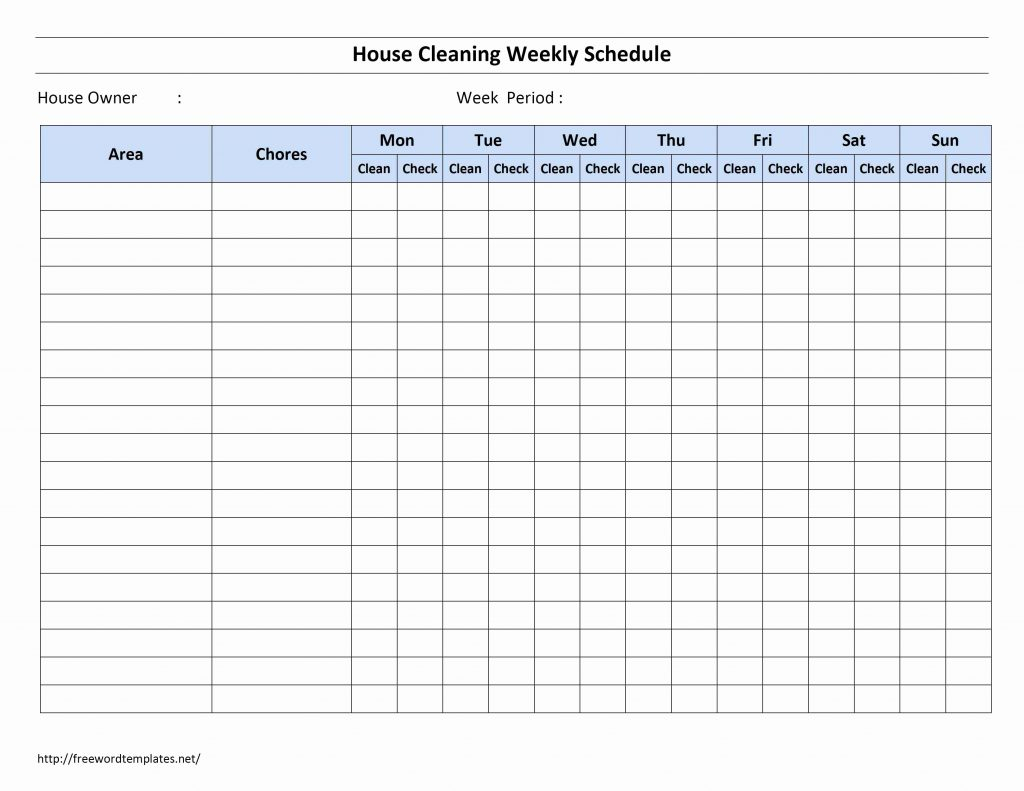 1024×791 car maintenance checklist spreadsheet vehicle maintenance schedule from db-excel.com
  1024×792 car maintenance spreadsheet auto maintenance schedule spreadsheet from db-excel.com
  3300×2550 car maintenance spreadsheet car maintenance schedule template from db-excel.com
  1372×970 car maintenance schedule spreadsheet db excelcom from db-excel.com
  1024×768 car maintenance spreadsheet pertaining vehicle maintenance log book from db-excel.com
  1255×970 car maintenance schedule spreadsheet excel from db-excel.com
  686×970 vehicle maintenance schedule excel awesome preventive maintenance from db-excel.com
  874×970 car maintenance spreadsheet spreadsheet downloa car maintenance from db-excel.com
  768×694 vehicle maintenance spreadsheet db excelcom from db-excel.com
  783×403 vehicle maintenance log excel template exceldatapro from exceldatapro.com