
Annual Leave Tracker Template Excel With Carryover
Annual Leave Tracker Template in Excel with Carryover Functionality
Managing employee annual leave effectively is crucial for maintaining productivity, ensuring adequate staffing, and adhering to legal compliance. An Excel-based annual leave tracker template offers a practical and cost-effective solution for businesses of all sizes, especially when equipped with carryover functionality. This document explores the benefits, features, and considerations when using such a template, focusing on how to incorporate leave carryover policies.
Why Use an Excel Annual Leave Tracker?
While sophisticated HR software exists, Excel remains a versatile and accessible tool for many organizations. Here’s why:
- Cost-Effective: Excel is often already part of a company’s software suite, eliminating the need for expensive subscription fees associated with dedicated HR platforms.
- Customizable: Excel templates can be easily tailored to specific company policies and reporting needs. Fields can be added, removed, or modified to reflect unique leave types or accrual rules.
- User-Friendly: Most employees are familiar with Excel, reducing the learning curve and promoting quick adoption. Simple data entry and basic formulas make it easy to track and monitor leave balances.
- Offline Access: Excel files can be accessed and updated offline, making them convenient for employees working remotely or in areas with limited internet connectivity.
- Reporting Capabilities: Excel allows for the creation of basic reports and visualizations, providing insights into leave trends, staffing levels, and potential coverage gaps. Pivot tables and charts can summarize leave data for management review.
Essential Features of an Annual Leave Tracker Template
A comprehensive annual leave tracker template should include the following key features:
- Employee Information: Columns for employee name, ID, department, job title, and start date.
- Leave Entitlement: A designated column or section to specify the total annual leave entitlement for each employee (e.g., 20 days, 15 days + 2 personal days).
- Leave Types: Separate columns for different leave types (e.g., annual leave, sick leave, personal leave, maternity leave, bereavement leave). This allows for detailed tracking and reporting of each type of absence.
- Leave Requests: Space for recording leave requests, including start date, end date, and total days requested. Conditional formatting can highlight overlapping requests to prevent staffing conflicts.
- Leave Taken: A column to track the actual days of leave taken by each employee throughout the year. This should be updated after the leave has been approved and completed.
- Leave Balance: A calculated field that automatically updates the remaining leave balance based on leave entitlement and leave taken. This is a critical feature for employees and managers to monitor leave availability.
- Carryover Allowance: Dedicated columns or sections to manage carryover rules, including the maximum amount of leave that can be carried over and any expiration dates associated with the carried-over leave.
- Leave Approvals: A field to indicate the approval status of each leave request (e.g., Pending, Approved, Rejected). This can be implemented using drop-down lists or data validation.
- Notes/Comments: A column for adding notes or comments related to specific leave requests or employee leave records.
Implementing Leave Carryover Functionality
Leave carryover policies vary widely among organizations. The Excel template needs to accommodate these variations. Here’s how to implement carryover functionality:
- Define Carryover Rules: Clearly define the carryover rules in your organization’s policy. Consider the following:
- Maximum Carryover Days: The maximum number of days an employee can carry over (e.g., 5 days, 1 week, half of their annual entitlement).
- Expiration Date: The date by which the carried-over leave must be used (e.g., within the first quarter of the following year, within 6 months).
- Eligibility: Any restrictions on who can carry over leave (e.g., employees who have been with the company for at least one year).
- Prioritization: Is carried-over leave used before or after current-year leave entitlement?
- Add Carryover Columns: Add the following columns to your template:
- Carryover Days Eligible: The number of days eligible for carryover from the previous year. This value is manually entered based on the previous year’s leave balance, subject to the maximum carryover limit.
- Carryover Days Taken: The number of carried-over days taken during the current year.
- Carryover Days Remaining: A calculated field showing the remaining carried-over days, using the formula: `Carryover Days Eligible – Carryover Days Taken`.
- Carryover Expiry Date: The date on which the carried-over leave expires.
- Formulas for Leave Balance Calculation: Adjust the formula for the current year’s leave balance to account for carried-over leave. The formula should consider the prioritization rules (carried-over leave used first or last).
Example (Carryover Used First):
Let’s assume the following columns:
- `Entitlement`: Annual Leave Entitlement (e.g., 20 days)
- `Taken`: Total Leave Taken this year
- `Carryover Eligible`: Carryover days eligible
- `Carryover Taken`: Number of carryover days already taken this year
- `Carryover Remaining`: Carryover days remaining.
The calculation for the total available leave:
`=MAX(0, Entitlement + Carryover Eligible – Taken)`
This formula ensures that the leave balance never goes below zero. It adds the current year’s entitlement to the carryover days, subtracts the total days taken, and then uses the `MAX` function to ensure the result is not negative.
Calculating Carryover Days Remaining:
`=MAX(0, Carryover Eligible – Carryover Taken)`
This formula calculates the carryover remaining balance ensuring it doesnt go below 0.
- Conditional Formatting for Expiry Dates: Use conditional formatting to highlight carried-over leave that is nearing its expiry date. This will remind employees and managers to use the leave before it is lost. For example, you could highlight cells with an expiry date within the next 30 days in yellow and cells with an expired date in red.
- Data Validation for Carryover Limits: Implement data validation rules to prevent employees from carrying over more leave than the allowed maximum. This helps to enforce the company’s leave policy. You can set a maximum value in the `Carryover Days Eligible` column based on the policy.
- Automating the Carryover Process (Advanced): For more advanced users, consider using VBA (Visual Basic for Applications) to automate the carryover process. A macro could be written to automatically transfer the remaining leave balance from the previous year to the `Carryover Days Eligible` column in the current year’s template, subject to the maximum carryover limit. This would reduce manual data entry and minimize errors. However, this requires more advanced Excel skills.
Best Practices for Using an Annual Leave Tracker Template
- Centralized Storage: Store the template in a central, secure location accessible to authorized personnel. Consider using a shared network drive or a cloud-based storage service.
- Data Backup: Regularly back up the Excel file to prevent data loss in case of hardware failure or accidental deletion.
- Clear Instructions: Provide clear instructions to employees and managers on how to use the template, including how to request leave, record leave taken, and interpret leave balances.
- Regular Updates: Update the template regularly to reflect changes in company policies or legal requirements.
- Data Security: Implement appropriate security measures to protect sensitive employee data. This may include password-protecting the Excel file or restricting access to certain sheets.
- Employee Training: Train employees on the proper use of the leave tracker and the importance of accurately recording their leave.
- Auditing: Regularly audit the leave data to ensure accuracy and identify any discrepancies.
- Communicate Clearly: Ensure all employees understand the company’s leave policy, including carryover rules and deadlines.
Limitations of an Excel-Based Tracker
While Excel is a useful tool, it’s important to acknowledge its limitations:
- Scalability: As the company grows, managing leave for a large number of employees in Excel can become cumbersome and error-prone.
- Automation: Excel requires manual data entry and updates, which can be time-consuming and prone to human error.
- Integration: Excel does not integrate directly with other HR systems, such as payroll or time and attendance software.
- Security: Excel files can be vulnerable to data breaches if not properly secured.
- Collaboration: Real-time collaboration can be challenging, especially when multiple users need to access and update the file simultaneously.
Conclusion
An Excel annual leave tracker template with carryover functionality provides a practical and cost-effective solution for managing employee leave, particularly for small and medium-sized businesses. By carefully implementing carryover rules, establishing clear processes, and adhering to best practices, organizations can effectively track leave balances, ensure compliance, and maintain a productive workforce. However, as businesses grow and their HR needs become more complex, they may need to consider transitioning to a more sophisticated HR management system to address the limitations of Excel.
 1254×970 leave tracker excel template db excelcom from db-excel.com
  862×605 excel annual leave template excel templates excel templates from www.exceltemplate123.us
 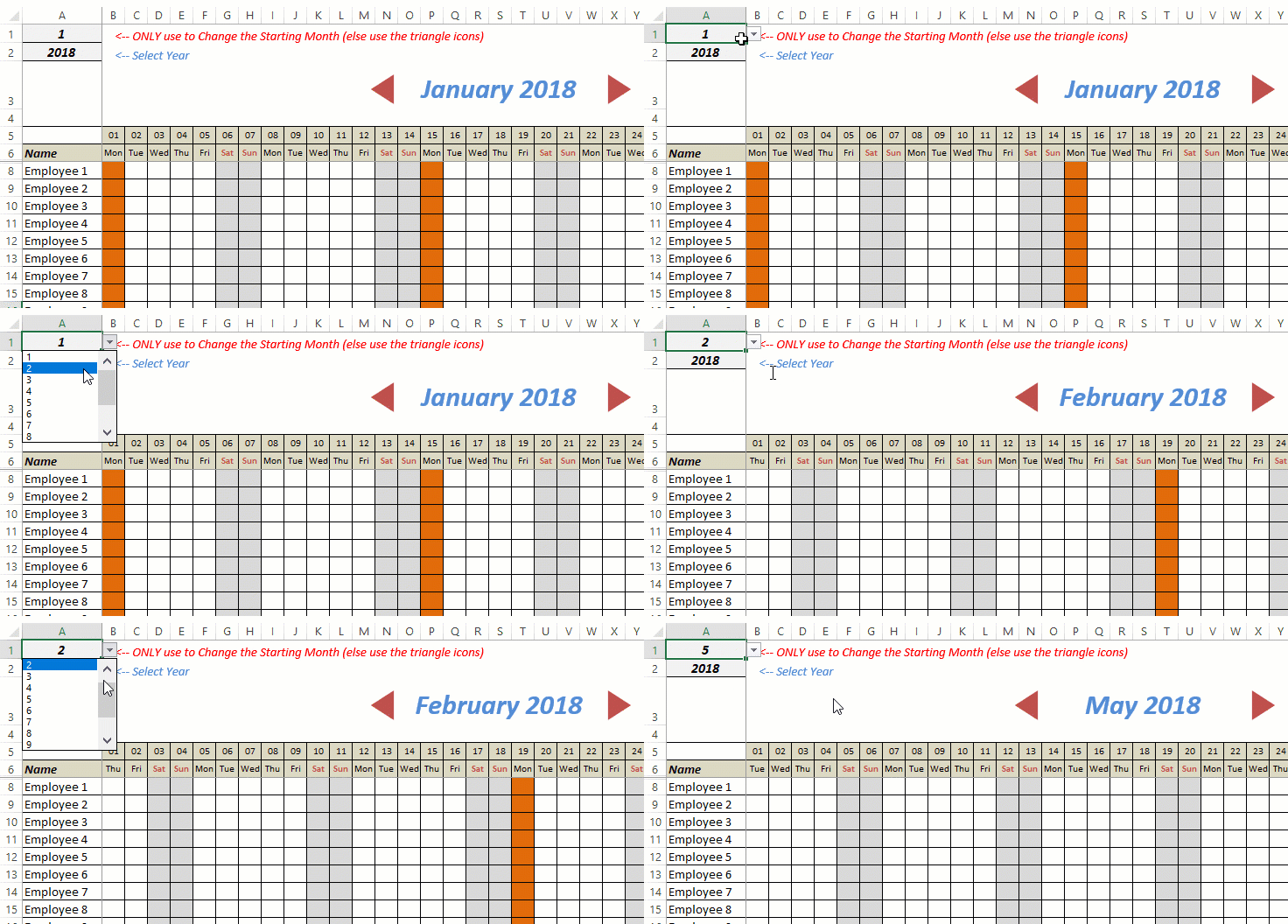 736×352 excel leave tracker template updated from trumpexcel.com
  1024×1024 leave absence tracking spreadsheet employee attendance tracking from db-excel.com