
How To Generate Random Passwords In Excel
Here’s an explanation of how to generate random passwords in Excel, formatted as requested: h1 Generating Random Passwords in Excel p Excel, while not primarily a security tool, can be used to generate random passwords for various purposes, especially for temporary or less critical accounts. It leverages built-in functions to create strings of random characters based on your specifications. This approach is suitable for situations where you need a quick and disposable password generator, but it’s important to understand its limitations and security considerations. h2 Understanding the Building Blocks p Before diving into the formulas, it’s essential to understand the Excel functions that make random password generation possible: ul li b RAND(): Generates a random decimal number between 0 and 1 (exclusive). This is the cornerstone of any random selection process. li b RANDBETWEEN(bottom, top): Returns a random integer between two specified integers (inclusive). This is useful for selecting a random position in a string or choosing a character from a set. li b CHOOSE(index, value1, value2, …): Returns a value from a list based on the index number. We’ll use it to select a random character from different character sets. li b CODE(text): Returns the numeric character code for the first character in a text string. Useful for working with ASCII codes for character manipulation. li b CHAR(number): Returns the character specified by a number. This is the inverse of CODE and lets us convert numeric codes back to characters. li b LEN(text): Returns the number of characters in a text string. This is used to create character sets of variable lengths. li b MID(text, start_num, num_chars): Returns a specific number of characters from a text string, starting at the position you specify. We will use this to construct character sets that are combined into one string. li b REPT(text, number_times): Repeats a text string a specified number of times. This is not directly used for random password generation, but it can be useful to fill a column. li b CONCATENATE(text1, [text2], …): Joins several text strings into one text string. Alternative is using the & operator. h2 Constructing Character Sets p The first step is to define the characters that your passwords will be composed of. Common choices include: ul li Uppercase letters (A-Z) li Lowercase letters (a-z) li Numbers (0-9) li Symbols (!@#$%^&* etc.) p You can create character sets directly in cells or within the formula. For example: ul li Cell A1: ABCDEFGHIJKLMNOPQRSTUVWXYZ (Uppercase letters) li Cell A2: abcdefghijklmnopqrstuvwxyz (Lowercase letters) li Cell A3: 0123456789 (Numbers) li Cell A4: !@#$%^&*()_+=-`~[]{}|;’:”,./<>? (Symbols) p It’s crucial to consider the security implications of the character set you choose. The larger and more diverse the character set, the stronger the password will be. h2 Building the Formula: A Step-by-Step Approach p Here’s a breakdown of how to construct a formula to generate random passwords, along with explanations: p b Formula Structure: `=CONCATENATE(CHOOSE(RANDBETWEEN(1,LEN(A1)),MID(A1,1,1),MID(A1,2,1),…,MID(A1,LEN(A1),1)), CHOOSE(RANDBETWEEN(1,LEN(A2)),MID(A2,1,1),MID(A2,2,1),…,MID(A2,LEN(A2),1)), … )` p A more manageable formula to generate a password with a specified length, comprised only of uppercase characters from cell A1: `=MID(A1,RANDBETWEEN(1,LEN(A1)),1)` p You can repeat this code a specified number of times, or to make an array of these, like this: `=CONCAT(MID(A1,RANDBETWEEN(1,LEN(A1)),1),MID(A1,RANDBETWEEN(1,LEN(A1)),1),MID(A1,RANDBETWEEN(1,LEN(A1)),1),MID(A1,RANDBETWEEN(1,LEN(A1)),1),MID(A1,RANDBETWEEN(1,LEN(A1)),1),MID(A1,RANDBETWEEN(1,LEN(A1)),1),MID(A1,RANDBETWEEN(1,LEN(A1)),1),MID(A1,RANDBETWEEN(1,LEN(A1)),1),MID(A1,RANDBETWEEN(1,LEN(A1)),1),MID(A1,RANDBETWEEN(1,LEN(A1)),1))` p To avoid such a long string of functions we can make a slightly more complex approach using the `LAMBDA` function. p b Step 1: Define Character Sets (as before) p Assume cells A1, A2, A3, and A4 contain your character sets. p b Step 2: Create a LAMBDA helper function p You’ll need a helper `LAMBDA` function, to select a character: `=LAMBDA(char_set, MID(char_set, RANDBETWEEN(1,LEN(char_set)),1))` p b Step 3: Building the Main Formula with `REDUCE` and `LET` p Combine the functions and character sets to generate the password of a specified length: `=LET(password_length, 12, char_sets, {A1,A2,A3,A4}, REDUCE(“”, SEQUENCE(password_length), LAMBDA(result, i, CONCAT(result,INDEX(char_sets,RANDBETWEEN(1,ROWS(char_sets)))))))` ul li b password_length: Variable defining the length of the password, set here to 12. Adjust as needed. li b char_sets: An array storing the cell references (A1, A2, A3, A4) containing your character sets. li b SEQUENCE(password_length): Creates a sequence of numbers from 1 to the specified length. li b REDUCE: A higher-order function that accumulates a result. It starts with an empty string (“”) and iterates through the sequence of numbers generated by `SEQUENCE`. li b LAMBDA(result, i, …): Defines the operation to perform in each iteration of `REDUCE`. `result` is the accumulated password string, and `i` is the current number in the sequence (not used directly here). li b RANDBETWEEN(1,ROWS(char_sets)): Randomly chooses a number between 1 and the number of rows (character sets) in the `char_sets` array. li b INDEX(char_sets, RANDBETWEEN(…)): Selects the character set with one row at random from `char_sets` array. li b CONCAT(result, …): Appends the randomly selected character to the `result` string. p The full password is created by repeatedly appending a random character to the `result` string within the `REDUCE` function. h2 Generating Multiple Passwords p Once you have your formula, you can easily generate multiple passwords: ol li Enter the formula in a cell (e.g., B1). li Drag the fill handle (the small square at the bottom-right of the cell) down to create as many passwords as you need. Each cell will contain a newly generated, random password. li To prevent changing passwords, copy the generated passwords, and paste them into another location using “Paste Values” to create static passwords. h2 Considerations and Limitations ul li b Volatility: The `RAND` and `RANDBETWEEN` functions are volatile, meaning they recalculate whenever the worksheet changes. This means your passwords will change unless you copy and paste them as values. li b Complexity: The formulas can become complex, especially when dealing with a large number of character sets or specific requirements. li b Security: Excel is not designed for secure password storage or management. Avoid using this method for highly sensitive passwords. The generated passwords, while random, might not be cryptographically strong. li b Predictability: While the characters are chosen randomly, the overall method is deterministic. Given enough generated passwords and knowledge of the character sets, it might be possible for an attacker to reduce the search space. li b No Character Repetition Limit: The generated passwords may have undesired character repetitions, depending on the application or account requirements. h2 Alternatives p For more secure and robust password generation, consider using dedicated password management tools or programming languages designed for cryptographic purposes. These tools often incorporate advanced techniques to generate stronger and more unpredictable passwords. h2 Conclusion p Generating random passwords in Excel can be a quick and convenient solution for non-critical applications. However, be mindful of the limitations and security considerations. Use it responsibly and consider more robust alternatives for sensitive data. By understanding the underlying functions and formulas, you can customize the process to suit your specific needs while remaining aware of the potential risks.
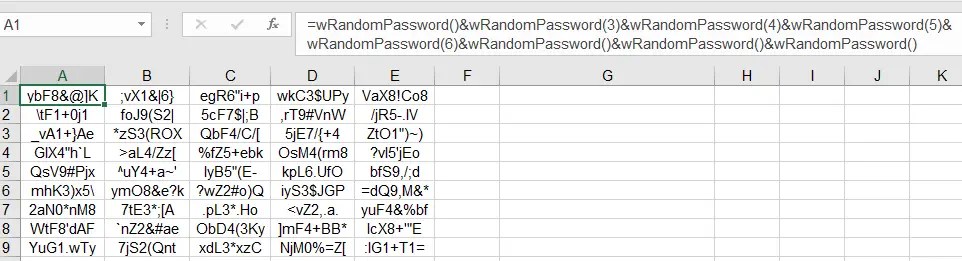 962×261 access excel vba generate random password random characters from access-excel.tips
  364×559 generate random numbers names passwords strings codes excel from www.ablebits.com
 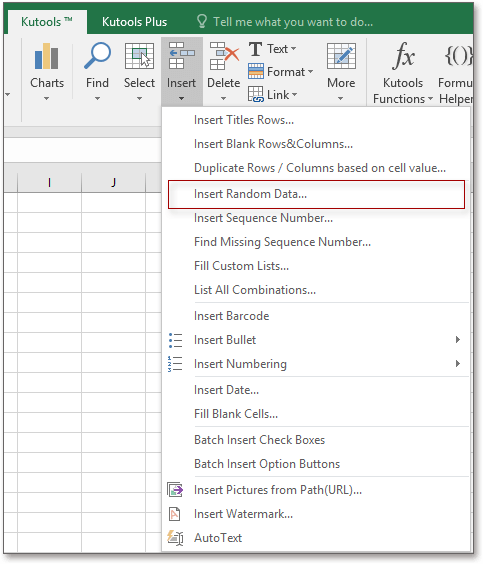 483×564 quickly generate random password excel from www.extendoffice.com
  683×620 generate random strong password excel from www.thewindowsclub.com
 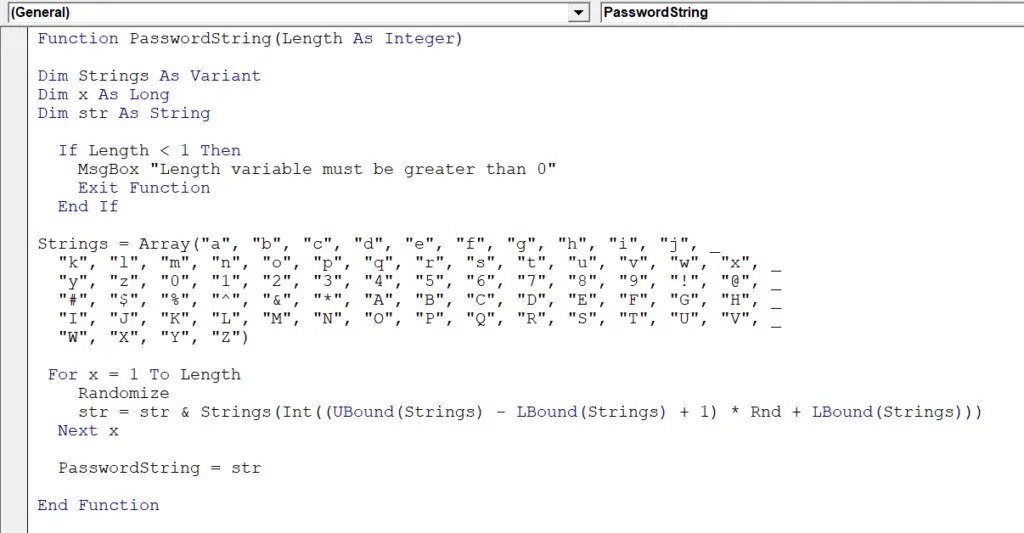 1024×533 random password generator excel from howtoexcelatexcel.com
  984×567 random generator excel generate random numbers passwords from www.ablebits.com
  979×994 generate passwords excel from www.excel-template.net