
Time Blocking Calendar Template In Excel
Time Blocking Calendar Template in Excel: A Comprehensive Guide
In today’s fast-paced world, effective time management is crucial for productivity, reducing stress, and achieving your goals. One powerful technique gaining popularity is time blocking. And what better tool to implement this strategy than Microsoft Excel? This article will guide you through creating and effectively using a time blocking calendar template in Excel.
What is Time Blocking?
Time blocking is a time management method that involves scheduling specific blocks of time for particular tasks or activities. Instead of just creating a to-do list, you allocate dedicated time slots in your calendar for each item. This provides structure, helps you prioritize tasks, and prevents you from getting sidetracked.
Why Use Excel for Time Blocking?
While specialized time management apps are available, Excel offers several advantages for creating a time blocking calendar:
- Customization: Excel provides unparalleled flexibility to tailor your calendar to your specific needs and preferences.
- Accessibility: Most users already have Excel installed, making it readily accessible.
- Cost-effective: No need to purchase additional software.
- Data Manipulation: Excel’s data manipulation capabilities allow you to analyze your time usage and identify areas for improvement.
- Offline Access: You can access and use your calendar even without an internet connection.
Creating a Time Blocking Calendar Template in Excel
Here’s a step-by-step guide to creating your own time blocking template:
1. Setting Up the Basic Structure
Start by creating a new Excel workbook and naming the first sheet “Calendar.”
- Column Headers: In row 1, create the following column headers: “Time Slot,” “Monday,” “Tuesday,” “Wednesday,” “Thursday,” “Friday,” “Saturday,” “Sunday.”
- Time Slots: In column A, list your desired time intervals. You can choose hourly intervals (e.g., 8:00 AM, 9:00 AM, 10:00 AM) or break them down further into 30-minute or even 15-minute increments for greater granularity. For example, starting in cell A2, enter “8:00 AM,” in A3 enter “8:30 AM,” and so on. Drag the fill handle (the small square at the bottom right of the cell) down to populate the time slots throughout the day. You can adjust the time format by right-clicking on the column and selecting “Format Cells.”
- Adjust Column Widths: Adjust the widths of columns B through H to comfortably accommodate task descriptions.
2. Formatting the Calendar for Readability
Visual appeal enhances usability. Use Excel’s formatting tools to make your calendar clear and easy to read.
- Headers: Select row 1 and apply formatting such as bold text, a background color (e.g., light blue or grey), and a larger font size. You can also center the text within the cells.
- Time Slots: Format the “Time Slot” column with a distinct background color (e.g., a lighter shade of the header color). Consider using a thin border around each cell to create a grid-like appearance.
- Cell Borders: Apply borders to all cells (A1 to the last time slot cell in column H) to create a visual grid. Select the range, go to “Home” > “Font” > “Borders,” and choose “All Borders.”
- Conditional Formatting (Optional): You can use conditional formatting to highlight specific days or time slots based on certain criteria. For example, you could highlight weekends in a different color.
3. Implementing Time Blocking
Now comes the core of the template – filling in your time blocks.
- Identify Your Tasks: Start by listing all the tasks you need to accomplish. This includes work-related tasks, personal appointments, errands, exercise, and even downtime.
- Estimate Time Requirements: Accurately estimate how long each task will take. Be realistic and factor in potential interruptions.
- Allocate Time Blocks: In the appropriate cells (matching the day and time slot), enter a brief description of the task you’ll be working on. For example, if you need to work on a project report from 9:00 AM to 11:00 AM on Monday, enter “Project Report” in cells B3 and B4 (assuming you’re using 30-minute time slots).
- Color-Coding (Optional): Use cell colors to categorize tasks. For example, you could use one color for work tasks, another for personal appointments, and a third for exercise. This makes it easier to visually distinguish different types of activities. To change the cell color, select the cell(s) and go to “Home” > “Font” > “Fill Color.”
4. Adding Advanced Features (Optional)
To further enhance your time blocking template, consider adding these features:
- Dropdown Lists for Tasks: Create a separate sheet named “Tasks” and list all your common tasks. Then, in the “Calendar” sheet, use data validation to create dropdown lists in the cells. This allows you to select tasks from a predefined list, ensuring consistency and saving typing time. To do this, select the cell(s) where you want the dropdown, go to “Data” > “Data Validation,” and choose “List” under “Allow.” In the “Source” field, enter the range of cells containing your task list on the “Tasks” sheet (e.g., “Tasks!A1:A10”).
- Recurring Tasks: For tasks that repeat regularly (e.g., daily stand-up meeting, weekly team meeting), create a formula that automatically populates the calendar with these tasks. You can use the `IF` and `WEEKDAY` functions to check the day of the week and insert the task accordingly.
- Task Dependencies: If certain tasks are dependent on others, you can add a column to your “Tasks” sheet to indicate the dependencies. Then, use conditional formatting in the “Calendar” sheet to highlight tasks that cannot be started until their dependencies are completed.
- Progress Tracking: Add a column to your “Tasks” sheet to track the progress of each task (e.g., “Not Started,” “In Progress,” “Completed”). You can then use conditional formatting in the “Calendar” sheet to visually indicate the progress of each task.
- Summary Statistics: Use Excel’s functions (e.g., `COUNTIF`, `SUMIF`) to calculate the total time spent on different types of activities. This can provide valuable insights into your time usage and help you identify areas where you can improve your efficiency. For example, you could calculate the total number of hours spent on meetings each week.
Tips for Effective Time Blocking
- Be Realistic: Don’t overestimate what you can accomplish in a given time block. It’s better to underestimate and finish early than to overestimate and fall behind.
- Prioritize Tasks: Focus on the most important tasks first. Use methods like the Eisenhower Matrix (Urgent/Important) to prioritize effectively.
- Buffer Time: Allocate buffer time between tasks to account for unexpected delays or interruptions.
- Schedule Breaks: Don’t forget to schedule regular breaks throughout the day to avoid burnout.
- Review and Adjust: Regularly review your time blocking schedule and make adjustments as needed. Your schedule should be flexible and adaptable to changing priorities.
- Protect Your Time Blocks: Treat your time blocks as appointments. Avoid distractions and stay focused on the task at hand.
- Be Specific: Instead of blocking time for “Work on Project,” break it down into smaller, more specific tasks like “Outline Project Report” or “Write Introduction Section.”
- Batch Similar Tasks: Group similar tasks together to minimize context switching and improve focus. For example, schedule all your emails at the same time.
Conclusion
A time blocking calendar template in Excel is a powerful tool for improving your time management skills and boosting your productivity. By following the steps outlined in this guide, you can create a customized calendar that meets your specific needs and helps you achieve your goals. Remember to be consistent, flexible, and adapt your schedule as needed to maximize its effectiveness. With a well-designed and diligently used time blocking calendar, you can take control of your time and achieve greater success in both your personal and professional life.
 739×596 neat info time blocking excel template pushice from pushice.nlpegitimi.net
  1365×700 time blocking template printable block schedule from www.someka.net
  1267×973 time blocking template excel from template.mapadapalavra.ba.gov.br
  474×558 time blocking excel template from old.sermitsiaq.ag
  1010×770 time blocking calendar template marj stacie from renaebulrika.pages.dev
  1080×686 time blocking template printable planner kosmotime from www.kosmotime.com
  474×366 printable time blocking templates templatelab from templatelab.com
  858×706 time blocking templates efficient scheduling from www.pinterest.com
  1210×1156 excel time blocking template prntblconcejomunicipaldechinugovco from prntbl.concejomunicipaldechinu.gov.co
  836×569 time blocking calendar template from old.sermitsiaq.ag
  745×813 time blocking templates smartsheet from www.smartsheet.com
  1080×675 time blocking template leaders schools from www.betterleadersbetterschools.com
  724×1024 printable time blocking templates updated from www.developgoodhabits.com
  3000×1650 time blocking template daily planner spreadsheet etsy from www.etsy.com
  1700×2200 printable time blocking templates word excel daily from www.typecalendar.com
  794×633 excel time blocking schedule time block spreadsheet template weekly from www.etsy.com
  735×519 time blocking template time blocking time blocking from www.pinterest.com
  2700×2700 time blocking google sheet excel spreadsheet savvy thriving from savvyandthriving.com
  768×715 printable time blocking template printable word searches from davida.davivienda.com
 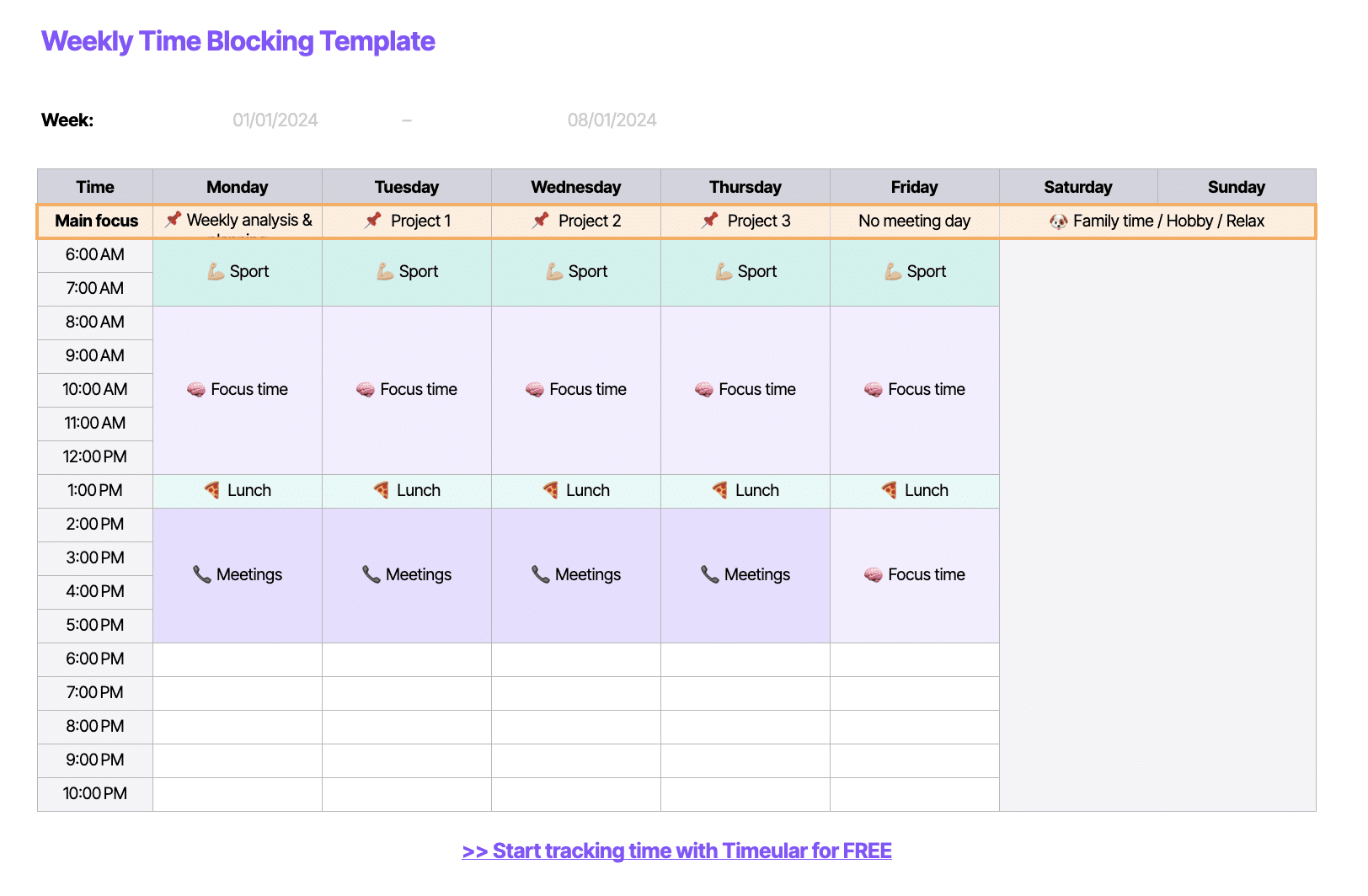 1624×1064 time blocking templates excel google sheets timeular from timeular.com
 .png?auto=compress,format) 2540×1108 printable time blocking template from studyinkomensfn.z21.web.core.windows.net
2540×1108 printable time blocking template from studyinkomensfn.z21.web.core.windows.net  474×366 time blocking template printable printable templates from read.cholonautas.edu.pe
 .png?auto=compress,format) 1822×1110 time blocking templates stay productive from www.float.com
1822×1110 time blocking templates stay productive from www.float.com  2858×1008 time blocking templates schedule from www.float.com