
Printable Excel Checklist For Moving Into A New Home
Printable Excel Checklist for Moving into a New Home
Moving into a new home is an exciting but overwhelming experience. A well-organized checklist is crucial to ensuring a smooth transition and preventing crucial tasks from falling through the cracks. An Excel checklist offers flexibility, customization, and the ability to track progress efficiently. This guide outlines how to create a comprehensive and printable Excel checklist to streamline your move-in process.
Why Use an Excel Checklist?
- Customization: Tailor the checklist to your specific needs and circumstances.
- Organization: Categorize tasks and prioritize them based on urgency.
- Tracking: Monitor progress and identify potential bottlenecks.
- Printable Format: Easily print the checklist for offline access and collaboration.
- Collaboration: Share the file with family members or helpers for shared responsibilities.
- Cost-Effective: Excel is readily available, eliminating the need for specialized software.
Creating Your Move-In Checklist in Excel
1. Setting Up the Spreadsheet
Open a new Excel workbook. Start by labeling the columns to define the information you’ll be tracking:
- Task: A clear and concise description of the task.
- Category: Group similar tasks (e.g., Utilities, Cleaning, Repairs).
- Priority: Indicate the urgency level (e.g., High, Medium, Low).
- Due Date: Set a deadline for completion.
- Assigned To: Assign responsibility to a specific person, if applicable.
- Status: Track the task’s progress (e.g., Not Started, In Progress, Completed).
- Notes: Add any relevant details, instructions, or reminders.
Adjust column widths to accommodate the content. Freeze the top row (View > Freeze Panes > Freeze Top Row) to keep the column headers visible as you scroll down.
2. Populating the Checklist with Tasks
Now, populate the checklist with all the tasks required to settle into your new home. Break down large tasks into smaller, manageable steps. Here’s a detailed breakdown of potential tasks, categorized for better organization:
A. Pre-Move-In Tasks (Before Moving Day)
- Utilities:
- Schedule electricity connection.
- Schedule gas connection (if applicable).
- Schedule water connection.
- Set up internet and cable/satellite service.
- Transfer or establish new phone service.
- Set up trash and recycling service.
- Legal & Financial:
- Update address with the post office (USPS).
- Update address with banks and credit card companies.
- Update address with insurance companies (home, auto, health).
- Update address with driver’s license and vehicle registration.
- Update address with social security administration.
- Notify employer of address change.
- Enroll children in new school (if applicable).
- Security & Safety:
- Change locks on all exterior doors.
- Install or test smoke detectors and carbon monoxide detectors.
- Install security system (if desired).
- Locate fire extinguisher and first-aid kit.
- Cleaning & Preparation:
- Deep clean the house (if not already done).
- Schedule professional cleaning (if desired).
- Sanitize bathrooms and kitchen surfaces.
- Check and clean appliances (oven, refrigerator, dishwasher).
- Inspect and clean carpets or flooring.
- Paint walls or touch up paint (if desired).
B. Post-Move-In Tasks (After Moving Day)
- Unpacking & Organizing:
- Unpack essential boxes (kitchen, bathroom, bedroom).
- Set up beds and sleeping arrangements.
- Organize kitchen and pantry.
- Organize bathrooms.
- Unpack and organize living areas.
- Set up home office (if applicable).
- Organize closets and storage spaces.
- Dispose of packing materials (boxes, bubble wrap).
- Repairs & Maintenance:
- Inspect for any damages or needed repairs.
- Repair or replace broken fixtures.
- Fix leaky faucets or toilets.
- Caulk around windows and doors.
- Address any pest control issues.
- Home Setup & Decoration:
- Hang curtains or blinds.
- Mount TVs and other electronics.
- Arrange furniture according to plan.
- Hang pictures and artwork.
- Set up lighting fixtures.
- Place rugs and floor coverings.
- Community & Neighborhood:
- Explore the neighborhood.
- Locate nearby grocery stores, pharmacies, and other essential services.
- Familiarize yourself with local transportation options.
- Meet your neighbors.
- Register to vote.
3. Using Data Validation for Drop-Down Menus
To ensure consistency and ease of data entry, use data validation to create drop-down menus for the “Category,” “Priority,” and “Status” columns:
- Category: Select the cells in the “Category” column. Go to Data > Data Validation. Choose “List” from the “Allow” dropdown. In the “Source” field, enter the categories separated by commas (e.g., Utilities, Legal & Financial, Cleaning, Repairs, Unpacking).
- Priority: Repeat the process for the “Priority” column, using priority levels like “High, Medium, Low.”
- Status: Repeat the process for the “Status” column, using status options like “Not Started, In Progress, Completed.”
4. Conditional Formatting for Visual Cues
Use conditional formatting to visually highlight tasks based on their priority or status. For example:
- Highlight high-priority tasks in red.
- Highlight completed tasks in green.
To apply conditional formatting: Select the cells in the “Priority” or “Status” column. Go to Home > Conditional Formatting > New Rule. Choose “Use a formula to determine which cells to format.” Enter a formula (e.g., `=$C2=”High”` for highlighting high-priority tasks, assuming “Priority” is in column C). Choose the desired format and click OK.
5. Sorting and Filtering
Use the sorting and filtering features to organize and prioritize tasks. You can sort by priority, due date, or category. You can also filter the list to show only tasks that are assigned to a specific person or have a specific status.
- To sort, select the entire data range (including headers). Go to Data > Sort. Choose the column to sort by and the sorting order.
- To filter, select the entire data range (including headers). Go to Data > Filter. Click the dropdown arrows in the header row to select the filter criteria.
6. Printing the Checklist
Before printing, adjust the page layout to ensure the checklist fits neatly on the page:
- Go to File > Print > Page Setup.
- Adjust margins and orientation (portrait or landscape).
- Scale the checklist to fit the page width.
- Add a header or footer with the date and page number (optional).
Preview the checklist before printing to ensure it looks as desired. You can then print multiple copies for different family members or helpers.
Example Checklist Snippet
| Task | Category | Priority | Due Date | Assigned To | Status | Notes |
|---|---|---|---|---|---|---|
| Schedule electricity connection | Utilities | High | 2024-03-15 | John | Completed | Call utility company at least two weeks in advance. |
| Change locks on exterior doors | Security & Safety | High | 2024-03-16 | Jane | In Progress | Purchase new lock set with spare keys. |
| Unpack kitchen essentials | Unpacking & Organizing | Medium | 2024-03-17 | John | Not Started | Focus on items needed for immediate use (pots, pans, dishes). |
| Update address with USPS | Legal & Financial | Medium | 2024-03-18 | Jane | Completed | Submit online change of address form. |
Tips for Using Your Move-In Checklist Effectively
- Start Early: Begin creating and populating the checklist well in advance of your move-in date.
- Be Specific: Break down large tasks into smaller, more manageable steps.
- Prioritize Tasks: Focus on high-priority tasks first to minimize stress and ensure essential services are in place.
- Regularly Update: Keep the checklist updated with progress and any changes to the schedule.
- Delegate Responsibilities: Share the workload with family members or helpers.
- Celebrate Milestones: Acknowledge and celebrate completed tasks to maintain momentum.
By following these steps, you can create a comprehensive and printable Excel checklist that will help you stay organized and stress-free during your move into your new home. Good luck!
 2074×1282 moving checklist from www.excel-template.net
  1008×1242 moving house checklist spreadsheet moving checklist excel from db-excel.com
  768×712 moving house checklist spreadsheet pertaining business moving from db-excel.com
  836×1257 moving checklist excel spreadsheet home inventory packing from db-excel.com
  749×970 moving house checklist spreadsheet great moving checklists from db-excel.com
  740×976 tips checklist moving home akrams ideas from akramsideas.com
  791×1024 moving house checklist spreadsheet spreadsheet downloa moving house from db-excel.com
  2481×3508 house move checklist spreadsheet moving home checklist from db-excel.com
 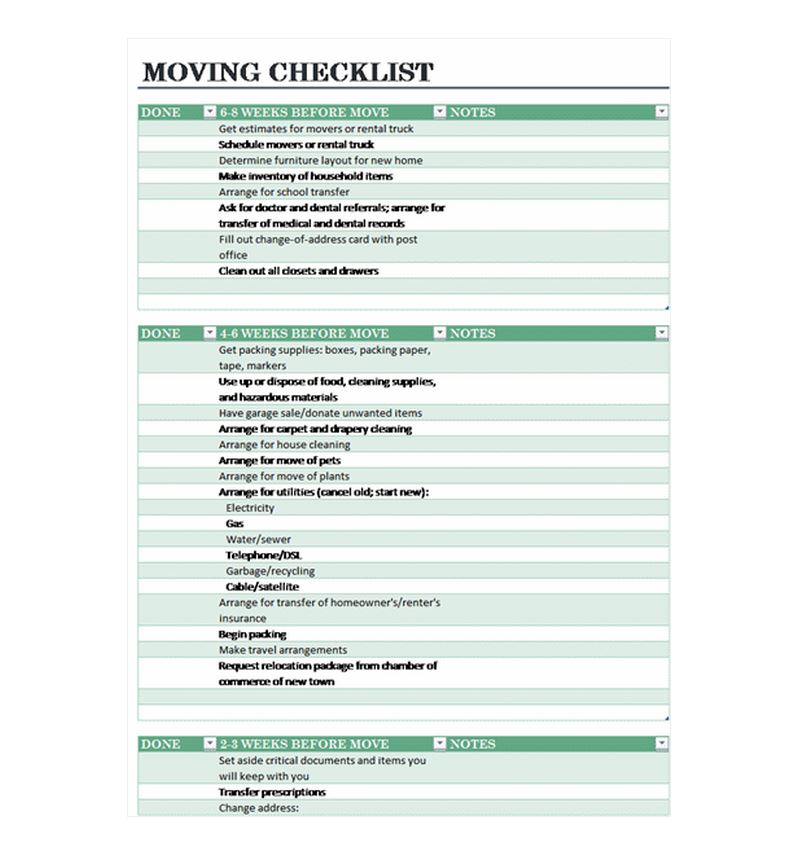 800×853 home moving checklist local moving checklist template haven from templatehaven.com
  900×1165 house move checklist spreadsheet great moving checklists from db-excel.com
  768×1024 house moving checklist template templates word excel from www.formsbirds.com
  1256×1631 moving house spreadsheet moving house checklist spreadsheet from db-excel.com