
Pet Vaccination Record Template In Excel
“`html
Pet Vaccination Record Template in Excel: A Comprehensive Guide
Keeping track of your pet’s vaccinations is crucial for their health and well-being. A well-organized pet vaccination record allows you to quickly access important information, ensure your pet receives timely booster shots, and provide necessary documentation to veterinarians, groomers, boarding facilities, and even when traveling.
While paper records can easily get lost or damaged, an Excel template offers a digital and readily accessible solution. This guide will walk you through creating and effectively using a pet vaccination record template in Excel.
Why Use an Excel Template?
- Organization: Centralize all vaccination information in one easily accessible location.
- Accessibility: Open and view the record on your computer, tablet, or phone (if using cloud-based Excel versions).
- Customization: Tailor the template to suit your specific needs and the number of pets you own.
- Searchability: Easily find specific vaccination details using Excel’s search function.
- Printable: Generate a printable record for physical copies when needed.
- Reminder System: Utilize conditional formatting or formulas to create visual reminders for upcoming booster shots.
- Data Security: While Excel files aren’t inherently secure, you can password protect them for basic privacy.
Creating Your Pet Vaccination Record Template in Excel
Here’s a step-by-step guide to building your template:
1. Setting Up the Basic Structure
Open a new Excel workbook. At the bottom, rename the first sheet (e.g., “Sheet1”) to something descriptive like “PetVaccinationRecord” or “[Pet’s Name] Record”. If you have multiple pets, create separate sheets for each, or include a “Pet Name” column.
2. Defining the Columns
In the first row of the sheet, enter the following column headings. Feel free to adjust or add columns based on your specific needs:
- Pet Name: (If managing records for multiple pets on one sheet)
- Vaccination Name: (e.g., Rabies, Distemper, Parvo)
- Date Administered: (Date the vaccination was given)
- Manufacturer: (Name of the vaccine manufacturer – optional but helpful)
- Lot Number: (Vaccine lot number – important for recall purposes)
- Veterinarian/Clinic: (Name of the vet or clinic that administered the vaccine)
- Expiration Date: (Date the vaccination expires and a booster is needed)
- Booster Due Date: (Date a reminder should be set for the next booster. Can be calculated based on the expiration date)
- Notes: (Any additional relevant information, such as reactions or special instructions)
3. Formatting the Columns
To improve readability and data accuracy, format the columns appropriately:
- Date Columns (Date Administered, Expiration Date, Booster Due Date): Select the entire column and format it as a “Date” type (e.g., MM/DD/YYYY or DD/MM/YYYY, depending on your preference). You can find this option under the “Home” tab, in the “Number” section.
- Text Columns (Pet Name, Vaccination Name, Manufacturer, Veterinarian/Clinic, Notes): Leave these as “Text” format (the default).
- Lot Number: You might want to format this as “Text” as well. Sometimes lot numbers start with zeros, and Excel might remove those if formatted as a number.
4. Entering Your Pet’s Vaccination Information
Begin entering your pet’s vaccination information into the corresponding columns. Refer to your pet’s existing vaccination records (from your veterinarian) to ensure accuracy.
5. Using Formulas for Booster Due Dates (Optional but Recommended)
You can automate the calculation of booster due dates using Excel formulas. For example, if a vaccination is valid for one year, you can add one year to the “Date Administered” to calculate the “Booster Due Date.”
Here’s how:
- In the “Booster Due Date” column, select the first empty cell (e.g., E2).
- Enter the following formula, assuming “Date Administered” is in column C:
=DATE(YEAR(C2)+1,MONTH(C2),DAY(C2))This formula adds one year to the date in cell C2. Modify the `+1` to `+3` if the booster is due in three years. - Press Enter. The booster due date will be calculated and displayed.
- Drag the fill handle (the small square at the bottom right of the cell) down to apply the formula to the rest of the rows.
6. Conditional Formatting for Reminders (Optional but Highly Recommended)
Conditional formatting can visually highlight upcoming booster due dates, making it easy to identify when vaccinations are nearing expiration.
Here’s how to set up conditional formatting:
- Select the entire “Booster Due Date” column.
- Go to the “Home” tab and click on “Conditional Formatting” in the “Styles” section.
- Choose “New Rule…”
- In the “New Formatting Rule” dialog box, select “Use a formula to determine which cells to format.”
- In the “Format values where this formula is true” box, enter the following formula (assuming the “Booster Due Date” starts in cell E2):
=E2<=TODAY()+30This formula will highlight dates that are within 30 days of today's date. Adjust the `+30` to change the reminder window. You can use `=E2- Click the "Format..." button.
- Choose the desired formatting (e.g., fill color, font color) to indicate that the vaccination is due soon.
- Click "OK" to close the "Format Cells" dialog box.
- Click "OK" to close the "New Formatting Rule" dialog box.
Now, any dates in the "Booster Due Date" column that are within the specified timeframe will be highlighted according to the formatting you selected.
7. Sorting and Filtering
Excel's sorting and filtering features are invaluable for managing your vaccination records.
- Sorting: Sort by "Pet Name" to group vaccinations for each pet, or sort by "Expiration Date" or "Booster Due Date" to prioritize upcoming vaccinations. Select the entire data range, then go to the "Data" tab and click "Sort."
- Filtering: Filter by "Vaccination Name" to see all records for a specific vaccine, or filter by "Veterinarian/Clinic" to track which vaccinations were administered by a particular vet. Select the entire data range, then go to the "Data" tab and click "Filter."
8. Saving and Backing Up Your Template
Save your Excel template with a descriptive name (e.g., "PetVaccinationRecord.xlsx"). It's crucial to regularly back up your file to prevent data loss. Consider saving a copy to a cloud storage service (like Google Drive, Dropbox, or OneDrive) or an external hard drive.
Example Data Entry
Here's an example of how you might enter data into your template:
| Pet Name | Vaccination Name | Date Administered | Manufacturer | Lot Number | Veterinarian/Clinic | Expiration Date | Booster Due Date | Notes |
|---|---|---|---|---|---|---|---|---|
| Buddy | Rabies | 03/15/2023 | Zoetis | ABC1234 | Animal Hospital | 03/15/2024 | 03/15/2024 | Standard dose. No reaction observed. |
| Buddy | Distemper | 03/15/2023 | Merck | XYZ5678 | Animal Hospital | 03/15/2026 | 03/15/2026 | 3-year vaccine. |
| Luna | Rabies | 05/20/2022 | Zoetis | DEF9012 | City Vet Clinic | 05/20/2023 | 05/20/2023 | Annual booster required. |
Tips for Effective Use
- Be Consistent: Use consistent formatting and terminology throughout the template.
- Update Regularly: Immediately update the record whenever your pet receives a vaccination.
- Double-Check Data: Verify the accuracy of the information you enter, especially dates and lot numbers.
- Protect Your File: Consider password-protecting your Excel file if you are concerned about privacy. Go to File -> Info -> Protect Workbook -> Encrypt with Password.
- Print When Needed: Create a printed copy of the record when visiting a groomer, boarding facility, or traveling.
- Adapt as Needed: Customize the template over time to incorporate new information or features as required.
By following these steps, you can create a comprehensive and user-friendly pet vaccination record in Excel that will help you stay organized and ensure your pet receives the necessary protection against preventable diseases.
```
 550×425 pet vaccination record template stcharleschill template from stcharleschill.com
 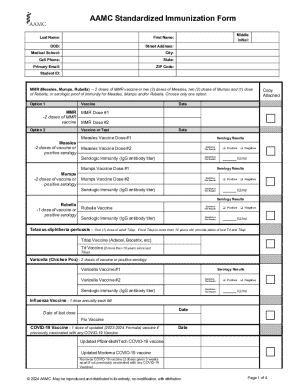 298×386 pet vaccination record templates page from www.pdffiller.com