
How To Remove Non-numeric Characters In Excel
Removing Non-Numeric Characters in Excel: A Comprehensive Guide
Excel, a ubiquitous tool for data analysis and manipulation, often encounters data imported from various sources that isn’t perfectly formatted. One common issue is the presence of non-numeric characters within numeric data, hindering calculations and analysis. This guide provides several methods for removing these unwanted characters, ensuring your data is clean and ready for use.
Understanding the Problem
Non-numeric characters in numeric fields can include:
- Currency symbols: $, €, ¥, etc.
- Commas and periods used as separators: 1,000.00 or 1.000,00 (depending on locale)
- Letters: 123abc, $50USD
- Special characters: %, #, *, etc.
- Spaces: 123 456
These characters prevent Excel from recognizing the values as numbers, leading to errors in calculations and making it difficult to perform aggregations, sorting, and other numerical operations.
Methods for Removing Non-Numeric Characters
Here are several techniques to clean your data. Consider the complexity of your data and the frequency with which you need to perform this cleaning when selecting the most appropriate method.
1. Find and Replace
The Find and Replace feature is a simple and effective method for removing specific characters. It’s best suited for removing a small number of known characters.
- Select the Range: Select the cells containing the data you want to clean.
- Open Find and Replace: Press
Ctrl + H(Windows) orCmd + Option + F(Mac). - Specify the Character: In the “Find what” field, enter the non-numeric character you want to remove (e.g., “$”).
- Leave “Replace with” Empty: Leave the “Replace with” field blank to effectively delete the character.
- Click “Replace All”: Click the “Replace All” button. Excel will display a message indicating how many replacements were made.
- Repeat for Other Characters: Repeat steps 3-5 for any other non-numeric characters you need to remove.
Example: To remove the dollar sign ($) from a column of monetary values:
- Select the column containing the monetary values.
- Press
Ctrl + H. - Enter “$” in the “Find what” field.
- Leave the “Replace with” field blank.
- Click “Replace All”.
Limitations: Find and Replace is manual and tedious for a wide variety of non-numeric characters. It also doesn’t handle variable placements of characters (e.g., sometimes the $ is at the beginning, sometimes at the end).
2. Using Formulas: SUBSTITUTE and Other Text Functions
Excel’s text functions offer more flexibility and automation. The SUBSTITUTE function is particularly useful. Other functions like LEFT, RIGHT, MID, LEN, and ISNUMBER can be combined to achieve more complex cleaning.
The SUBSTITUTE Function:
=SUBSTITUTE(text, old_text, new_text, [instance_num])
text: The text or cell reference containing the text you want to modify.old_text: The text you want to replace.new_text: The text you want to replaceold_textwith.[instance_num](optional): Specifies which occurrence ofold_textyou want to replace. If omitted, all occurrences are replaced.
Example: To remove commas (,) from a cell (A1):
=SUBSTITUTE(A1,",","")
This formula replaces all commas in cell A1 with an empty string, effectively removing them.
Example: To remove multiple characters, you can nest SUBSTITUTE functions:
=SUBSTITUTE(SUBSTITUTE(A1,"$",""),",","")
This formula first removes dollar signs ($) and then removes commas (,) from cell A1.
Important: The SUBSTITUTE function returns text. After removing the non-numeric characters, you may need to convert the result to a number using the VALUE function.
Example: Combining SUBSTITUTE and VALUE:
=VALUE(SUBSTITUTE(SUBSTITUTE(A1,"$",""),",",""))
This formula removes dollar signs and commas and then converts the result to a number.
Other Text Functions
You can use functions like LEFT, RIGHT, MID, LEN and ISNUMBER for more advanced scenarios. For instance, to remove characters from the left side of a cell until a number is found, you would need to use a combination of these functions within a loop. This is complex and typically better handled with VBA.
Limitations: The formula-based approach can become complex when dealing with a large variety of characters or inconsistent data formats. It requires creating new columns to store the cleaned data. Nested `SUBSTITUTE` functions can become difficult to read and maintain.
3. Using VBA (Visual Basic for Applications)
VBA provides the most powerful and flexible solution for removing non-numeric characters. You can write custom code to handle complex scenarios and automate the cleaning process.
Example VBA Code:
Sub RemoveNonNumeric() Dim cell As Range Dim i As Integer Dim str As String Dim newStr As String For Each cell In Selection str = cell.Value newStr = "" For i = 1 To Len(str) If IsNumeric(Mid(str, i, 1)) Then newStr = newStr & Mid(str, i, 1) End If Next i cell.Value = newStr Next cell End Sub Explanation:
- The code iterates through each cell in the selected range.
- For each cell, it extracts the cell’s value as a string.
- It iterates through each character in the string.
- If the character is numeric (
IsNumeric(Mid(str, i, 1))), it appends it to a new string (newStr). - Finally, it replaces the original cell value with the cleaned string (
newStr).
How to Use VBA Code:
- Open the VBA Editor: Press
Alt + F11. - Insert a Module: In the VBA editor, go to
Insert > Module. - Paste the Code: Paste the VBA code into the module.
- Close the VBA Editor: Close the VBA editor.
- Select the Range: Select the cells containing the data you want to clean.
- Run the Macro: Press
Alt + F8to open the Macro dialog box, select theRemoveNonNumericmacro, and click “Run”.
Customization: This VBA code can be customized to handle specific scenarios. For example, you can modify the IsNumeric condition to allow decimal points or other characters that are valid in your numbers.
Example: Allowing Decimal Points:
Sub RemoveNonNumericWithDecimal() Dim cell As Range Dim i As Integer Dim str As String Dim newStr As String For Each cell In Selection str = cell.Value newStr = "" For i = 1 To Len(str) If IsNumeric(Mid(str, i, 1)) Or Mid(str, i, 1) = "." Then newStr = newStr & Mid(str, i, 1) End If Next i cell.Value = newStr Next cell End Sub Adding Error Handling
The VBA code can be enhanced with error handling to gracefully handle cases where a cell’s value is not a string. For example:
Sub RemoveNonNumericWithDecimalAndErrorHandling() Dim cell As Range Dim i As Integer Dim str As String Dim newStr As String Dim cellValue As Variant 'Use Variant to accommodate different data types On Error Resume Next 'Enable error handling For Each cell In Selection cellValue = cell.Value If VarType(cellValue) = vbString Then 'Check if the cell contains a string str = cellValue newStr = "" For i = 1 To Len(str) If IsNumeric(Mid(str, i, 1)) Or Mid(str, i, 1) = "." Then newStr = newStr & Mid(str, i, 1) End If Next i cell.Value = newStr Else 'Handle cases where the cell doesn't contain a string 'For example, display a message or skip the cell Debug.Print "Cell " & cell.Address & " does not contain text." End If Next cell On Error GoTo 0 'Disable error handling End Sub Limitations: Requires knowledge of VBA. Can be overkill for simple tasks. Macros need to be enabled in Excel.
4. Power Query (Get & Transform Data)
Power Query, also known as “Get & Transform Data,” is a powerful data transformation tool built into Excel. It allows you to import, clean, and transform data from various sources. It’s excellent for automated and repeatable cleaning processes.
Steps to Remove Non-Numeric Characters using Power Query:
- Select Data: Select the range of cells containing the data you want to clean.
- From Table/Range: Go to the “Data” tab and click “From Table/Range.” This opens the Power Query Editor.
- Add Custom Column: In the Power Query Editor, go to “Add Column” tab, and click “Custom Column.”
- Write the M Code: In the Custom Column dialog box, enter a new column name (e.g., “CleanedData”). In the “Custom column formula” field, enter the following M code (replace “Column1” with the actual name of your column):
= Text.Select([Column1], {"0".."9"})This M code uses the `Text.Select` function to keep only numeric characters.
- Change Data Type: Select the new “CleanedData” column, go to the “Transform” tab, and click “Data Type.” Choose “Whole Number” or “Decimal Number” as appropriate.
- Close & Load: Go to the “Home” tab and click “Close & Load” or “Close & Load To…” to load the transformed data back into your worksheet.
Explanation of the M Code:
Text.Select([Column1], {"0".."9"}): This function takes the text from the “Column1” column and selects only the characters that are within the range “0” to “9”.
Example with Error Handling and Decimal Points:
try Number.FromText(Text.Select([Column1], {"0".."9", "."})) otherwise null This code attempts to convert the cleaned text to a number (allowing decimal points). If the conversion fails (e.g., if there are multiple decimal points), it returns `null`, which can then be handled appropriately (e.g., filtered out or replaced with a default value).
Benefits of Power Query:
- Repeatable Transformations: Power Query steps are recorded, allowing you to easily refresh the transformation when the source data changes.
- Data Source Flexibility: Power Query can import data from various sources, not just Excel sheets.
- Complex Transformations: Power Query offers a wide range of data transformation tools beyond just removing non-numeric characters.
Limitations: Has a learning curve. May be overkill for simple, one-time cleaning tasks.
Choosing the Right Method
The best method depends on the specific requirements of your task:
- Find and Replace: Quick and easy for removing a small number of known characters from a small dataset, and for one-off cleanup operations.
- Formulas (SUBSTITUTE, VALUE): Suitable for relatively simple scenarios where you need to remove a few specific characters. Can be easily integrated into your spreadsheet but can become complex and hard to maintain for more demanding scenarios.
- VBA: Most flexible and powerful option for complex scenarios, large datasets, and when you need to automate the cleaning process. Requires VBA knowledge.
- Power Query: Excellent for repeatable data cleaning tasks, importing data from various sources, and performing more complex transformations. Has a bit of a learning curve, but saves a lot of time in the long run with automated refresh functionality.
Remember to always back up your data before performing any data cleaning operations. Also, carefully consider the implications of removing non-numeric characters, as it might affect the interpretation of your data.
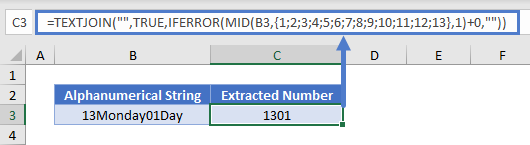 530×145 remove numeric characters excel google sheets automate from www.automateexcel.com
  531×305 remove numeric characters cells excel from www.extendoffice.com
  868×326 strip remove numeric characters text strings from www.extendoffice.com
 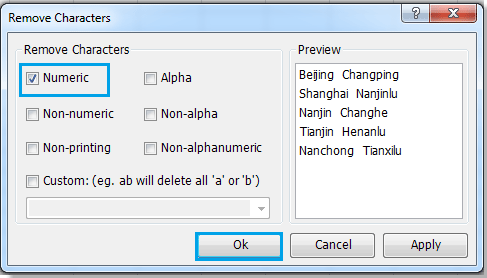 474×270 remove numeric characters cells excel from www.extendoffice.com