
How To Remove Duplicates In Excel Using Power Query
“`html
Removing Duplicates in Excel with Power Query: A Comprehensive Guide
Power Query, also known as “Get & Transform Data” in Excel, is a powerful data manipulation tool that allows you to import, clean, transform, and load data from various sources. One of its most useful features is the ability to efficiently remove duplicate rows from your datasets. This article will guide you through the process of removing duplicates in Excel using Power Query, covering various scenarios and providing best practices.
Why Use Power Query for Removing Duplicates?
While Excel offers a built-in “Remove Duplicates” feature on the Data tab, Power Query provides several advantages: * **Repeatability:** Power Query steps are recorded and can be easily refreshed when your data changes. This creates a repeatable process, saving you time and ensuring consistency. * **Transformation Pipeline:** Removing duplicates is often part of a larger data cleaning process. Power Query allows you to combine this step with other transformations like filtering, pivoting, and merging. * **Complex Scenarios:** Power Query can handle more complex scenarios, such as removing duplicates based on specific columns or using fuzzy matching techniques (although the latter is not a direct duplicate removal feature, it can assist in identifying near-duplicates). * **Data Source Connectivity:** Power Query can connect to various data sources, not just Excel spreadsheets, making it a versatile tool for data cleaning across different platforms.
Step-by-Step Guide to Removing Duplicates
Let’s walk through the process of removing duplicates in Excel using Power Query. **1. Import Your Data into Power Query:** * **From a Table/Range:** If your data is already in an Excel table or range, select any cell within the data. Go to the “Data” tab in the Excel ribbon and click “From Table/Range” in the “Get & Transform Data” group. * **From Other Sources:** If your data is in a different format (e.g., CSV, text file, database), go to the “Data” tab and click “Get Data.” Choose the appropriate data source and follow the prompts to import your data. This will open the Power Query Editor. **2. Identify the Columns to Check for Duplicates:** Carefully consider which columns determine whether a row is a duplicate. Sometimes, a duplicate is only defined by the combination of values in certain columns. For example, you might have a list of customers, and a duplicate is identified by having the same “CustomerID” and “OrderDate.” **3. Remove Duplicates:** * **Removing Duplicates Based on All Columns:** To remove rows where *all* columns are identical, go to the “Home” tab in the Power Query Editor and click “Remove Rows” -> “Remove Duplicates.” Power Query will automatically remove any rows that are exact duplicates across all columns. * **Removing Duplicates Based on Specific Columns:** To remove rows where *only* specific columns are identical, follow these steps: * Select the columns you want to use to identify duplicates. You can select multiple columns by holding down the Ctrl key (or Cmd key on a Mac) while clicking the column headers. * Go to the “Home” tab in the Power Query Editor and click “Remove Rows” -> “Remove Duplicates.” Power Query will only consider the selected columns when identifying duplicate rows. Rows that have the same values in the selected columns will be considered duplicates, and only the first instance will be kept. **4. Review and Apply Transformations:** After removing duplicates, review the resulting data in the Power Query Editor to ensure the removal was performed correctly. You can see the steps applied in the “Applied Steps” pane on the right side of the editor. You can also undo the remove duplicate step by clicking the X next to it. **5. Load the Transformed Data Back into Excel:** * **Close & Load:** To load the transformed data into a new Excel worksheet, go to the “Home” tab in the Power Query Editor and click “Close & Load.” This will create a new table in a new worksheet containing the data without duplicates. * **Close & Load To:** To load the transformed data to a specific location (e.g., an existing worksheet or a data model), click the arrow below “Close & Load” and choose “Close & Load To…” A dialog box will appear, allowing you to choose the destination of your data. **Example Scenario:** Let’s say you have a table of customer orders with the following columns: * OrderID * CustomerID * OrderDate * ProductName * Quantity * Price You want to remove duplicate orders based on `CustomerID`, `OrderDate`, and `ProductName`. This means that if a customer placed the same order for the same product on the same date, you want to remove the duplicate. Here’s how you’d do it in Power Query: 1. Import the data into Power Query (as described above). 2. Select the `CustomerID`, `OrderDate`, and `ProductName` columns. 3. Click “Remove Rows” -> “Remove Duplicates” on the “Home” tab. 4. Review the data to ensure duplicates are removed based on the specified columns. 5. “Close & Load” the data back into Excel.
Handling Null Values (Blanks)
Power Query treats null values (blanks) as distinct values. This means that if two rows have the same values in the selected columns but one row has a null value in one of those columns, they will *not* be considered duplicates. If you want to treat null values as equivalent when removing duplicates, you can use the “Replace Values” transformation to replace null values with a placeholder value (e.g., “N/A” or an empty string) *before* removing duplicates. **Example:** 1. Select the column(s) that might contain null values. 2. Go to the “Transform” tab and click “Replace Values.” 3. In the dialog box, enter `null` in the “Value To Find” field and your desired placeholder value (e.g., “N/A”) in the “Replace With” field. 4. Click “OK.” 5. Proceed with removing duplicates as described above. Remember to choose a placeholder value that is unlikely to appear naturally in your data to avoid unintentionally grouping non-duplicate rows together. After removing duplicates, you might choose to replace the placeholder values back to null if needed.
Advanced Tips and Best Practices
* **Keep a Backup:** Always keep a backup of your original data before performing any transformations, in case you need to revert to the original state. * **Understand Your Data:** Before removing duplicates, understand the data and the business rules that define a duplicate. This will help you choose the correct columns and handle null values appropriately. * **Document Your Steps:** Power Query automatically records your steps, but adding comments to your query can make it easier for others (or yourself in the future) to understand your transformations. You can add comments by right-clicking on a step in the “Applied Steps” pane and selecting “Properties.” * **Test Your Query:** After removing duplicates, carefully review the results to ensure the transformation has worked as expected. * **Use Descriptive Column Names:** Clear and descriptive column names will make your Power Query queries easier to understand and maintain. Rename columns in the Power Query Editor on the “Transform” tab. * **Optimize Performance:** For large datasets, performance can be a concern. Consider filtering your data before removing duplicates to reduce the amount of data that Power Query needs to process.
Conclusion
Removing duplicates is a crucial step in data cleaning and preparation. Power Query provides a robust and repeatable way to remove duplicates in Excel, allowing you to handle complex scenarios and integrate this step into a broader data transformation pipeline. By following the steps and best practices outlined in this article, you can effectively remove duplicates and ensure the accuracy and integrity of your data. Remember to carefully consider the columns you use to identify duplicates and handle null values appropriately to achieve the desired results. “`
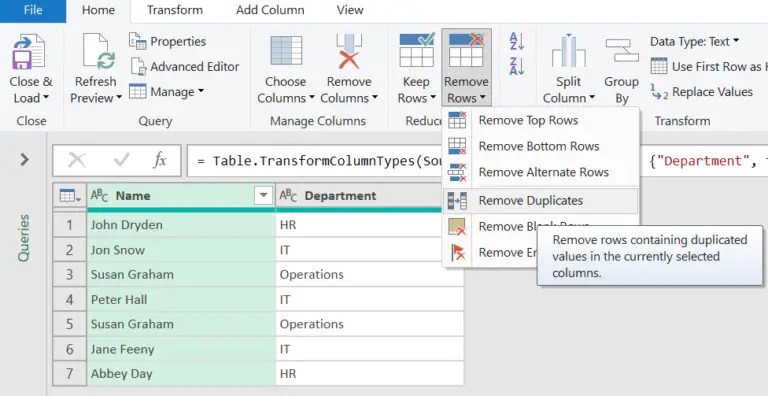 768×396 remove duplicates power query excel excel from howtoexcelatexcel.com
 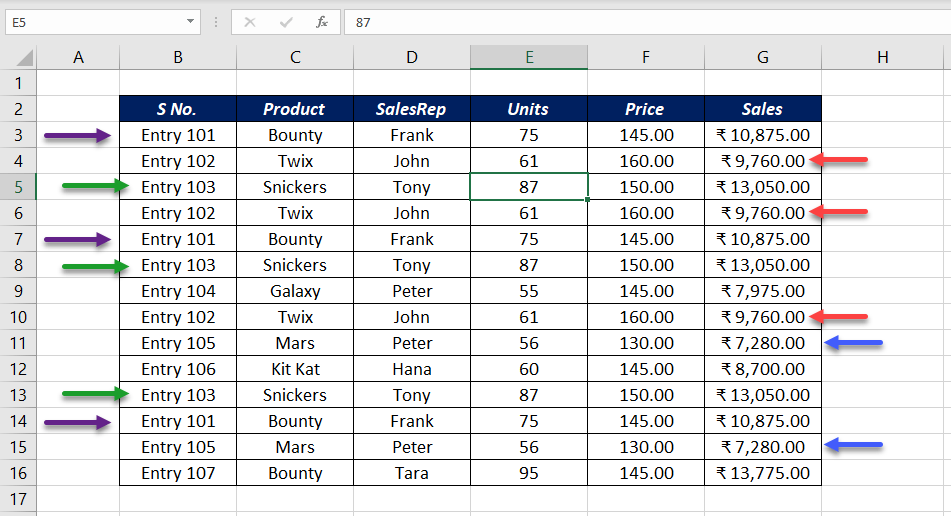 951×516 remove duplicates power query excel xl cad from xlncad.com
  580×416 excel power query remove duplicates myexcelonline from www.myexcelonline.com
  474×203 read remove duplicates power query excel from yodalearning.com
 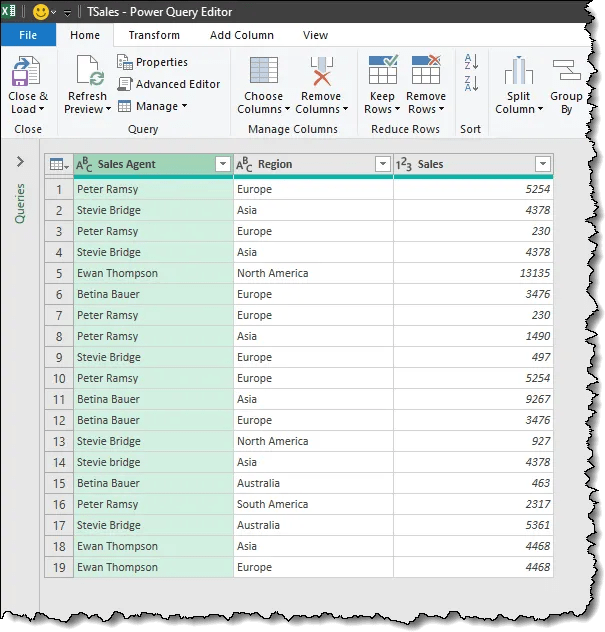 605×632 remove duplicates excel easy ways xelplus leila gharani from www.xelplus.com