
How To Create Invoice Aging Report In Excel
“`html
Creating an Invoice Aging Report in Excel
An invoice aging report is a crucial tool for businesses to monitor outstanding receivables and identify potential cash flow issues. It categorizes invoices based on how long they have been outstanding, providing a clear picture of overdue payments. Excel offers a flexible and readily available platform to create and manage these reports.
Data Preparation: Setting Up Your Invoice Data
The foundation of any good report is clean and well-organized data. Before creating your invoice aging report, ensure your invoice data is properly formatted in an Excel sheet. Here’s what you need:
- Invoice Number: A unique identifier for each invoice.
- Customer Name: The name of the customer the invoice was issued to.
- Invoice Date: The date the invoice was issued.
- Due Date: The date the invoice is due for payment.
- Invoice Amount: The total amount due on the invoice.
- Payment Date (Optional): The date the invoice was actually paid. If the invoice is still outstanding, leave this field blank.
Ensure that your dates are formatted as dates (e.g., mm/dd/yyyy or dd/mm/yyyy) in Excel. This is critical for accurate calculations. Similarly, ensure that the invoice amount is formatted as currency.
Calculating Invoice Age
The core of the aging report is determining how many days each invoice is outstanding. We’ll use a formula to calculate this, factoring in whether the invoice has already been paid.
- Add a “Days Outstanding” Column: Insert a new column in your spreadsheet, labeled “Days Outstanding”.
- Use the TODAY() function (for Unpaid Invoices): In the first cell of the “Days Outstanding” column (e.g., E2), enter the following formula:
=IF(ISBLANK(F2),TODAY()-C2, "")* `IF(ISBLANK(F2), … , “”)`: This checks if the “Payment Date” cell (F2) is blank. If it *is* blank, the invoice is considered unpaid, and the formula proceeds to calculate the days outstanding. If it’s *not* blank (meaning the invoice has been paid), the formula returns an empty string, effectively leaving the “Days Outstanding” cell blank. * `TODAY()-C2`: If the invoice is unpaid, this subtracts the “Invoice Date” (C2) from the current date using the `TODAY()` function. The result is the number of days the invoice has been outstanding. - Include a Due Date Comparison (Recommended): Modify the formula to use the due date instead of the invoice date and check if the invoice is past due:
=IF(ISBLANK(F2),IF(D2 < TODAY(),TODAY()-D2,0), "")* `IF(D2 < TODAY(),TODAY()-D2,0)`: This adds another layer of logic. It first checks if the "Due Date" (D2) is *before* today's date. If it is, it means the invoice is past due. In that case, it calculates the number of days past due (TODAY()-D2). If the due date is *not* before today (meaning it's not yet due or is due today), it returns 0. - Copy the Formula: Drag the small square at the bottom right corner of the cell (E2) down to apply the formula to all rows in your data.
Creating Aging Buckets
Next, you'll categorize the outstanding invoices into aging buckets. Common buckets are:
- Current (0-30 days)
- 31-60 days
- 61-90 days
- 91+ days
- Add Aging Bucket Columns: Add four new columns to your spreadsheet, labeled "0-30 Days", "31-60 Days", "61-90 Days", and "91+ Days".
- Use the IF Function to Assign Buckets: In the first cell of the "0-30 Days" column (e.g., F2), enter the following formula:
=IF(AND(E2>=0,E2<=30),B2,"")* `IF(AND(E2>=0,E2<=30), ... , "")`: This checks if the "Days Outstanding" value (E2) falls within the 0-30 day range. The `AND` function ensures that *both* conditions (greater than or equal to 0 *and* less than or equal to 30) are true. * `B2`: If the invoice is within the 0-30 day range, this displays the "Invoice Amount" (B2) in this column. This is the amount that falls into this aging bucket. * `""`: If the invoice is *not* within the 0-30 day range, this returns an empty string, leaving the cell blank. - Repeat for Other Buckets: Repeat the process for the other aging buckets, adjusting the `AND` conditions accordingly: * 31-60 Days:
=IF(AND(E2>=31,E2<=60),B2,"")* 61-90 Days:=IF(AND(E2>=61,E2<=90),B2,"")* 91+ Days:=IF(E2>=91,B2,"")(No upper limit needed for 91+ days) - Copy the Formulas: Drag the small square at the bottom right corner of each formula cell down to apply the formulas to all rows in your data.
Creating Summary Totals
Now, summarize the amounts within each aging bucket to get a clear overview.
- Add a "Totals" Row: Below your data table, add a row labeled "Totals".
- Use the SUM Function: In the "Totals" row, for each aging bucket column, use the `SUM` function to add up all the amounts in that column. For example, in the "0-30 Days" totals cell, enter:
=SUM(F2:F[last_row])Replace `[last_row]` with the actual last row number of your data table. For example, if your data ends at row 100, the formula would be `=SUM(F2:F100)`.
Formatting and Presentation
A well-formatted report is easier to read and understand.
- Headers: Bold and clearly label all columns.
- Currency: Format the "Invoice Amount" and aging bucket columns as currency (e.g., using the accounting or currency format).
- Borders: Add borders to the table for better readability.
- Freeze Panes: Freeze the header row to keep it visible as you scroll down the data. (View > Freeze Panes > Freeze Top Row)
- Conditional Formatting (Optional): Use conditional formatting to highlight overdue invoices or specific aging buckets. For example, you could highlight all invoices in the "91+ Days" bucket in red.
Pivot Tables (Advanced)
For more complex analysis and dynamic reporting, consider using a Pivot Table.
- Select Your Data: Select the entire range of your invoice data, including headers.
- Insert PivotTable: Go to Insert > PivotTable. Choose where you want to place the PivotTable (e.g., a new worksheet).
- Configure the PivotTable: * Drag "Customer Name" to the "Rows" area. * Drag "0-30 Days", "31-60 Days", "61-90 Days", and "91+ Days" to the "Values" area. Ensure that the values are summarized as "Sum".
The PivotTable will automatically calculate the total outstanding amount for each customer in each aging bucket. You can further customize the PivotTable by adding filters, grouping data, and creating calculated fields.
Tips for Maintaining Your Invoice Aging Report
* Regular Updates: Update your report regularly (e.g., weekly or monthly) to reflect new invoices and payments. * Data Validation: Use data validation to ensure data integrity, especially for dates and numerical values. * Error Checking: Double-check your formulas and data entries to prevent errors. * Backup: Regularly back up your Excel file to prevent data loss. * Automation (Advanced): Consider using VBA (Visual Basic for Applications) to automate parts of the report creation process, such as updating the data and refreshing the PivotTable.
By following these steps, you can create a powerful and informative invoice aging report in Excel to effectively manage your accounts receivable and improve your business's financial health.
```
 2200×1700 invoice aging report invoice template ideas from simpleinvoice17.net
  3508×2480 invoice aging report guide avaza support from support.avaza.com
  320×199 quickbooks excel receivables aging report generator from www.payorcrm.com
  580×400 track accounts receivable invoice aging report template excel from www.free-power-point-templates.com
  950×735 invoice aging report spreadsheet template table fill sign from www.templateroller.com
 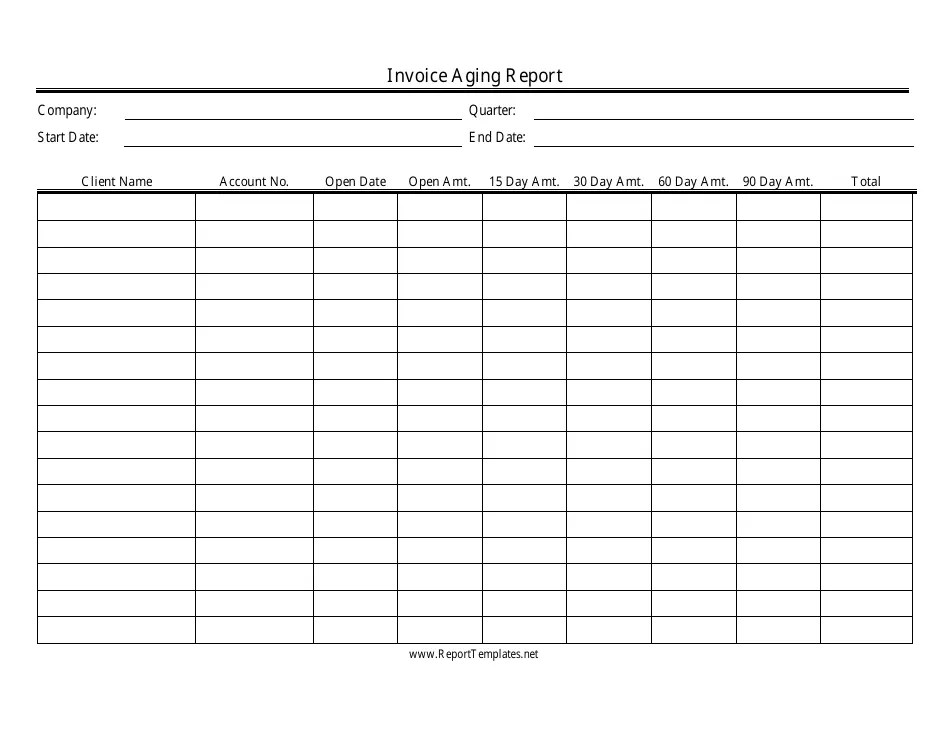 950×735 invoice aging report spreadsheet template black white fill from www.templateroller.com
  1140×1476 invoice aging report template printable invoice business form from www.etsy.com
  474×200 accounts receivable aging report excel magnimetrics from magnimetrics.com
 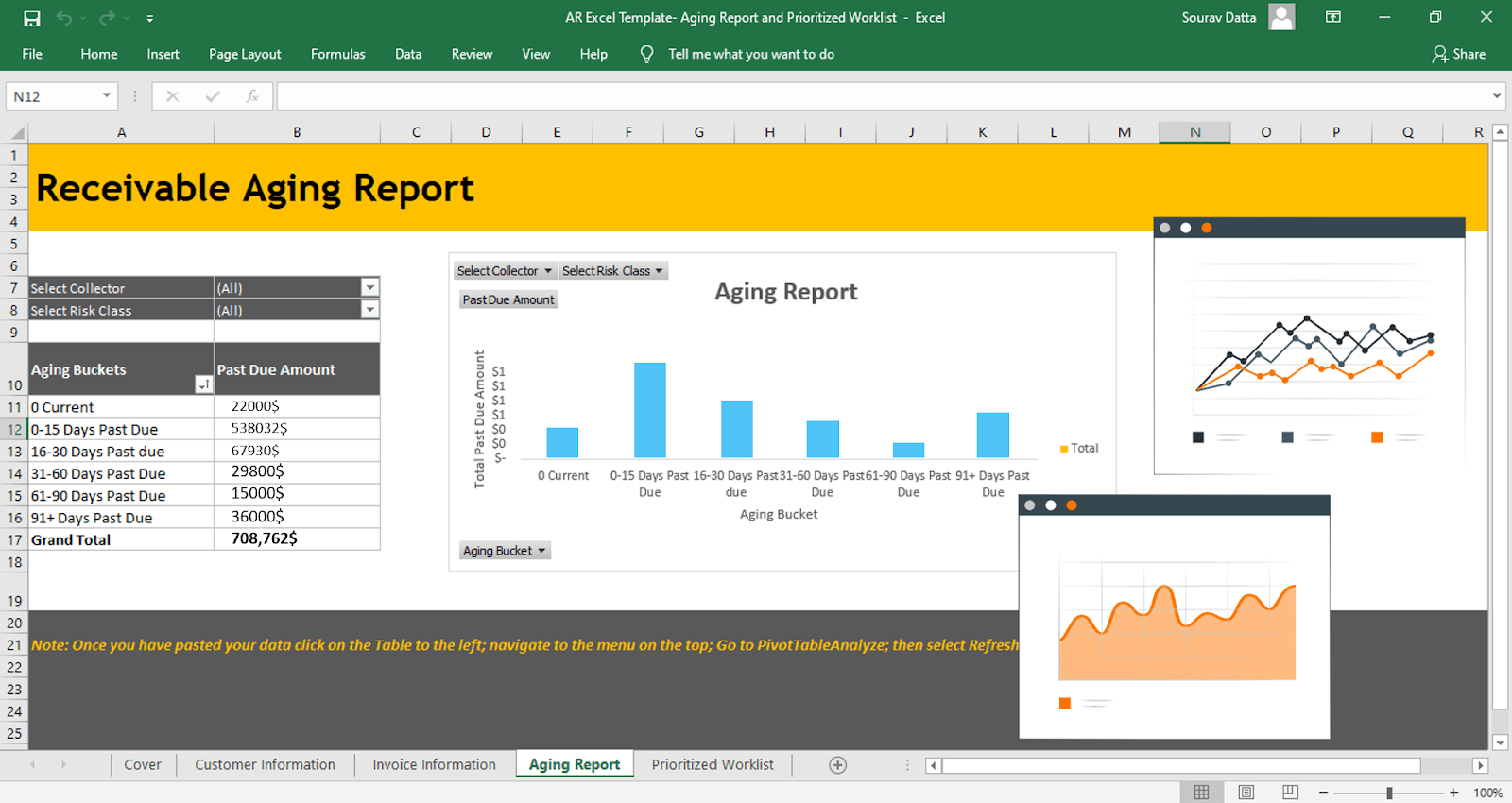 1600×850 ar aging report excel template highradius from www.highradius.com
  609×624 aging report excel fabtemplatez from www.fabtemplatez.com
  139×180 vertex invoice assistant invoice manager excel from www.vertex42.com