
Household Appliance Maintenance Log Excel
Household Appliance Maintenance Log in Excel
Maintaining household appliances is crucial for extending their lifespan, ensuring efficient operation, and preventing costly repairs. A well-organized maintenance log is an invaluable tool for tracking maintenance activities, scheduling upcoming tasks, and identifying potential problems before they escalate. Microsoft Excel provides a simple yet effective platform for creating and managing such a log.
Benefits of Using an Excel Maintenance Log
* **Organization:** Consolidates all appliance maintenance information in one place. * **Tracking:** Records dates, types of maintenance, and notes about each appliance. * **Scheduling:** Allows for proactive planning of future maintenance tasks. * **Cost Savings:** Prevents minor issues from becoming major, expensive repairs. * **Improved Appliance Lifespan:** Regular maintenance prolongs the life of appliances. * **Warranty Management:** Provides proof of maintenance for warranty claims. * **Easy Access and Editing:** Excel is widely accessible and easy to use for data entry and modification. * **Customization:** The template can be tailored to fit specific needs and appliance types.
Creating a Household Appliance Maintenance Log in Excel: A Step-by-Step Guide
- **Open Excel:** Launch Microsoft Excel on your computer.
- **Create a New Workbook:** Choose “Blank workbook” to start from scratch.
- **Define Column Headers:** In the first row, create the following column headers:
- **Appliance Name:** (e.g., Refrigerator, Washing Machine, Oven)
- **Location:** (e.g., Kitchen, Laundry Room)
- **Model Number:** (For identification and warranty purposes)
- **Purchase Date:** (For tracking age and warranty)
- **Warranty Expiration Date:** (Important for potential claims)
- **Maintenance Date:** (Date when maintenance was performed)
- **Maintenance Type:** (e.g., Cleaning, Filter Replacement, Inspection)
- **Description:** (Detailed description of the maintenance performed)
- **Parts Used:** (List of any parts replaced during maintenance)
- **Cost:** (Cost of parts and labor, if applicable)
- **Performed By:** (Name of the person or company who performed the maintenance)
- **Next Maintenance Due:** (Date for the next scheduled maintenance)
- **Notes:** (Any additional relevant information)
- **Format Column Headers:** Select the entire first row and format the text (e.g., bold, change font) and background color for better readability.
- **Adjust Column Widths:** Double-click the right edge of each column header to automatically adjust the column width to fit the header text or the widest entry in that column. You can also manually drag the column edges to resize them.
- **Enter Appliance Information:** Start entering information about each appliance in subsequent rows. Be as detailed as possible.
- **Data Validation (Optional):** To ensure data consistency, you can use Excel’s data validation feature. For example:
- **Maintenance Type:** Create a dropdown list with common maintenance types (Cleaning, Inspection, Repair, Replacement, etc.). Select the column, go to the “Data” tab, click “Data Validation,” and choose “List” under “Allow.” Enter the comma-separated list of maintenance types in the “Source” field.
- **Performed By:** Create a dropdown list with names of service providers or “Self” if you perform the maintenance.
- **Date Formatting:** Format the “Purchase Date,” “Warranty Expiration Date,” “Maintenance Date,” and “Next Maintenance Due” columns as dates. Select the columns, right-click, choose “Format Cells,” select “Date” in the “Category” list, and choose a date format.
- **Number Formatting:** Format the “Cost” column as currency. Select the column, right-click, choose “Format Cells,” select “Currency” in the “Category” list, and choose the appropriate currency symbol and decimal places.
- **Conditional Formatting (Optional):** Use conditional formatting to highlight upcoming maintenance due dates. For example, you can highlight dates that are within the next month in yellow and dates that are overdue in red.
- Select the “Next Maintenance Due” column.
- Go to the “Home” tab, click “Conditional Formatting,” and choose “New Rule.”
- Select “Format only cells that contain.”
- In the “Format only cells with” section, choose “Cell Value,” “less than or equal to,” and enter the formula `=TODAY()+30` (for highlighting dates within the next 30 days). Choose a yellow fill color.
- Create another rule for overdue dates: “Cell Value,” “less than,” and `=TODAY()`. Choose a red fill color.
- **Sorting and Filtering:** Use Excel’s sorting and filtering capabilities to quickly find specific appliances or maintenance records. For example, you can filter the log to show only appliances that require maintenance in the next month.
- **Saving the File:** Save the Excel file with a descriptive name (e.g., “Household Appliance Maintenance Log”). It’s good practice to save the file regularly to prevent data loss. Consider backing up the file to a cloud storage service.
Tips for Effective Maintenance Logging
* **Be Consistent:** Regularly update the log with each maintenance activity. * **Be Detailed:** Provide sufficient information in the “Description” and “Notes” columns. Include specific details about the maintenance performed, any issues encountered, and any recommendations for future maintenance. * **Schedule Reminders:** Set reminders in your calendar or use a task management app to remind you of upcoming maintenance tasks. You can even integrate Excel with some task management software through add-ins. * **Keep Receipts:** Store receipts for parts and labor in a designated folder, and reference them in the “Notes” column. * **Review Regularly:** Periodically review the maintenance log to identify trends and potential problems. * **Consider Using a Template:** Search online for pre-designed appliance maintenance log templates in Excel. Many free and paid templates are available that can save you time and effort. Look for templates that include the key columns and features mentioned above. * **Adapt to Your Needs:** Customize the log to include any additional information that is relevant to your specific appliances and maintenance requirements. * **Digitalize Manuals:** Scan or download digital copies of appliance manuals and store them in a folder on your computer or in the cloud. Link to them from the appropriate row in your excel sheet.
Example Log Entry
| Appliance Name | Location | Model Number | Purchase Date | Warranty Expiration Date | Maintenance Date | Maintenance Type | Description | Parts Used | Cost | Performed By | Next Maintenance Due | Notes | |—————-|———-|————–|—————|————————–|——————|——————|————-|————|——|————-|———————-|——-| | Refrigerator | Kitchen | ABC-1234 | 2022-01-15 | 2023-01-15 | 2023-07-10 | Cleaning | Cleaned coils | None | $0 | Self | 2024-01-10 | Coils were dusty. Vacuumed thoroughly. | | Washing Machine| Laundry | XYZ-5678 | 2021-05-20 | 2026-05-20 | 2023-08-01 | Inspection | Inspected hoses| None | $0 | Self | 2024-02-01 | Hoses in good condition. Check again in 6 months. | | Oven | Kitchen | DEF-9012 | 2020-12-01 | 2022-12-01 | 2023-09-05 | Repair | Replaced igniter| Igniter | $50 | ABC Services | 2024-09-05 | Igniter failed. Replacement part ordered and installed. |
By consistently using a household appliance maintenance log in Excel, you can effectively manage your appliances, prolong their lifespan, and avoid costly surprises.
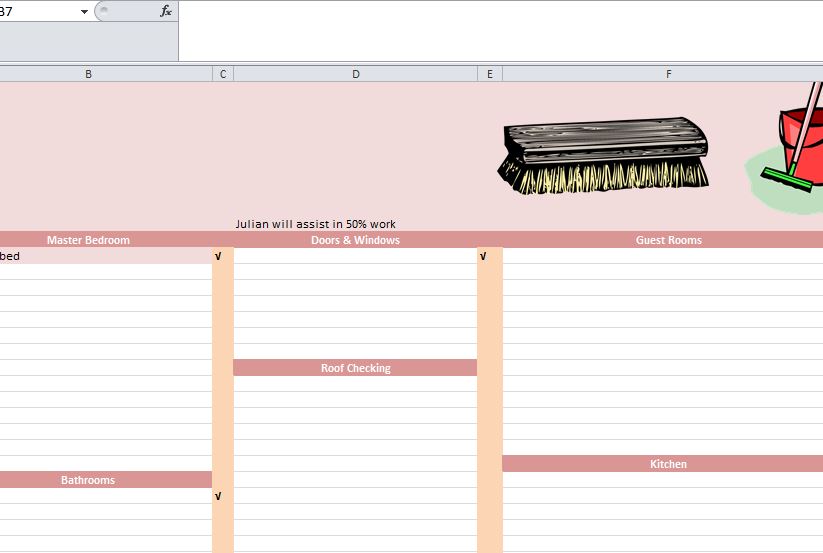 823×553 home maintenance checklist excel templates from myexceltemplates.com
  1372×970 home maintenance spreadsheet db excelcom from db-excel.com
  1600×1237 home maintenance schedule spreadsheet db excelcom from db-excel.com
 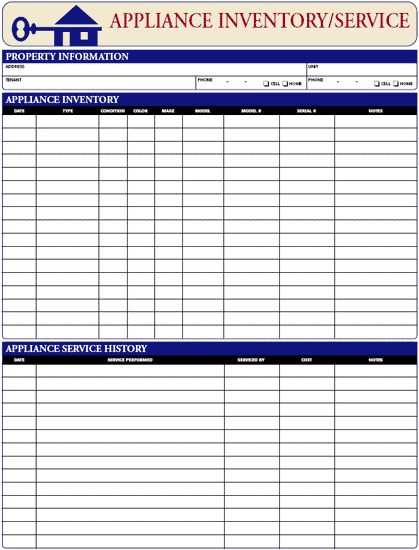 419×550 appliance inventoryservice log ez landlord forms from www.ezlandlordforms.com