
Free Recipe Template Excel With Ingredients And Instructions
Free Recipe Template Excel: Organize Your Culinary Creations
Are you a passionate home cook, a budding chef, or simply someone who loves to experiment in the kitchen? Keeping your recipes organized can be a challenge, especially when you’re constantly discovering new dishes and tweaking old favorites. A well-structured recipe template in Excel can be a game-changer, allowing you to easily store, search, and share your culinary masterpieces. This article explores the benefits of using an Excel recipe template and provides a comprehensive guide on how to create your own, complete with ingredients, instructions, and helpful tips.
Why Use an Excel Recipe Template?
While handwritten recipes have a certain charm, they can quickly become disorganized and difficult to manage. An Excel template offers numerous advantages:
- Organization: Excel allows you to structure your recipes with clear headings, categories, and consistent formatting. This makes it easy to find what you’re looking for, even with a large collection of recipes.
- Searchability: With Excel’s built-in search function, you can quickly locate recipes by ingredient, cuisine, dietary restriction, or any other keyword.
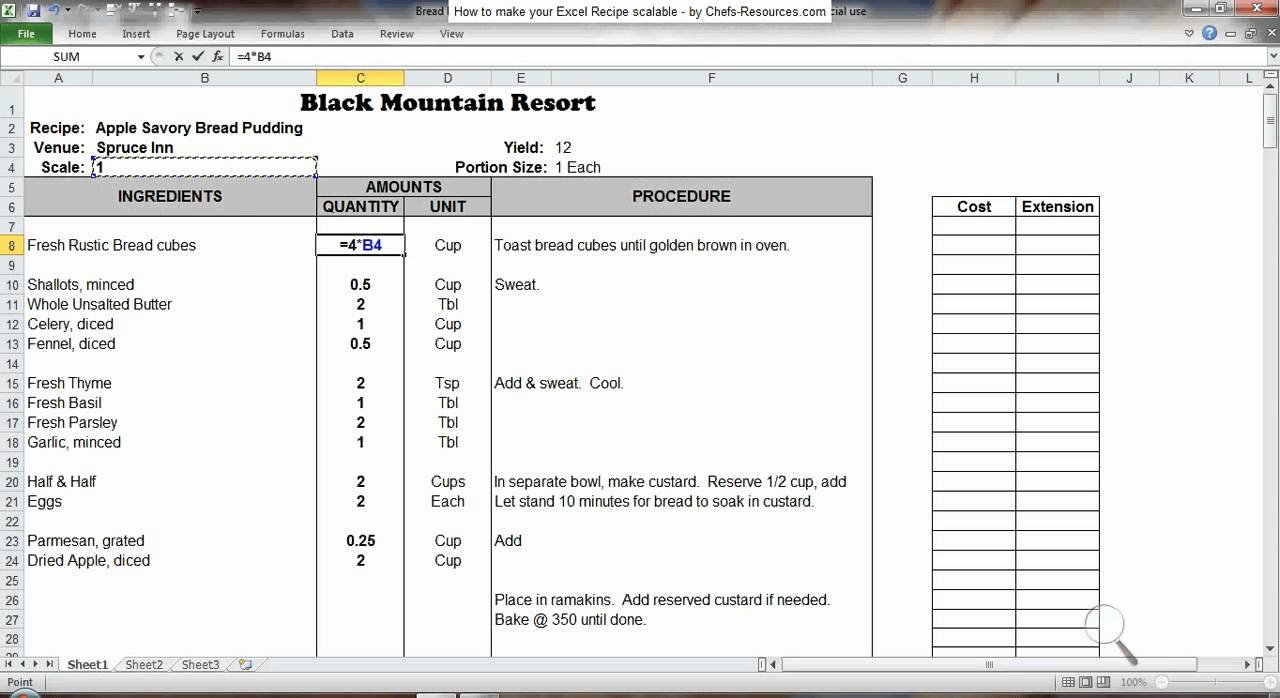
- Scalability: Easily adjust ingredient quantities based on the number of servings you need. Excel’s formulas make scaling recipes a breeze.
- Shareability: Easily share your recipes with friends and family via email or print them out for a physical cookbook.
- Customization: Tailor the template to your specific needs and preferences. Add columns for nutritional information, cooking time, difficulty level, or any other relevant data.
- Cost-Effective: Excel is widely accessible, and creating a basic recipe template requires no special software or expertise. Many free templates are available online as a starting point.
- Backup and Security: Store your recipes securely on your computer or in the cloud, protecting them from loss or damage.
Creating Your Own Recipe Template in Excel
Here’s a step-by-step guide to building your own recipe template in Excel:
- Open a New Excel Workbook: Start with a blank slate by opening a new workbook in Excel.
- Define the Columns: Determine the key information you want to include in your recipe template. Here are some essential columns to consider:
- Recipe Name: A descriptive name for the dish.
- Category: (e.g., Appetizer, Main Course, Dessert, Soup, Salad). This helps you categorize and filter recipes.
- Cuisine: (e.g., Italian, Mexican, Asian, American). This allows you to group recipes by cultural origin.
- Servings: The number of portions the recipe yields.
- Prep Time: The estimated time required to prepare the ingredients.
- Cook Time: The estimated time required to cook the dish.
- Total Time: The sum of prep time and cook time. You can use the formula `=SUM(E2:F2)` (assuming Prep Time is in column E and Cook Time is in column F) and drag it down for each row.
- Ingredients: A detailed list of all the ingredients needed.
- Instructions: Step-by-step instructions on how to prepare the dish.
- Notes: Any additional information, tips, or variations.
- Source: Where you found the recipe (e.g., cookbook, website, family member).
- Rating: A personal rating scale (e.g., 1-5 stars) to indicate how much you enjoyed the recipe.
- Image (Optional): A column to store a link to an image of the finished dish.
- Enter Column Headers: Type the column headers in the first row of your Excel sheet (e.g., A1: Recipe Name, B1: Category, C1: Cuisine, and so on).
- Format the Headers: Select the header row and format it to make it stand out. You can bold the text, change the font color, or add a background color.
- Adjust Column Widths: Adjust the column widths to accommodate the content. Double-click on the right edge of each column header to automatically fit the width to the longest entry.
- Create Drop-Down Lists (Optional): For columns like “Category” and “Cuisine,” create drop-down lists to ensure consistency and prevent typos.
- Select the column where you want to create the drop-down list (e.g., column B for “Category”).
- Go to the “Data” tab in the Excel ribbon.
- Click on “Data Validation.”
- In the “Settings” tab, select “List” from the “Allow” drop-down menu.
- In the “Source” field, enter the list of categories (e.g., Appetizer, Main Course, Dessert, Soup, Salad) separated by commas.
- Click “OK.”
- Format the Ingredients Column: The “Ingredients” column requires special attention. Instead of entering all ingredients in a single cell, consider these options:
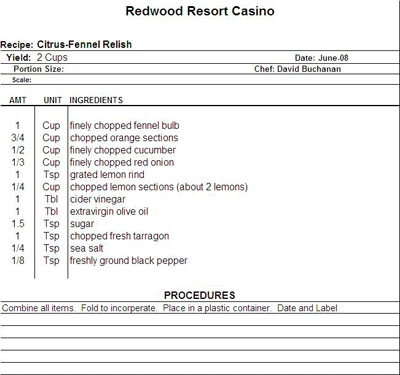
- One Ingredient Per Row: Dedicate one row per ingredient, with separate columns for quantity, unit (e.g., cup, tbsp, tsp), and ingredient name. This makes it easier to scale the recipe.
- Nested Lists: Use Alt+Enter within a cell to create line breaks, allowing you to list ingredients vertically within a single cell. This is less scalable but visually cleaner.
- Format the Instructions Column: Similar to ingredients, break down instructions into clear, concise steps. Use Alt+Enter to create line breaks within a cell for each step.
- Add Formulas: Use Excel formulas to automate calculations. For example, the “Total Time” column can calculate the sum of “Prep Time” and “Cook Time.” You can also use formulas to scale ingredient quantities based on the number of servings.
- Freeze Panes: Freeze the header row so it remains visible as you scroll down through your recipes.
- Select the row below the header row (e.g., row 2).
- Go to the “View” tab in the Excel ribbon.
- Click on “Freeze Panes” and select “Freeze Top Row.”
- Add Filters: Enable filters to easily sort and filter your recipes based on different criteria.
- Select the header row.
- Go to the “Data” tab in the Excel ribbon.
- Click on “Filter.”
- Save Your Template: Save your template as an Excel file (.xlsx) or as an Excel Template file (.xltx) to reuse it for future recipes.
Example Recipe Template Structure
Here’s an example of how your recipe template might look: | Recipe Name | Category | Cuisine | Servings | Prep Time (min) | Cook Time (min) | Total Time (min) | Ingredients | Instructions | Notes | Source | Rating | Image Link | |———————–|————-|———–|———-|—————–|—————–|——————|——————————————————————————|——————————————————————————————————-|————————————————-|——————–|——–|——————-| | Spaghetti Carbonara | Main Course | Italian | 4 | 10 | 20 | 30 | 1 lb spaghetti, 4 oz guanciale, 4 large eggs, 1 cup grated Pecorino Romano | 1. Cook spaghetti al dente. 2. Fry guanciale until crispy. 3. Whisk eggs and cheese. 4. Combine all. | Use pancetta if guanciale is unavailable. | Grandma’s recipe | 5 | [Image Link] | | Chocolate Chip Cookies| Dessert | American | 24 | 15 | 12 | 27 | 1 cup butter, 1 cup sugar, 2 eggs, 2 cups flour, 1 tsp baking soda, chocolate chips | 1. Cream butter and sugar. 2. Add eggs. 3. Mix dry ingredients. 4. Add chocolate chips. 5. Bake at 375F. | Chill dough for 30 minutes before baking. | Joy of Cooking | 4 | [Image Link] |
Tips for Using Your Recipe Template
- Be Consistent: Use consistent formatting and terminology throughout your recipe collection.
- Be Detailed: Provide as much detail as possible in your ingredients and instructions.
- Use Measurements: Include precise measurements for all ingredients.
- Proofread Carefully: Check your recipes for typos and errors.
- Regularly Back Up: Back up your recipe template to prevent data loss.
- Utilize Excel Features: Explore Excel’s features like conditional formatting, data validation, and formulas to enhance your template.
- Adapt and Improve: Continuously refine your template as you discover new ways to organize and manage your recipes.
Finding Free Recipe Templates Online
If you don’t want to create your own template from scratch, numerous free recipe templates are available online. Search for “free recipe template excel” on Google or other search engines. Websites like Microsoft Office Templates, Vertex42, and Smartsheet offer a variety of templates that you can download and customize to your liking. Remember to review the terms of use before downloading any template.
Conclusion
An Excel recipe template is a powerful tool for organizing and managing your culinary creations. By following the steps outlined in this article, you can create a customized template that meets your specific needs. Whether you’re a seasoned chef or a beginner cook, a well-structured recipe template will help you stay organized, find your favorite dishes quickly, and share your culinary passion with others. So, fire up Excel and start building your own digital cookbook today!
 1280×698 excel recipe template from www.peterainsworth.com
  697×709 excel recipe template excel templates excel templates from www.exceltemplate123.us
  1164×662 recipe excel template excel templates excel templates from www.exceltemplate123.us
  2329×1527 recipe template excel excel templates from www.exceltemplate123.us
  400×375 excel recipe template chefs chefs resources from www.chefs-resources.com
 Related For Free Recipe Template Excel With Ingredients And Instructions
How To Make A Template On Excel
If you are looking for How To Make AMonthly Budget Template Excel 2007
If you are looking for Monthly Budget Template ExcelMonthly Cash Flow Template Excel
If you are looking for Monthly Cash Flow Template