
Free Donation Tracker For Nonprofit Excel Spreadsheet
For nonprofit organizations, meticulous financial management is paramount. Tracking donations accurately and efficiently is not just good practice; it’s essential for maintaining transparency, complying with regulations, and building trust with donors. While sophisticated accounting software exists, it often comes with a hefty price tag, making it inaccessible for smaller nonprofits operating on tight budgets. Fortunately, a free donation tracker in Excel can provide a robust and cost-effective solution.
Why Excel for Donation Tracking?
Excel, a widely available and familiar software, offers several advantages for donation tracking:
- Cost-Effectiveness: The primary benefit is that it’s often already part of a standard office software suite, eliminating the need for additional purchases.
- Customizability: Excel allows for highly customizable spreadsheets, enabling nonprofits to tailor the tracking system to their specific needs and reporting requirements.
- Ease of Use: Most people have at least a basic understanding of Excel, making it easier to implement and maintain compared to specialized software that requires training.
- Data Analysis: Excel provides powerful tools for analyzing donation data, such as generating reports, creating charts, and identifying trends.
- Accessibility: Excel files can be easily shared and collaborated on, facilitating teamwork and ensuring data transparency.
Key Components of a Free Donation Tracker Excel Spreadsheet:
A well-designed donation tracker spreadsheet should include the following key elements to capture comprehensive information:
- Donor Information:
- Donor ID: A unique identifier for each donor (can be numerical or alphanumeric). This helps to avoid duplicates and maintain accurate records.
- Donor Name: Full name of the donor (individual or organization).
- Contact Information: Address, phone number, and email address for communication and acknowledgment purposes.
- Donor Type: Categorize donors (e.g., individual, corporate, foundation, government). This allows for targeted fundraising efforts.
- Notes: Any relevant information about the donor, such as their preferred communication method, past giving history, or interests.
- Donation Details:
- Date of Donation: The date the donation was received.
- Donation Amount: The value of the donation (in the relevant currency).
- Donation Type: Specify the type of donation (e.g., cash, check, credit card, in-kind donation, stock).
- Designation/Fund: Indicate which program or fund the donation is intended for (e.g., general operating fund, scholarship fund, specific project).
- Payment Method: How the donation was paid (e.g., online, mailed check, in-person).
- Check Number/Transaction ID: Record the relevant transaction identifier for verification and reconciliation.
- Acknowledgment Sent: A flag (Yes/No) to indicate whether an acknowledgment letter/receipt has been sent to the donor.
- Acknowledgment Date: The date the acknowledgment was sent.
- Fair Market Value (For In-Kind Donations): Essential for tax purposes, accurately determine the fair market value of donated goods or services.
- Campaign Information:
- Campaign Name: Identify the fundraising campaign to which the donation is attributed (e.g., annual fundraising drive, capital campaign, holiday appeal).
- Campaign Source: Track how the donor learned about the campaign (e.g., email, social media, website, event). This helps evaluate the effectiveness of different outreach strategies.
Designing Your Free Donation Tracker Spreadsheet:
Here’s a step-by-step guide to creating your own donation tracker in Excel:
- Create Column Headers: In the first row of your spreadsheet, enter the column headers based on the key components listed above (Donor ID, Donor Name, Date of Donation, Donation Amount, etc.).
- Format Data Types: Format the columns appropriately. For example, format the ‘Date of Donation’ column as a date, the ‘Donation Amount’ column as currency, and the ‘Acknowledgment Sent’ column as a Yes/No dropdown.
- Data Validation: Use data validation to ensure data accuracy and consistency. For example, create a dropdown list for ‘Donation Type’ with predefined options (cash, check, credit card, etc.).
- Sorting and Filtering: Utilize Excel’s sorting and filtering capabilities to easily organize and analyze your donation data. You can sort by date, donor name, donation amount, or any other relevant criteria. Filtering allows you to isolate specific subsets of data, such as donations from a particular campaign or donations exceeding a certain amount.
- Formulas and Functions: Employ formulas to automate calculations, such as:
- SUM: Calculate the total donation amount for a specific period or campaign.
- COUNTIF/COUNTIFS: Count the number of donations of a particular type or from a specific donor.
- AVERAGE: Calculate the average donation amount.
- Conditional Formatting: Use conditional formatting to highlight important data points. For example, you can highlight donations that haven’t been acknowledged or donations exceeding a certain threshold.
- Create Reports and Charts: Leverage Excel’s charting tools to visualize your donation data and create insightful reports. Common charts include pie charts showing donation type distribution, bar charts comparing donations across different campaigns, and line graphs tracking donation trends over time.
- Protect Your Spreadsheet: Consider password-protecting your spreadsheet to prevent unauthorized access and modifications.
Best Practices for Maintaining Your Donation Tracker:
To ensure the accuracy and effectiveness of your donation tracker, follow these best practices:
- Regularly Update Your Spreadsheet: Enter donation information promptly and accurately. Set aside dedicated time each week or month to update the spreadsheet.
- Maintain Data Integrity: Double-check all entries for accuracy and consistency. Implement data validation rules to minimize errors.
- Backup Your Spreadsheet: Regularly back up your spreadsheet to prevent data loss due to hardware failures or accidental deletions. Use cloud storage or external hard drives for backups.
- Standardize Data Entry: Establish clear guidelines for data entry to ensure consistency across all records.
- Train Staff/Volunteers: Provide training to anyone who will be using the spreadsheet to ensure they understand how to enter data correctly and generate reports.
- Review and Update Your Spreadsheet: Periodically review your spreadsheet to ensure it continues to meet your organization’s needs. Update the spreadsheet as your fundraising strategies and reporting requirements evolve.
- Comply with Privacy Regulations: Be mindful of donor privacy regulations (e.g., GDPR, CCPA) and ensure your donation tracker complies with these requirements. Obtain consent for collecting and using donor information.
Limitations of a Free Excel Donation Tracker:
While a free Excel donation tracker is a valuable tool for many nonprofits, it has limitations:
- Manual Data Entry: Requires manual data entry, which can be time-consuming and prone to errors.
- Limited Automation: Lacks the automated features of dedicated accounting software, such as automatic receipt generation and integration with payment processors.
- Scalability: May become difficult to manage as the organization grows and the volume of donations increases.
- Security: Excel spreadsheets are generally less secure than dedicated databases, making them vulnerable to data breaches.
- Reporting Limitations: While Excel offers reporting capabilities, they may not be as comprehensive or customizable as those offered by specialized software.
When to Consider Upgrading to Dedicated Software:
If your nonprofit experiences significant growth or requires more advanced features, consider upgrading to dedicated donation management software. Factors to consider include:
- Increasing Donation Volume: When the volume of donations becomes too large to manage efficiently in Excel.
- Complex Reporting Requirements: When you need to generate more sophisticated reports that Excel cannot provide.
- Need for Automation: When you want to automate tasks such as receipt generation, data entry, and email communication.
- Integration with Other Systems: When you need to integrate your donation tracker with other systems, such as your CRM or accounting software.
- Enhanced Security: When you require a more secure and reliable data storage solution.
Conclusion:
A free donation tracker in Excel is a practical and cost-effective solution for nonprofit organizations, particularly those with limited resources. By carefully designing your spreadsheet, adhering to best practices, and regularly maintaining your data, you can effectively track donations, generate valuable reports, and ensure compliance with regulations. While Excel has limitations, it can serve as a powerful tool for managing your fundraising efforts, especially in the early stages of your organization’s growth. As your nonprofit expands and your needs become more complex, evaluate whether upgrading to dedicated donation management software would provide greater efficiency, automation, and security.
 749×970 donation tracker spreadsheet template db excelcom from db-excel.com
  1224×1584 donation tracking spreadsheet fundraiser tracking spreadsheet from db-excel.com
  1024×554 donation tracking spreadsheet db excelcom from db-excel.com
  1440×870 donor tracking spreadsheet fundraiser tracking spreadsheet from db-excel.com
  715×970 donation tracking spreadsheet professional donation from db-excel.com
  768×581 donor tracking spreadsheet donation tracking spreadsheet donation from db-excel.com
  750×970 excel charitable donation spreadsheet db excelcom from db-excel.com
  1426×784 donation tracking spreadsheet google spreadshee donation tracking from db-excel.com
  729×562 donation tracker template ms excel sample from www.wordexceltemplates.com
 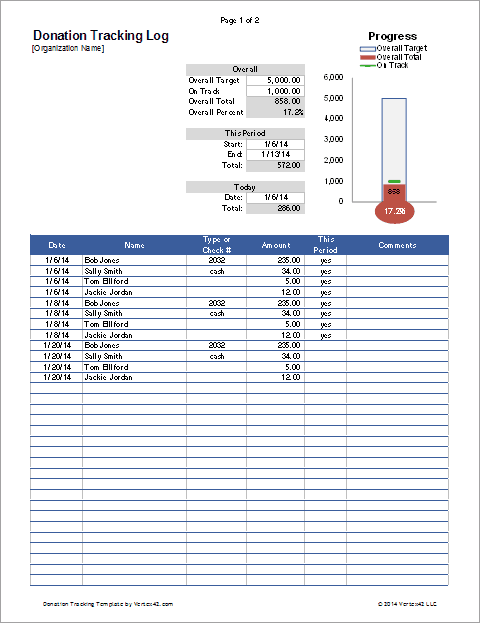 480×623 donation tracker excel thermometer chart from www.vertex42.com
  675×520 donation tracker excel template flyer template from aflyertemplate.blogspot.com