
Downloadable Vehicle Expense Log Excel Spreadsheet
Keeping track of vehicle expenses is crucial for anyone who owns or operates a vehicle, whether for personal or business use. Understanding where your money is going in terms of fuel, maintenance, repairs, and other related costs can help you budget effectively, identify areas for potential savings, and make informed decisions about your vehicle. While there are numerous apps and software solutions available for this purpose, a simple and customizable Excel spreadsheet can be a powerful and practical tool.
Benefits of Using an Excel Vehicle Expense Log
- Cost-Effectiveness: Excel is often already installed on computers, eliminating the need to purchase specialized software or pay for subscription fees.
- Customization: Spreadsheets are highly customizable. You can tailor the columns, formulas, and formatting to suit your specific needs and track the expenses that are most relevant to you.
- Data Ownership: You retain complete control over your data. It’s stored locally on your computer, eliminating concerns about data security or privacy breaches associated with cloud-based services.
- Offline Access: You can access and update your expense log even without an internet connection. This is particularly useful when you’re on the road or in areas with limited connectivity.
- Familiarity: Many people are already familiar with Excel’s interface and functionality, making it easy to learn and use.
- Reporting and Analysis: Excel provides built-in tools for creating charts, graphs, and reports, allowing you to analyze your spending patterns and identify trends.
- Printable Reports: You can easily print out expense reports for tax purposes, reimbursement claims, or other documentation requirements.
Key Components of a Vehicle Expense Log Excel Spreadsheet
A well-designed vehicle expense log should include the following key components:
Basic Information:
- Date: The date the expense was incurred.
- Vehicle: If you have multiple vehicles, this column identifies the vehicle associated with the expense.
- Description: A brief explanation of the expense (e.g., “Oil change,” “Gas fill-up,” “Tire rotation”).
- Category: Categorize the expense for analysis and reporting (e.g., “Fuel,” “Maintenance,” “Repairs,” “Insurance,” “Registration,” “Tolls”).
Financial Information:
- Amount: The cost of the expense.
- Payment Method: How the expense was paid (e.g., “Cash,” “Credit Card,” “Debit Card”). This can be helpful for reconciling your bank statements.
- Odometer Reading: The vehicle’s odometer reading at the time of the expense. This is particularly important for tracking fuel efficiency and maintenance intervals.
Fuel-Specific Information (Optional but Recommended):
- Gallons/Liters: The quantity of fuel purchased.
- Price per Gallon/Liter: The unit price of the fuel.
- Location: The gas station where the fuel was purchased (optional, but useful for tracking price variations).
Additional Information (Optional):
- Notes: Any additional details about the expense, such as the mechanic’s name, the specific service performed, or any unusual circumstances.
- Receipt Number: The reference number from the receipt (helpful for auditing purposes).
- Tax Deductible: A checkbox or field to indicate whether the expense is tax-deductible (consult with a tax professional for guidance).
Creating Your Own Vehicle Expense Log Spreadsheet
Here’s a step-by-step guide to creating your own vehicle expense log spreadsheet in Excel:
- Open Excel: Launch Microsoft Excel on your computer.
- Create a New Worksheet: Create a blank worksheet.
- Enter Column Headers: In the first row of the worksheet, enter the column headers listed above (Date, Vehicle, Description, Category, Amount, Payment Method, Odometer Reading, Gallons/Liters, Price per Gallon/Liter, Location, Notes, Receipt Number, Tax Deductible). Adjust the columns based on your specific requirements.
- Format the Columns: Format the columns appropriately.
- Date: Format the “Date” column as a date (e.g., MM/DD/YYYY).
- Amount and Price per Gallon/Liter: Format the “Amount” and “Price per Gallon/Liter” columns as currency (e.g., $#,##0.00).
- Odometer Reading and Gallons/Liters: Format the “Odometer Reading” and “Gallons/Liters” columns as numbers.
- Tax Deductible: Format the “Tax Deductible” column as a checkbox or a “Yes/No” dropdown.
- Add Data Validation (Optional but Recommended):
- Category: To ensure consistency, create a dropdown list for the “Category” column. Select the “Category” column, go to the “Data” tab, click “Data Validation,” and choose “List” from the “Allow” dropdown. Enter the list of categories (e.g., Fuel, Maintenance, Repairs, Insurance, Registration, Tolls) separated by commas.
- Payment Method: Similarly, create a dropdown list for the “Payment Method” column (e.g., Cash, Credit Card, Debit Card).
- Enter Your Data: Start entering your vehicle expense data into the spreadsheet. Be as accurate and detailed as possible.
- Add Formulas for Calculations (Optional but Recommended):
- Total Fuel Cost: If you want to automatically calculate the total cost of fuel for each entry, create a new column called “Total Fuel Cost” and enter the formula `=Gallons/Liters*Price per Gallon/Liter` (replace “Gallons/Liters” and “Price per Gallon/Liter” with the actual column names).
- Total Expenses: At the bottom of each column (e.g., “Amount”), use the `SUM` function to calculate the total expenses for that category (e.g., `=SUM(E2:E1000)` if the “Amount” column starts in row 2 and you anticipate having up to 1000 entries).
- Create Charts and Graphs (Optional): Use Excel’s charting tools to visualize your data. For example, you can create a pie chart to show the breakdown of your expenses by category, or a line graph to track your fuel efficiency over time. Select the data you want to chart, go to the “Insert” tab, and choose the chart type you want.
- Save Your Spreadsheet: Save your spreadsheet with a descriptive name (e.g., “Vehicle Expense Log 2023”). Back up your spreadsheet regularly to prevent data loss.
Enhancements and Advanced Features
Once you’ve created a basic vehicle expense log, you can enhance it with advanced features:
- Conditional Formatting: Use conditional formatting to highlight expenses that exceed a certain threshold (e.g., highlight expenses over $100 in red).
- Pivot Tables: Use pivot tables to summarize and analyze your data in different ways. For example, you can create a pivot table to show the total expenses for each vehicle, by category, and by month.
- Macros: Create macros to automate repetitive tasks, such as importing data from other sources or generating reports.
- Linking to Other Spreadsheets: Link your vehicle expense log to other spreadsheets, such as your budget spreadsheet or your tax preparation spreadsheet.
- Online Collaboration: Store your spreadsheet on a cloud storage service like OneDrive or Google Drive to collaborate with others in real-time.
Downloadable Templates
If you don’t want to create your own spreadsheet from scratch, you can download a pre-made vehicle expense log template from various online sources. Look for templates that are customizable and include the key components mentioned above. Be sure to review the template carefully before using it to ensure it meets your specific needs.
Some reputable sources for downloadable Excel templates include:
- Microsoft Office Templates: Microsoft offers a variety of free Excel templates, including vehicle expense logs.
- Vertex42: Vertex42 provides a wide range of spreadsheet templates, including expense trackers and budget planners.
- Spreadsheet123: Spreadsheet123 offers a variety of free and premium Excel templates.
Conclusion
A downloadable vehicle expense log Excel spreadsheet is a valuable tool for managing your vehicle expenses effectively. By tracking your spending, you can gain insights into your driving habits, identify areas for savings, and make informed decisions about your vehicle. Whether you create your own spreadsheet or download a pre-made template, taking the time to track your expenses will pay off in the long run.
 1200×928 vehicle fuel log spreadsheet intended mileage form template excel from db-excel.com
  768×480 vehicle fleet management spreadsheet intended vehicle log from db-excel.com
  400×410 vehicle expense log book from www.mileage-log.com
  768×432 car expenses excel spreadsheet intended business expense tracking from db-excel.com
  474×253 car expenses excel spreadsheet car expense tracker tool teambhp db from db-excel.com
  1277×1652 annual expenses spreadsheet regard spreadsheet truck driver from db-excel.com
  366×240 vehicle expense logs word excel templates from www.wordexcelsample.com
  450×348 vehicle mileage log expense form from www.samplewords.com
  768×994 spreadsheet smartsheet trucking expenses spreadsheet from db-excel.com
  768×593 car expenses excel spreadsheet excel spreadsheet accounting from db-excel.com
  1804×1409 form templates mileage spreadsheet taxes car log book from db-excel.com
  400×309 printable vehicle expense calculator from www.samplewords.com
  474×266 excel vehicle expense tracker part workbook from www.excelforfreelancers.com
  1815×622 vehicle log book excel template business web space from www.mybusinesswebspace.com
 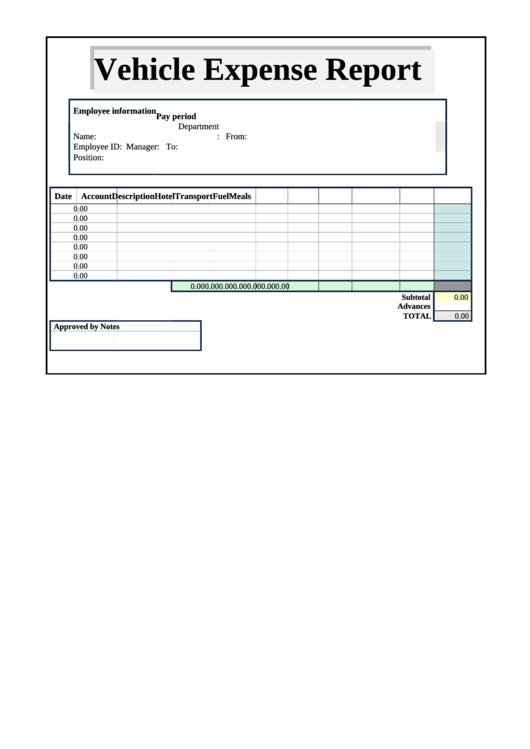 530×749 vehicle expense report template printable from www.formsbank.com
  600×460 expense log templates word excel formats from www.sampleformats.org
  2320×3036 ms excel vehicle service record log template excel templates from www.exceltemplate123.us
  3508×2480 vehicle expense tracker manage car expenses easily from www.gofar.co