
How To Build Personal Budget Forecast In Excel
“`html
Building a Personal Budget Forecast in Excel
Creating a personal budget forecast in Excel is a powerful way to gain control over your finances, anticipate future spending, and achieve your financial goals. This guide provides a step-by-step approach to building a comprehensive budget forecast, enabling you to make informed financial decisions.
1. Setting Up Your Excel Spreadsheet
Start by opening a new Excel workbook. The first step is to structure your spreadsheet for clarity and ease of use. Consider these key elements:
- Row Labels: Use rows to represent different categories of income and expenses.
- Column Headers: Dedicate columns to represent different time periods, typically months (January, February, March, etc.) or quarters (Q1, Q2, Q3, Q4) of the year. You can also include a column for “Actuals” to track your current spending against your forecast.
- Color Coding: Implement color coding to visually distinguish between income, expenses, and calculated values like savings or surplus/deficit. For example, green for income, red for expenses, and blue for totals.
2. Listing Your Income Sources
Begin by listing all sources of income. This could include:
- Salary/Wages: Your primary source of income. If you receive regular raises, factor them into future months.
- Freelance Income: Include any income from freelance work or side hustles. Estimate based on historical data and expected projects.
- Investment Income: Dividends, interest, and capital gains from investments.
- Rental Income: Income from rental properties.
- Other Income: Any other sources of income, such as alimony, child support, or government benefits.
For each income source, input the expected amount for each month or quarter. If your income varies, use an average or a conservative estimate. It’s always better to underestimate income than to overestimate it.
3. Categorizing Your Expenses
Categorizing your expenses is crucial for understanding where your money goes. Common expense categories include:
- Housing: Rent or mortgage payments, property taxes, homeowners insurance, and utilities.
- Transportation: Car payments, gas, insurance, maintenance, public transportation costs.
- Food: Groceries, eating out, and snacks.
- Utilities: Electricity, gas, water, internet, and phone bills.
- Healthcare: Health insurance premiums, doctor visits, prescriptions, and other medical expenses.
- Insurance: Life insurance, auto insurance, and homeowners/renters insurance.
- Debt Payments: Credit card bills, student loans, and personal loans.
- Personal Care: Haircuts, toiletries, and other personal grooming expenses.
- Entertainment: Movies, concerts, sporting events, and other leisure activities.
- Travel: Vacation expenses, including airfare, accommodation, and activities.
- Savings: Contributions to retirement accounts, emergency funds, and other savings goals.
- Gifts & Donations: Expenses for gifts and charitable donations.
- Miscellaneous: Unexpected expenses and other small purchases.
Within each category, break down expenses into fixed and variable costs:
- Fixed Expenses: Expenses that remain relatively constant each month, such as rent, mortgage payments, and insurance premiums.
- Variable Expenses: Expenses that fluctuate each month, such as groceries, gas, and entertainment.
For fixed expenses, simply enter the known amount for each month. For variable expenses, estimate based on past spending habits and anticipated changes. Review your bank statements and credit card bills to get a clear picture of your spending patterns.
4. Using Excel Formulas for Calculations
Excel formulas are essential for automating calculations and creating a dynamic budget forecast. Here are some key formulas to use:
- SUM: To calculate the total income or total expenses for each month or quarter. For example, `=SUM(B2:B5)` calculates the sum of cells B2 to B5.
- SUBTRACT: To calculate your net income (income minus expenses). For example, `=B6-B15` subtracts total expenses in cell B15 from total income in cell B6.
- IF: To create conditional statements. For example, `=IF(B7>0,”Surplus”,”Deficit”)` will display “Surplus” if net income (cell B7) is greater than 0, and “Deficit” otherwise.
- AVERAGE: To calculate the average of a range of numbers. This can be useful for estimating variable expenses. For example, `=AVERAGE(C2:E2)` calculates the average of cells C2 to E2.
Example Formulas:
- Total Income (Monthly): In a row labeled “Total Income,” use the SUM function to add up all income sources for each month.
- Total Expenses (Monthly): Similarly, use the SUM function to add up all expense categories for each month.
- Net Income (Monthly): Subtract the total expenses from the total income for each month. This will show your surplus or deficit.
- Cumulative Savings: Calculate cumulative savings by adding each month’s net income to the previous month’s cumulative savings. Use a formula like `=B16+C16`, where B16 is the previous month’s cumulative savings and C16 is the current month’s net income.
5. Incorporating Savings Goals
Your budget forecast should actively include your savings goals. Create separate rows for different savings categories, such as:
- Emergency Fund: Aim to save 3-6 months’ worth of living expenses.
- Retirement: Contribute to retirement accounts like 401(k)s or IRAs.
- Down Payment: Save for a down payment on a house or car.
- Other Goals: Save for travel, education, or other specific goals.
Allocate a specific amount to each savings category each month. Treat these savings contributions as a non-negotiable expense. Adjust other expense categories if needed to ensure you meet your savings goals.
6. Analyzing and Adjusting Your Forecast
Once your budget forecast is set up, analyze the results. Are you meeting your savings goals? Are you spending more than you earn in any given month? Identify areas where you can make adjustments.
- Reduce Expenses: Look for areas where you can cut back on spending, such as eating out less frequently, reducing entertainment expenses, or finding cheaper alternatives for transportation or utilities.
- Increase Income: Explore ways to increase your income, such as taking on a side hustle, asking for a raise, or selling unwanted items.
- Reallocate Funds: If you’re overspending in one category, consider reallocating funds from another category.
Regularly review and adjust your budget forecast as your circumstances change. Life events like a job change, a new baby, or unexpected expenses may require significant adjustments to your budget.
7. Tracking Actual Spending vs. Forecast
The final step is to track your actual spending against your forecast. Create a column for “Actuals” for each expense category. At the end of each month, compare your actual spending to your budgeted amount. This will help you identify areas where you’re overspending or underspending.
Use conditional formatting to highlight variances between your actual spending and your forecast. For example, you can set up a rule that highlights cells in red if you’re over budget and in green if you’re under budget.
By consistently tracking your actual spending and comparing it to your forecast, you can identify trends, make necessary adjustments, and stay on track to achieve your financial goals.
8. Visualization and Reporting
Enhance your budget forecast by creating charts and graphs to visualize your income, expenses, and savings over time. Excel offers various chart types, such as:
- Line Charts: To track trends in income, expenses, and savings over time.
- Pie Charts: To visualize the distribution of expenses across different categories.
- Bar Charts: To compare income and expenses for different months or quarters.
Create a dashboard that summarizes key metrics, such as total income, total expenses, net income, and savings rate. This dashboard will provide a quick overview of your financial health and help you make informed decisions.
Conclusion
Building a personal budget forecast in Excel is a valuable skill that can empower you to take control of your finances. By following these steps, you can create a comprehensive budget forecast that helps you track your income, expenses, and savings, make informed financial decisions, and achieve your financial goals. Remember to regularly review and adjust your budget as your circumstances change, and don’t be afraid to experiment with different strategies to find what works best for you.
“`
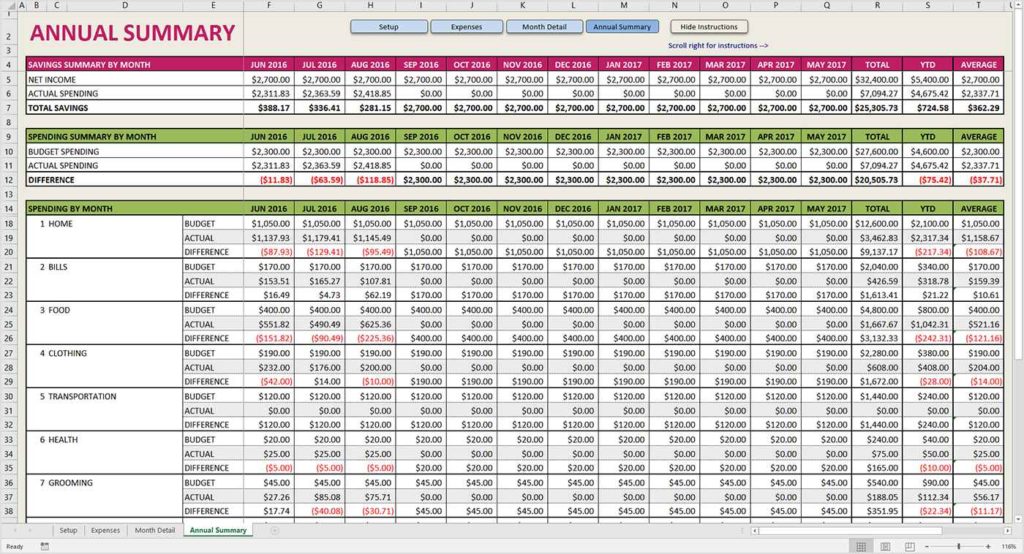 1024×554 sample budget forecast spreadsheet db excelcom from db-excel.com
  768×464 budget forecast spreadsheet db excelcom from db-excel.com
  1650×1275 budget forecast excel spreadsheet spreadsheet downloa budget forecast from db-excel.com
  768×464 budget forecast excel spreadsheet db excelcom from db-excel.com
  931×620 excel budget forecast template excel templates from www.exceltemplate123.us
  1487×827 budget forecast excel template eloquens from www.eloquens.com
  917×717 forecast budget builder excel screenshots from www.softpedia.com
  1024×768 personal budget excel pictures wikihow from www.wikihow.com